70
Changing the Setting menu
Language setting (cont’d)
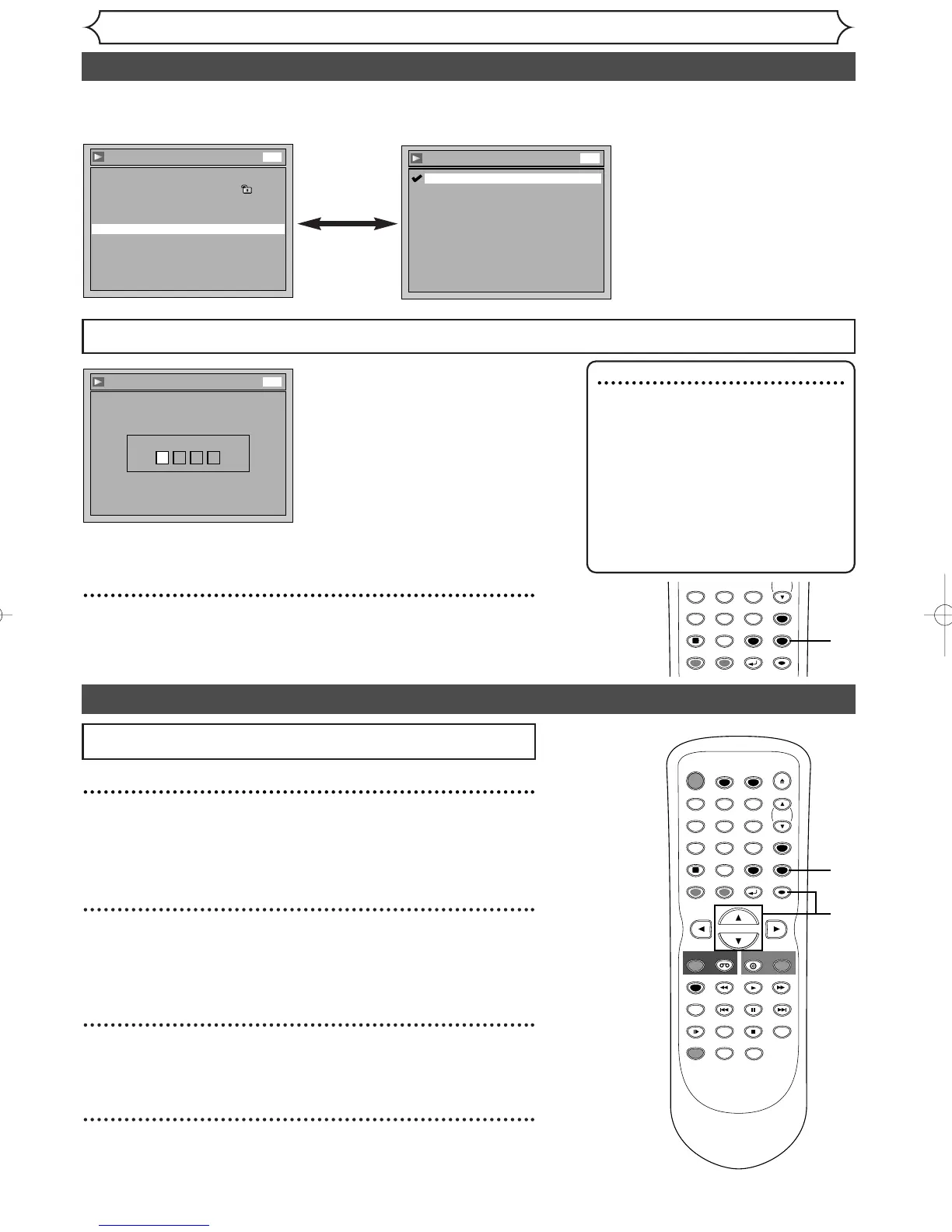
If “Other” is selected, enter 4-digit code using the Number buttons.
•
When you finish entering
the code, hit [ENTER].
Refer to the language
code table on page 82.
5
Hit [SETUP] to exit.
Note
• Only the languages supported by
the disc can be selected.
• Audio Language setting may not be
available on some discs.
•You can also change or switch off
the subtitles on a DVD disc also
from the disc menu if it is available.
•Press [CLEAR] or [s] to erase
numbers entered incorrectly.
Display setting
1
Hit [SETUP].
Easy Setting Menu or Advanced Setting Menu will appear.
If Advanced Setting Menu is displayed, proceed to step 3.
2
Using [K / L], select “Advanced Setting Menu”. Hit
[ENTER].
Advanced Setting Menu will appear.
3
Using [K / L], select “Display”. Hit [ENTER].
Option window will appear.
4
Using [K / L], select a desired item. Hit [ENTER].
Hit [STOP C] if you are playing back a disc.
• Using [K / L], select a lan-
guage. Hit [ENTER].
Your setting will be activated.
Subtitle Language (Default : OFF)
Set the Subtitle language.
TIMER PROG.


 To Next Page