55
Editing
Recording
Playing discs Editing
Before you start
Connections Getting started
Changing the Setting menu
VCR functions Others Español
Editing discs in Video mode (cont’d)
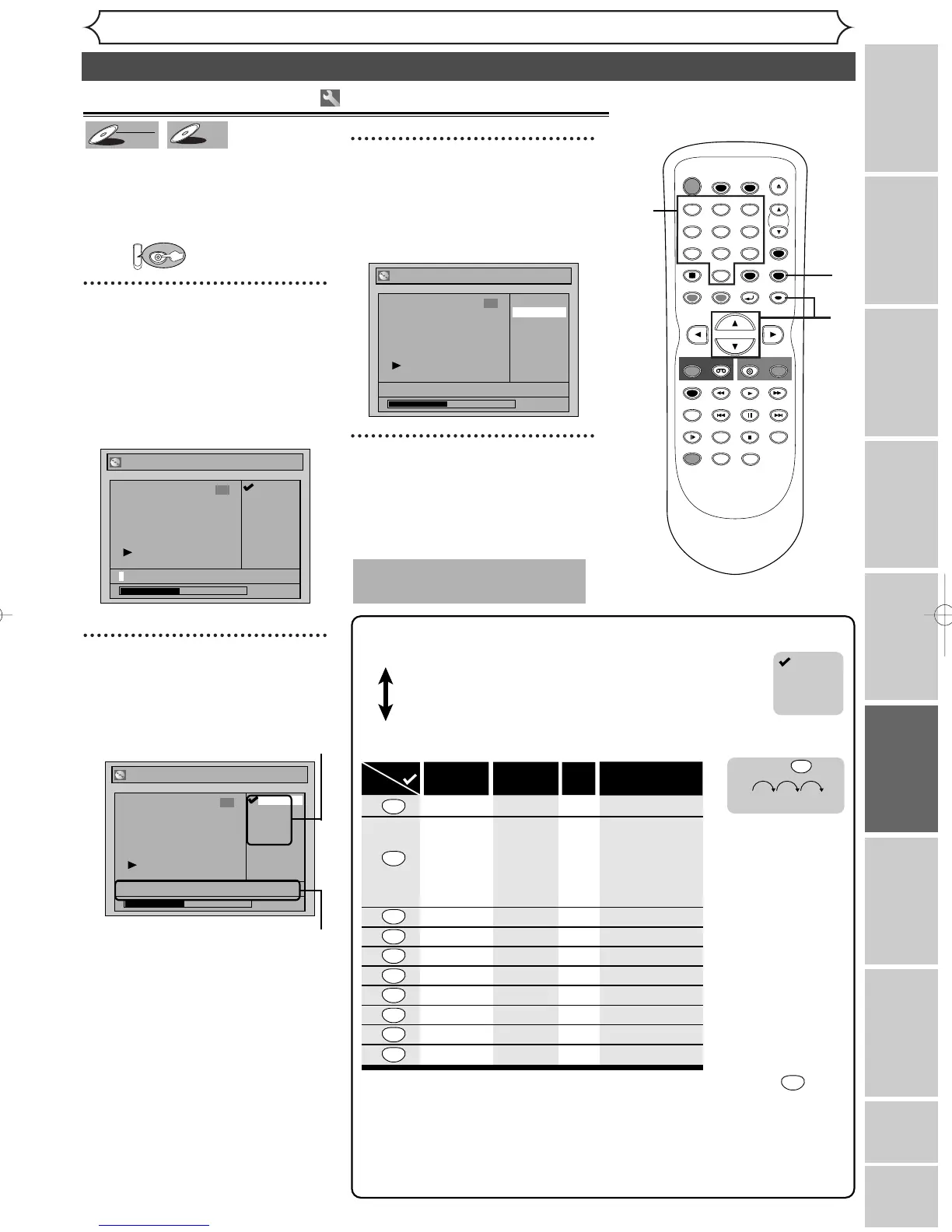
You can name titles and change
the names from this menu.
The names you put on the titles
will be displayed on a titlelist.
First:
1
Follow steps 1 to 3 on page 54 to
display the Edit menu.
Using [K / L
]
, select “Edit
Title Name”. Hit [ENTER].
A window for entering a title
name will appear.
2
To enter a title name, follow
the steps of “Guide to edit
title name” on this page.
character set
area for entering title names
When you finish entering a title
name, hit [ENTER].
Confirm window will appear.
3
Using [K / L
]
, select “Yes”.
Hit [ENTER].
The name you entered will be
activated.
4
After this operation is com-
pleted, hit [SETUP] to exit.
Writing the data on the disc will
start momentarily.
This operation may take a
while to be completed.
Press
ABC
DEF
GHI
JKL
MNO
PQRS
TUV
WXYZ
<space>
abc
def
ghi
jkl
mno
pqrs
tuv
wxyz
<space> <space>
! ” # $ % & ’ ( )
*
+ , - . / : ; < = >
? @ [ ] ^ _ { | }
2
3
4
5
6
7
8
9
0
1
ABC
abc
Select
@ ! ?
123
1
2
3
4
5
6
7
8
9
0
[
Step1
]
:
[
Step2
]
: Follow the list below, press the Number buttons repeatedly until the
desired letter appears.
Select a desired character set using [K
/
L], then
hit [ENTER].
[
Guide to edit title name
]
A B C
a b c
1 2 3
@ ! ?
• To
delete letters, hit [CLEAR] repeatedly. Hold [CLEAR] to delete all letters.
• To go on to the next entering area for letters, hit
[
B
]
.
• You can enter up to 30 letters.
––
–
–
–
–
–
–
–
–
e.g. character set : A B C
A B C A
...
press
2
Note:
Undefined letters in a
title name are shown
by “
*
”. If you delete
them, adjoining letters
may change to “
*
” or
other.
• Character set will be changed to the “ @
!?
” automatically if you hit after
you selected the “ABC” or “abc” mode.
•
If you want to mix different character sets in one title, repeat Step [1] and [2] above.
1
TIMER PROG.


 To Next Page