Digital Out
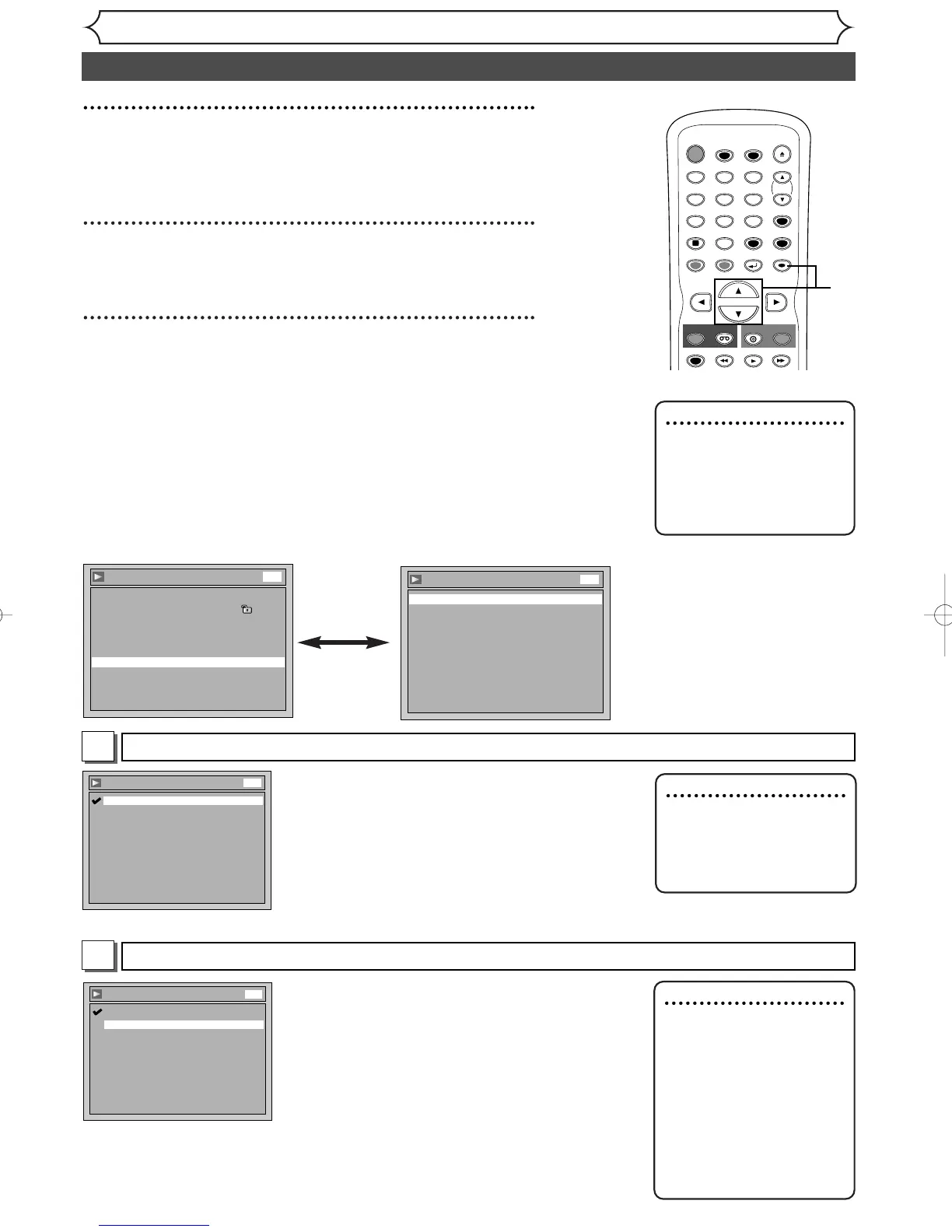
Set the digital audio output.
• Using [K / L], select a set-
ting. Hit [ENTER].
Option window will appear.
Proceed to steps A or B.
Settings for Dolby Digital (Default : Stream)
Settings for PCM (Default : 48kHz)
• Using [K / L], select a setting. Hit
[ENTER].
Your setting will be activated.
48kHz : If your amplifier/decoder is NOT com-
patible with 96kHz PCM, select “48kHz”.
96kHz sound will be output in 48kHz.
96kHz : If your amplifier/decoder is compatible
with 96kHz PCM, select “96kHz”. 96kHz
sound will be output.
Note
When playing back disc
with copyright protection
•Even if you select “96kHz”,
the sound will be down
sampled at 48kHz.
• Using [K / L], select a setting. Hit
[ENTER].
Your setting will be activated.
PCM : Convert the Dolby Digital into PCM
(2 channel).
When your amplifier/decoder is NOT com-
patible with Dolby Digital, set to “PCM”.
Stream : Outputs Dolby Digital signals.
When your amplifier/decoder is compati-
ble with Dolby Digital, set to “Stream”.
B
A
Audio setting (cont’d)
Note
When playing back a
DVD-RW disc recorded
in VR mode
•
If the audio on a disc is
recorded in Dolby Digital
format, set “Dolby
Digital” to “PCM” so that
you can switch to main
(L), sub audio (R), or a
mix of both (L/R) with
your amplifier/decoder.
2
Using [K / L], select “Advanced Setting Menu”. Hit
[ENTER].
Advanced Setting Menu will appear.
3
Using [K / L], select “Playback”. Hit [ENTER].
Option window will appear.
4
Using [K / L], select a desired item. Hit [ENTER].
Note
• Dynamic Range Control
function is available only
on the discs which are
recorded in the Dolby
Digital format.
TIMER PROG.


 To Next Page