You can put chapter markers on
each title and use them for the
chapter search feature.
You can specify time interval for
chapter markers for titles last more
than 5 minutes.
First:
1
Follow steps 1 to 3 on page 54 to
display the Edit menu.
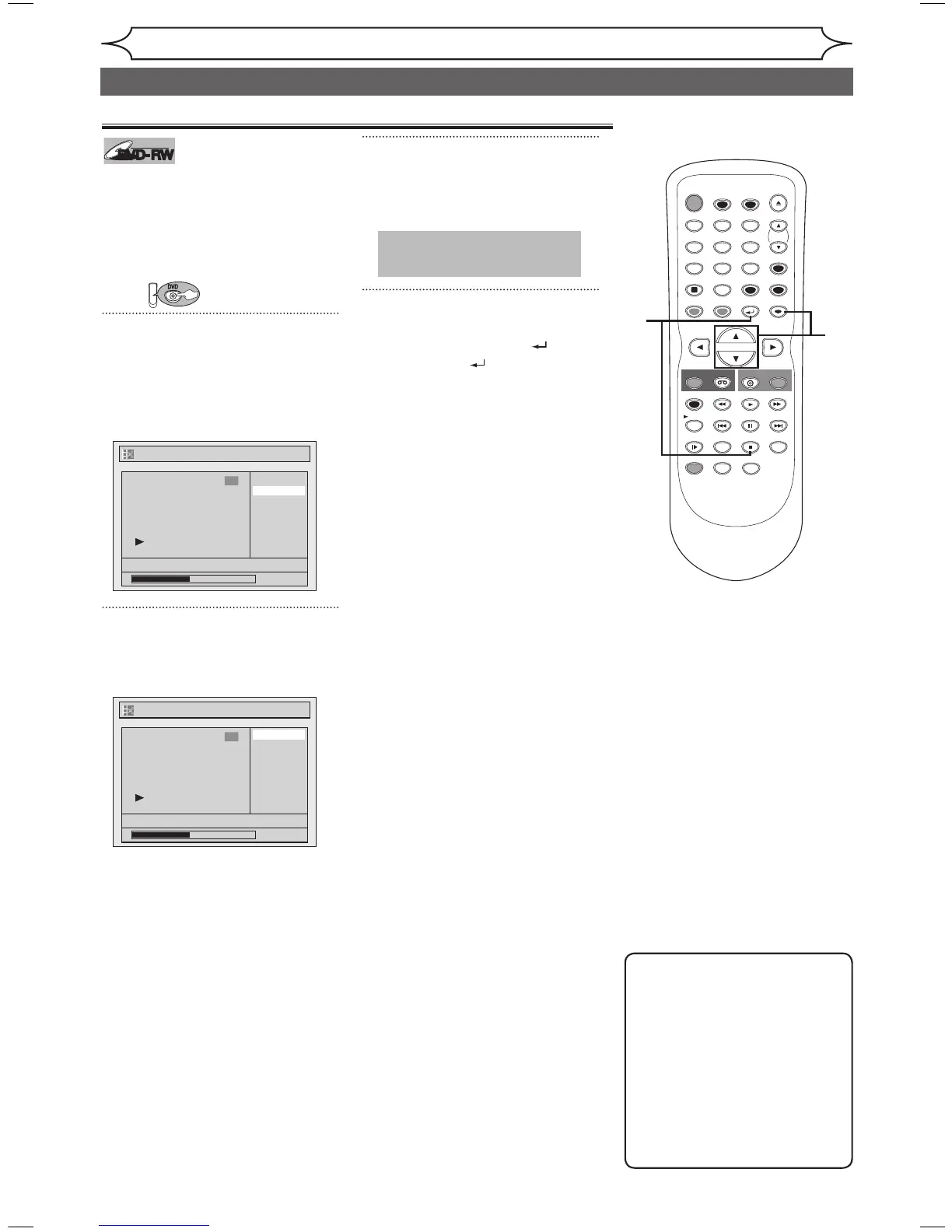
Using [K / L], select “Chapter
Mark”. Press [ENTER].
Option window will appear.
2
Using [K / L], select a desired
time period. Press [ENTER].
Confirmation window will appear.
3
Using [K / L], select “Yes”.
Press [ENTER].
The marker will be added or deleting.
4
After this operation is com-
pleted, press [RETURN ] and
then [RETURN ] or [STOP C]
to exit.
Data will be written onto the disc
momentarily.
xxxx
Editing
Editing discs in Video mode (cont’d)
Note
• You cannot select a chapter
mark interval that exceeds
the length of a title.
• The interval of chapter marks
may be slightly longer or
shorter than the one specified
at step 2.
• A chapter marker may be
delayed according to the
recording content.


 To Next Page