You can delete a specific part of
a title.
Even if parts of title are deleted
from the Playlist, the original
title will remain as it was, and
recordable disc space will not
increase.
First:
1
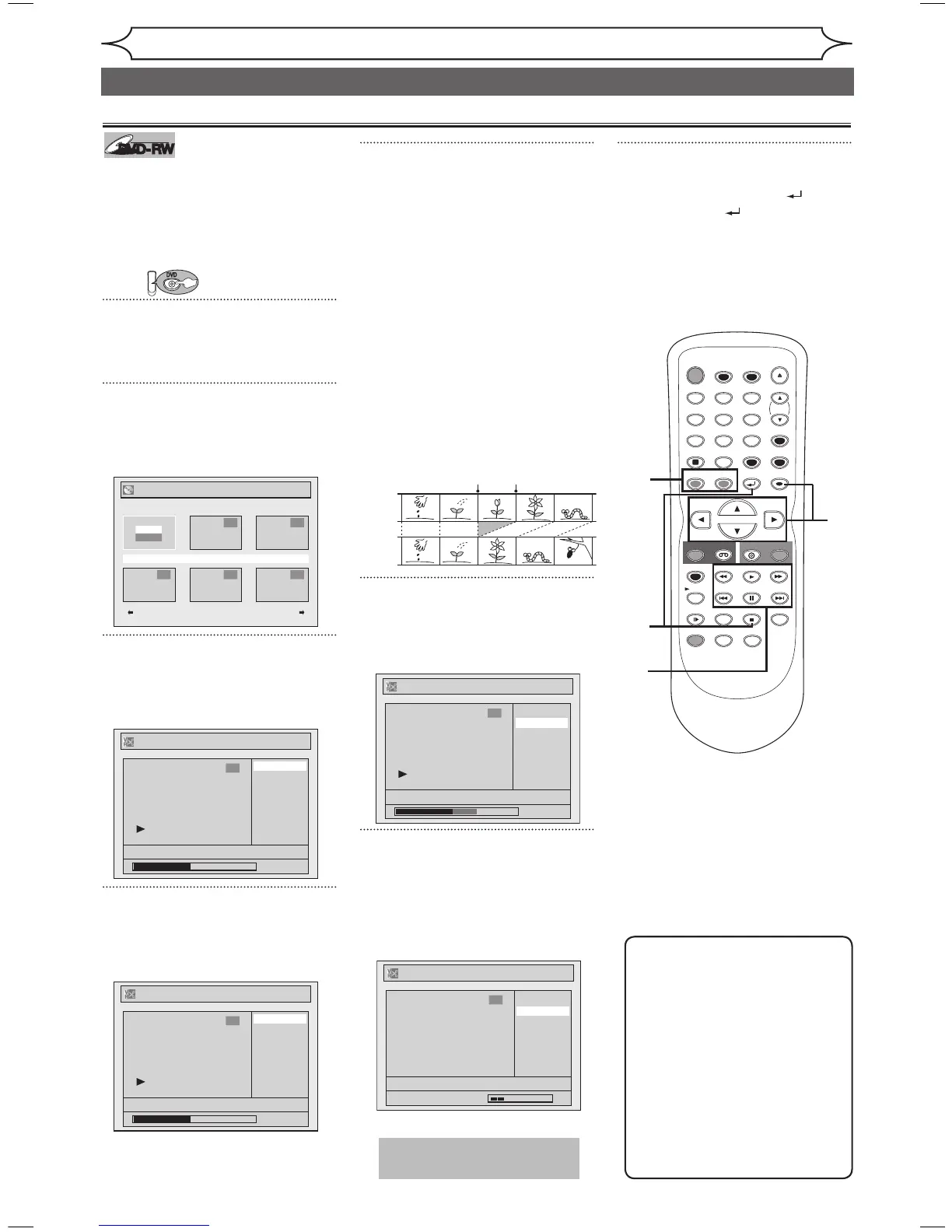
Press [TOP MENU], and then
press [MENU / LIST] to select
“Original” or “Playlist”.
2
Using [K / L / { / B], select the
desired title. Press [ENTER].
Option window will appear.
<Playlist>
3
Using [K / L], select “Edit”.
Press [ENTER].
Original or Playlist menu will appear.
<Playlist>
4
Using [K / L], select “Scene
Delete”. Press [ENTER].
Option window will appear.
<Playlist>
5
Use [SKIP H / G], [E], [D],
[PLAY B] and [PAUSE F] to
decide the start point, then
press [ENTER].
Then use [SKIP H / G],
[E], [D], [PLAY B] and
[PAUSE F] again to move to the
end point, and press [ENTER].
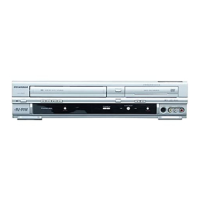
A cursor will move to “Preview”.
The bar at the bottom of the
screen indicates the total and the
elapsed time of the title, and the
area selected for deletion will be
indicated in red.
Press [ENTER] again to start
the preview.
You can check the result of
deletion by “Preview”.
6
Using [K / L], select “Delete”.
Press [ENTER].
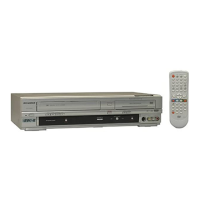
Confirmation window will appear.
<Playlist>
7
Using [K / L], select “Yes”.
Press [ENTER].
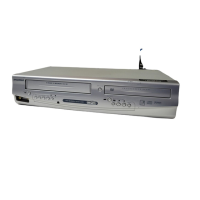
After that, “Are you sure?” will
appear, so that select “Yes” with
[K / L] and then press [ENTER].
<Playlist>
Part of a title will be deleted.
8
After this operation is com-
pleted, press [RETURN ] and
then [RETURN ] or [STOP C]
to exit.
Data will be written onto the disc
momentarily.
Deleting parts of titles
Note
• When a scene is deleted from
an Original, the scene on the
Playlist will be also deleted.
• Original titles once edited
will not remain as recorded
originally. When you want to
leave the original as it is, edit
the Playlist as you prefer.
• You cannot select “Scene
Delete” when the number of
chapter markers is more than
900.


 To Next Page