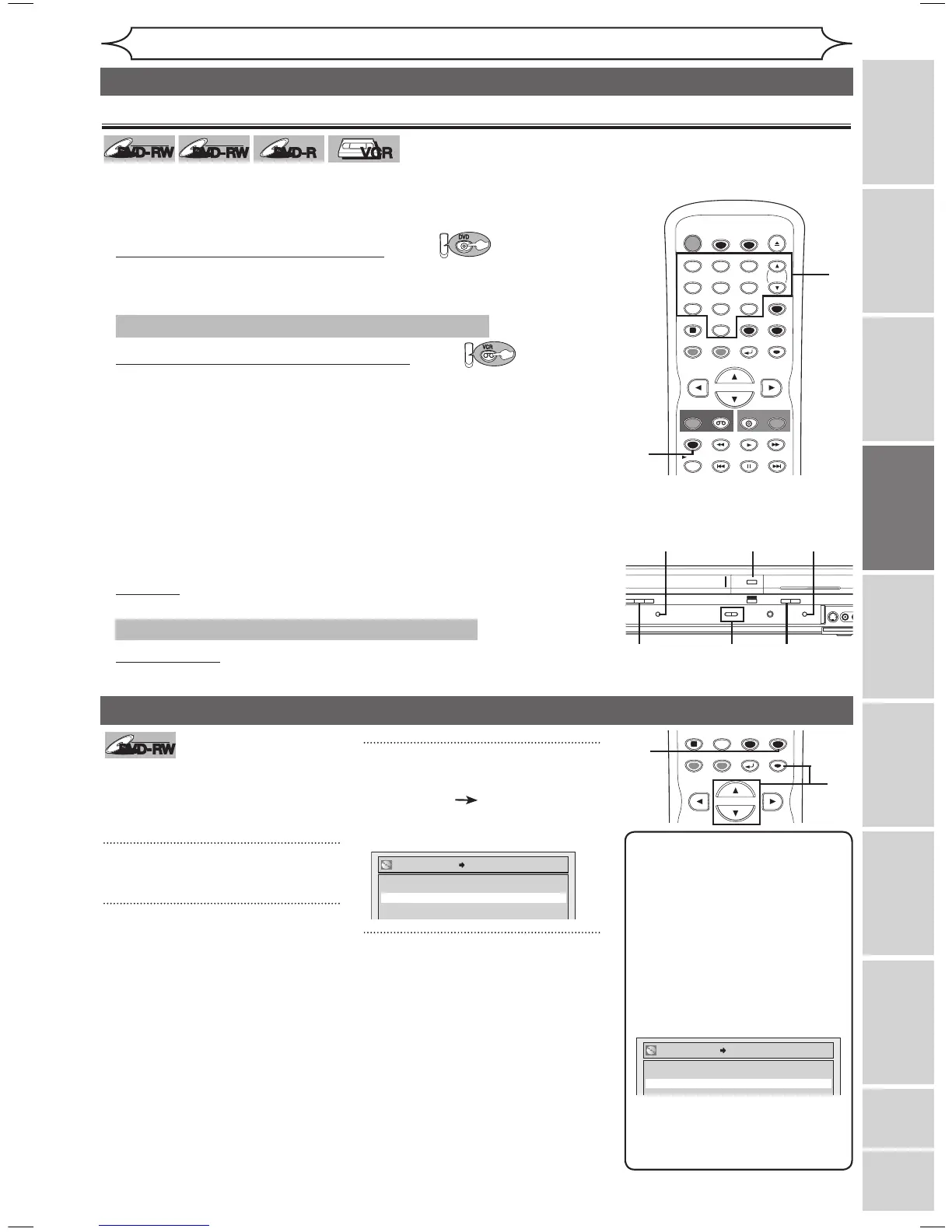
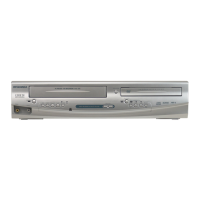
1. Turn on the TV and this unit and be sure to select the input of
the TV to which the unit is connected.
Refer to the table on page 15.
2.
When you want to record to the disc: Press:
Press [OPEN/CLOSE
A] to open the disc tray. Place the disc to
record properly.
3. Press [OPEN/CLOSE
A] to close the disc tray.
When you want to record to a videotape: Press:
Insert the videotape with a record tab into the cassette
compartment.
4. Select the input of the unit which the external equipment is
connected. (L2 or L1)
• To use the input jacks on the back of this unit, select “L1” position by
pressing [0], [0], [1] on the remote control or [CHANNEL L / K].
• To use the input jacks on the front of this unit, select “L2” position by
pressing [0], [0], [2] on the remote control or [CHANNEL L / K].
5. Select a recording speed by pressing [REC SPEED].
Refer to “Recording speed” on page 25
for DVD or page 75 for VCR.
6. Press [VCR/DVD RECORD] on the unit to start recording.
7. Press “Play” on the external source to record from.
8.
For disc:
Press [STOP
C] on the unit to stop recording.
For videotape:
Press [STOP
C / EJECT A] on the unit to stop recording.
Note
• The Disc Protect setting is
available only for a DVD-RW
disc recorded in VR mode.
• You can select only Disc
Protect OFF when a
protected disc is inserted.
To cancel the disc protect:
• When you insert a disc
protected in this unit, “Disc
Protect ON → OFF” will
appear.
To cancel the protection
setting for the disc, select
“Disc Protect ON → OFF” at
step 3, then select “Yes”.
XXXX (cont’d)
Recording
Recording Playing discs EditingBefore you start Connections Getting started
Changing the
Setup menu VCR functions Others
Español
Settings for an external source (cont’d)
To prevent accidental recording,
editing or erasing of the titles, you
can protect them from the Setup
menu.
1
Press [SETUP].
2
Using [K / L], select “Disc”.
Press [ENTER].
Disc menu will appear.
3
Using [K / L], select “Disc
Protect OFF ON”. Press
[ENTER].
Confirmation window will appear.
4
Using [K / L], select “Yes”.
Press [ENTER].
A disc will be protected.


 To Next Page