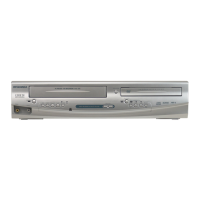
You can program the unit to record
up to 8 programs within a month in
advance. Daily or weekly program
recordings are also available.
• Be sure to set the clock before
programming a timer recording.
• Insert a recordable disc or a
videotape with a record tab.
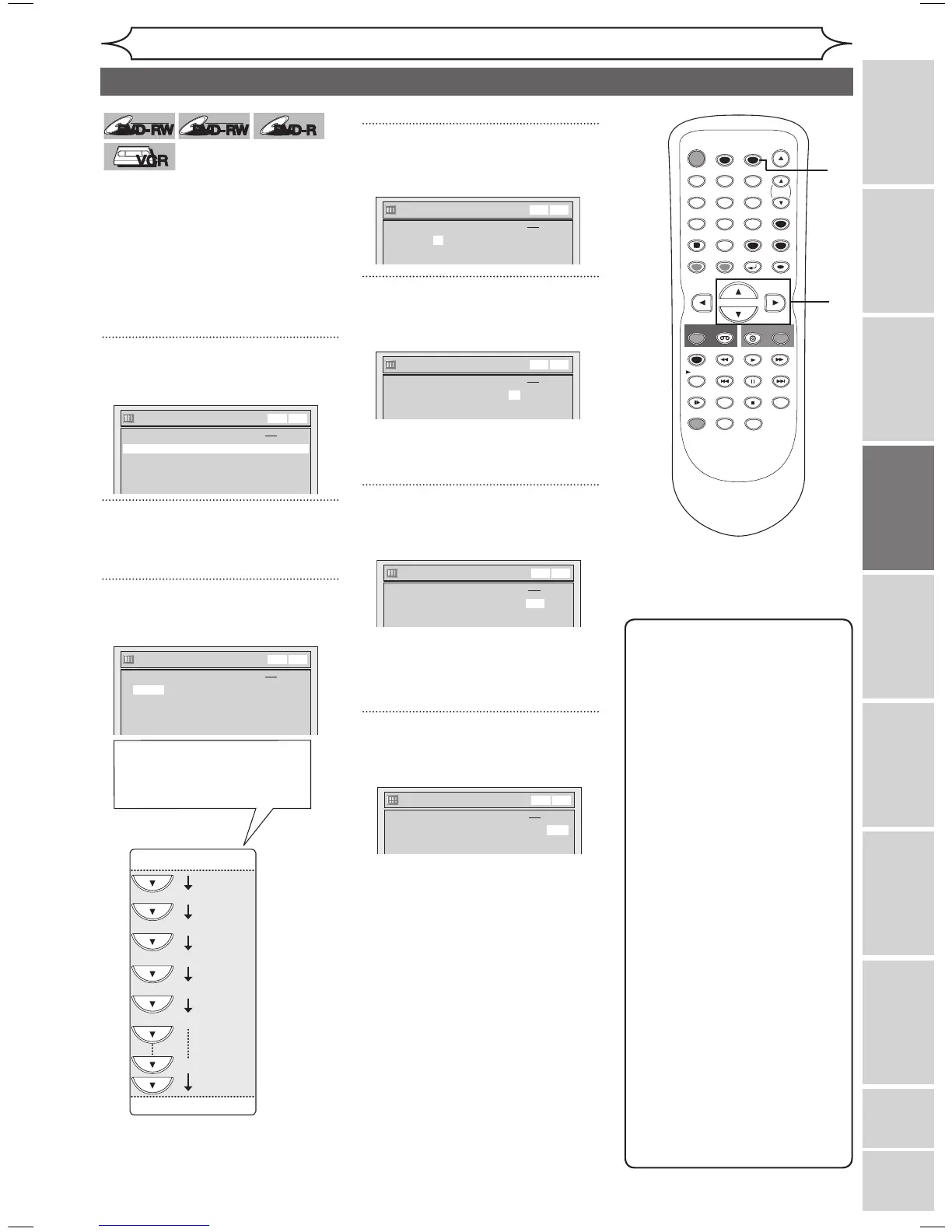
1
Press [TIMER PROG.].
Timer Programming list will appear.
2
Using [K / L], select a program
number. Press [ENTER].
3
Using [K / L], enter the Date.
Press [B].
4
Using [K / L], enter the Start
and End. Press [B].
5
Using [K / L], select the channel
number to record. Press [B].
To record from external input,
select L1 or L2.
6
Using [K / L], select a recording
media. Press [B].
• To record on a videotape, select
VCR.
• To record on a disc, select DVD.
7
Using [K / L], select a recording
speed.
Refer to “Recording speed” on
page 25 for DVD or page 75 for
VCR.
XXXX (cont’d)
Recording
Recording Playing discs EditingBefore you start Connections Getting started
Changing the
Setup menu VCR functions Others
Español
Timer Recording
Note
• If you have not set the
clock yet:
A clock setting window will
appear instead of the Timer
Programming list at step 1.
Continue with step 2 in “Auto
Clock Setting” on page 22
or “Manual Clock Setting” on
page 23 before setting a timer
programming.
• Press
[{ / B] to move the
cursor to the left and the right
on the Timer Programming list.
• After step 9, you can use the
other component (VCR or
DVD) which is not currently
programmed by turning the
power on. Note that the
programmed device will
start to capture the selected
channel 2 minutes before the
start time and at the moment,
if the other device still stays in
recording, recording pause or
OTR mode turning a different
channel, the current mode will
be canceled and you cannot
change the channel. When
both devices capture the same
channel, the current mode
continues to function.


 To Next Page