XXXX (cont’d)
Recording
Recording Playing discs EditingBefore you start Connections Getting started
Changing the
Setup menu VCR functions Others
Español
Formatting a disc
Note
• The recording format setting
is effective only for DVD-RW
discs. You cannot change the
recording format for a DVD-R
disc. DVD-R discs will always
be in Video mode.
• You cannot mix two formats
on one DVD-RW disc.
When you load a disc
once recorded before, the
recording format cannot
be changed even if you
change it in the Setup
menu.
• When inserting a blank
DVD+RW or DVD+R disc, the
error message (“Disc Error”)
will appear. You cannot
record on a DVD+RW/R.
On this unit, DVD+RW and
DVD+R are for playback only.
• Playlist will be created
automatically when recording
on DVD-RW in VR mode.
• In Video mode, Auto Chapter
may not show up as you
specified.
• A blank chapter may be
created depending on the
remaining time of the disc.
STOP
POWER
T-SET
TIMER PROG.
SKIP SKIP
OPEN/CLOSE
SPACE
1 2 3
4 5 6
7 8
0
9
CH
VIDEO/TV
SLOW
PAUSE
.@/:
ABC DEF
GHI JKL MNO
PQRS
REC/OTR
DISPLAY
TUV WXYZ
DVD
REC/OTR
REC SPEED
ZOOM
SEARCH
VCR
SETUP
CM SKIP
RETURN
MENU/LIST
TOP MENU
DUBBING
x1.3/0.8
CLEAR
ENTER
PLAY
AUDIO
1
2
3
4
5
6
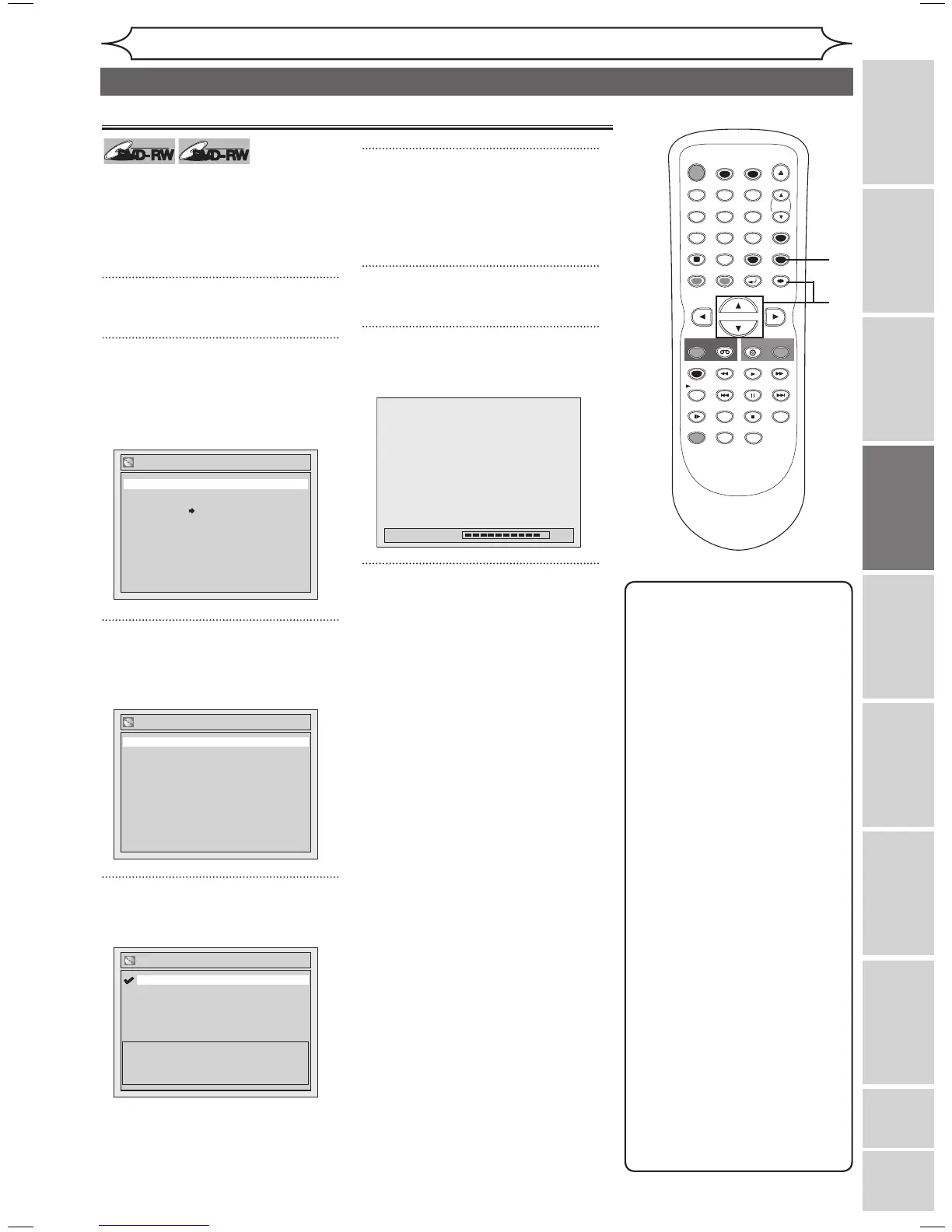
Choosing the recording format of a blank disc
When inserting a blank disc, the
unit automatically starts to initialize
the blank disc. You have to select
your desired format before insert-
ing the blank disc.
1
Press [SETUP].
2
Using [K / L], select “Disc”.
Press [ENTER].
Disc menu will appear.
<VR mode>
3
Using [K / L], select “Format”.
Press [ENTER].
Format menu will appear.
4
Using [K / L], select “Format
Mode”. Press [ENTER].
“Video mode” has been selected
as the default.
5
Using [K / L], select “Video
mode” or “VR mode”. Press
[ENTER].
The recording format will be set.
6
Press [SETUP] to exit.
7
Insert a blank disc.
Formatting will start.
8
Formatting is completed.
“100%” will be indicated.
Disc
Format
Finalize
Disc Protect OFF ON
Format - Format Mode
VR mode
Video mode
Video mode
DVD Player Compatibility mode.
VR mode
Editing possibility mode.
Format
Format Mode Video mode
Start
E9A10UD_DVR90VG.indd 27 2005/12/26 18:55:15


 To Next Page