xxxx
Playing discs
Repeat/Random/Program playback (cont’d)
Note
• To erase tracks you selected,
press [CLEAR].
• You can make program
settings up to 50.
• To cancel program playback,
press [STOP C] twice during
program playback.
• “Play mode OFF” appears on
the screen.
• You may also select a desired
track using the Number
buttons at step 4.
Note
• Some discs will only allow
you to change subtitles from
the Disc menu. Press
[TOP MENU] or [MENU/LIST]
to display the Disc menu.
• If a 4-digit language code
appears in the subtitle
menu at step 2, refer to the
“Language code” on page 82.
STOP
POWER
T-SET
TIMER PROG.
SKIP SKIP
OPEN/CLOSE
SPACE
1 2 3
4 5 6
7 8
0
9
CH
VIDEO/TV
SLOW
PAUSE
.@/:
ABC DEF
GHI JKL MNO
PQRS
REC/OTR
DISPLAY
TUV WXYZ
DVD
REC/OTR
REC SPEED
ZOOM
SEARCH
VCR
SETUP
CM SKIP
RETURN
MENU/LIST
TOP MENU
DUBBING
x1.3/0.8
CLEAR
ENTER
PLAY
AUDIO
STOP
POWER
T-SET
TIMER PROG.
SKIP SKIP
OPEN/CLOSE
SPACE
1 2 3
4 5 6
7 8
0
9
CH
VIDEO/TV
SLOW
PAUSE
.@/:
ABC DEF
GHI JKL MNO
PQRS
REC/OTR
DISPLAY
TUV WXYZ
DVD
REC/OTR
REC SPEED
ZOOM
SEARCH
VCR
SETUP
CM SKIP
RETURN
MENU/LIST
TOP MENU
DUBBING
x1.3/0.8
CLEAR
ENTER
PLAY
AUDIO
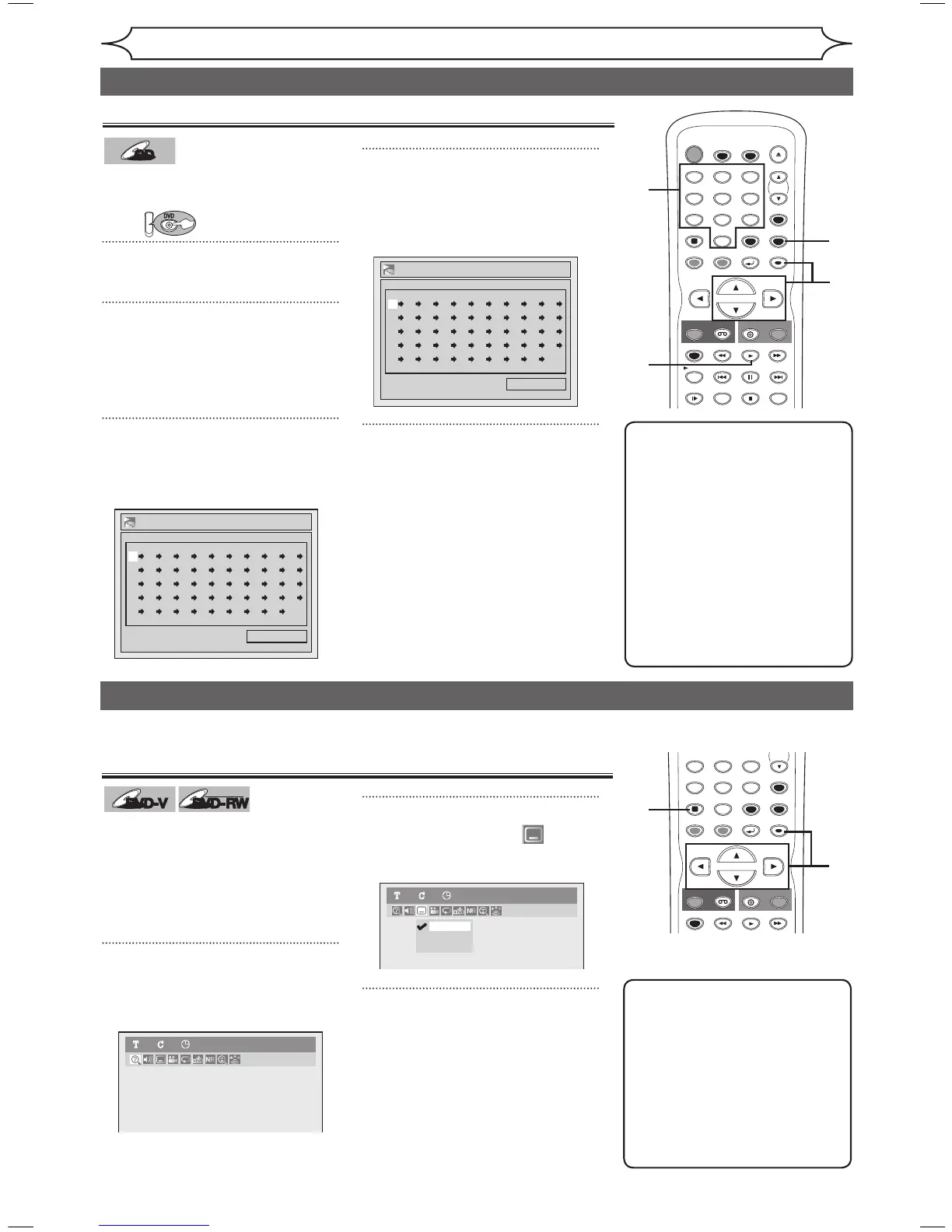
You can program a playback
sequence in your desired order.
1
Press [SETUP].
2
Using [K / L], select “CD
Playback Mode”. Press [ENTER].
CD Playback Mode menu will
appear.
3
Using [K / L], select “Program
Play”. Press [ENTER].
Program Play list will appear.
4
Using [K / L] or the Number
buttons, select a desired track.
Press [ENTER] or [B
]
.
A cursor will move to next.
5
Press [PLAY B] to start
program playback.
Program playback will start.
Selecting the format of audio and video
You can select a desired audio and video format. Selections depend on
the contents of the disc you are playing back.
Switching subtitles
Many DVD-Video discs have
subtitles in one or more languages
– they usually tell you which
subtitle languages are available.
You can switch subtitle languages
anytime during playback.
1
During playback, press
[DISPLAY].
The Display menu will appear.
2
Using [{ / B], select .
Press [ENTER].
Subtitle menu will appear.
3
Using [K / L], select a desired
subtitle language. Press
[ENTER].
Subtitle will be displayed in the
selected language.
When selecting “OFF”, subtitle will
disappear.
Program Play
0:06:11Total
09 -- -- -- -- -- -- -- -- --
-- -- -- -- -- -- -- -- -- --
-- -- -- -- -- -- -- -- -- --
-- -- -- -- -- -- -- -- -- --
-- -- -- -- -- -- -- -- -- --
Program Play
0:00:00Total
-- -- -- -- -- -- -- -- -- --
-- -- -- -- -- -- -- -- -- --
-- -- -- -- -- -- -- -- -- --
-- -- -- -- -- -- -- -- -- --
-- -- -- -- -- -- -- -- -- --
OFF
1.English
2.Japanese
DVD-Video1 1 0:00:00
E9A10UD_DVR90VG.indd 50 2005/12/26 18:55:48


 To Next Page