Symphony Setup (cont'd)
72
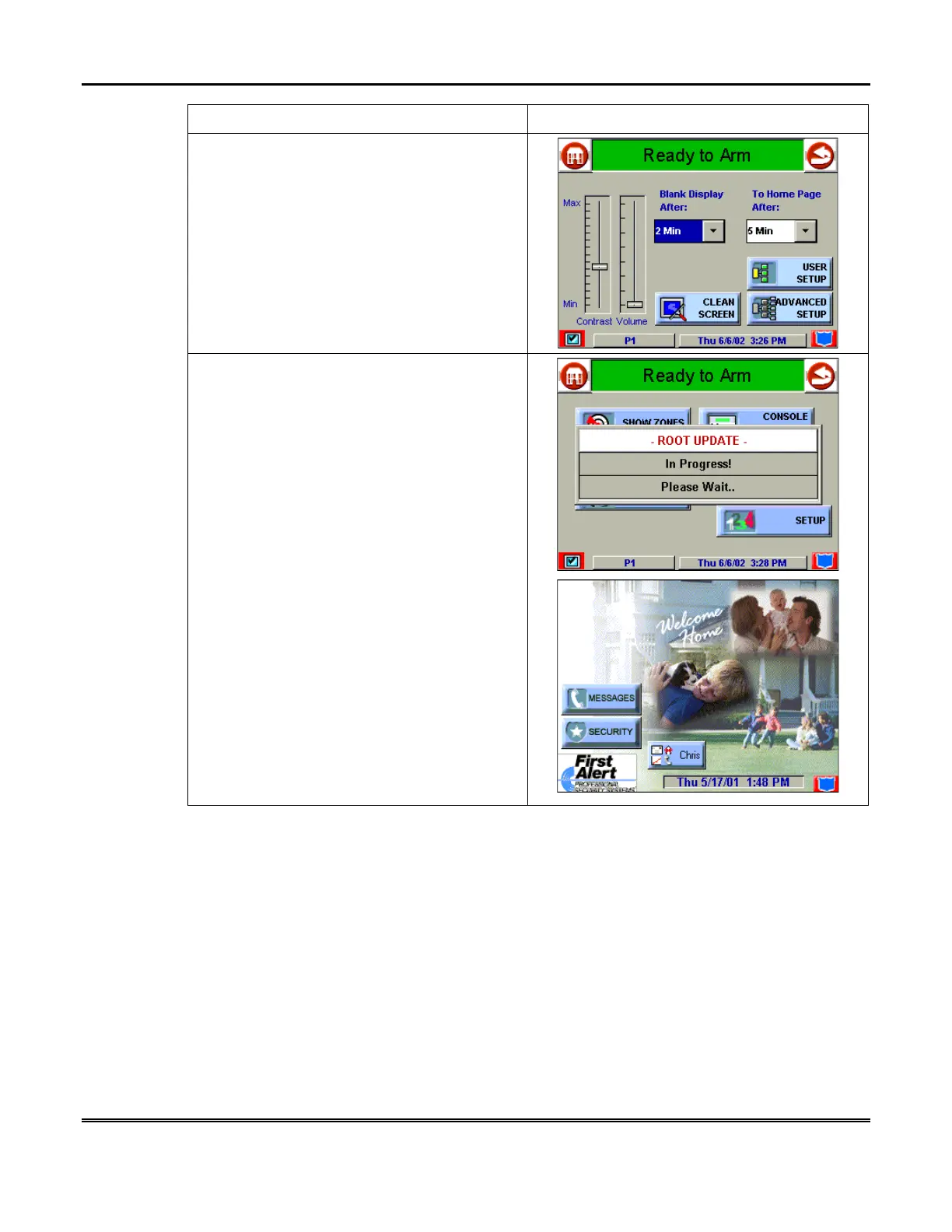
ACTION SCREEN
2. Select the time period option you want by
pressing it. The pop-up window closes
automatically and the selection is displayed in
blue.
NOTE:
Additional options can be viewed by
using the up/down "arrows" to scroll through
the time period options.
3. Press either the "Home" or "Back" icon. A
Settings Changed!
pop-up window is
displayed stating “
ROOT UPDATE – In
Progress! Please Wait…
” When the Root
Update is complete iCenter goes to the
"Home" screen or "More Choices" screen
depending on whether you pressed the
"Home" or "Back" icon, respectively ("Home"
screen shown).
How to Set the Time and Date
You can set the time and date from the
Set Time & Date
screen. The
Set Time &
Date
screen can be accessed by pressing the Time and Date bar located at the
bottom of each Symphony screen. Pressing the Time and Date bar causes the
Set
Time & Date
screen to be displayed.
•
Since
Sync With Network Clock
is always selected on the
Set Time & Date
screen, whenever Symphony checks in with the server (every 10 seconds) it will
get the current GMT time. If the Symphony time differs from GMT by 10
seconds or more, the Symphony time will be reset. Additionally, Symphony will
send time to Message center and the control panel every hour. This 1-hour
timer starts on Symphony power-up.



 To Next Page