What’s in this guide? Getting started Making calls Using the phone book In-call features Video conferencing
Video conferencing
40
D1403405 USER GUIDE VIDEO ENDPOINTS MXP ENGLISH—SEPTEMBER 2009
In-call features
Using far end camera control
This is a feature that lets you pan, tilt and zoom the far end
camera. If Far end presets are available, you may access
these as well. This feature requires an electrically movable
camera at the far end—i.e. communication between e.g.
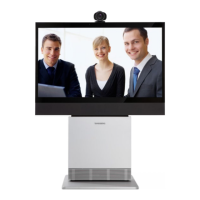
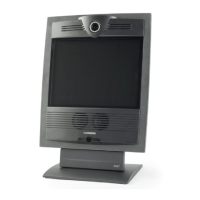
two TANDBERG 1700 MXP units will not provide far end
camera control since the camera on this model is subject to
manual movements only.
• This feature is not accessible in MultiSite video meetings,
since the term far end will loose its meaning when there are
more than two parties in a call.
Using near end camera control
Provided that your own video system has a camera that can be
controlled from the remote control, you may, of course, just as
well control your own camera during a call.
To utilize near end camera control:
• Do as described in the Figs 1–5, but be sure to select the
Near End tab in Fig. 2 instead.
This feature is always accessible, irrespective of whether you
are in point-to–point calls or in MultiSite calls.
Using camera control
Pan, tilt and zoom the far end camera (and your own)
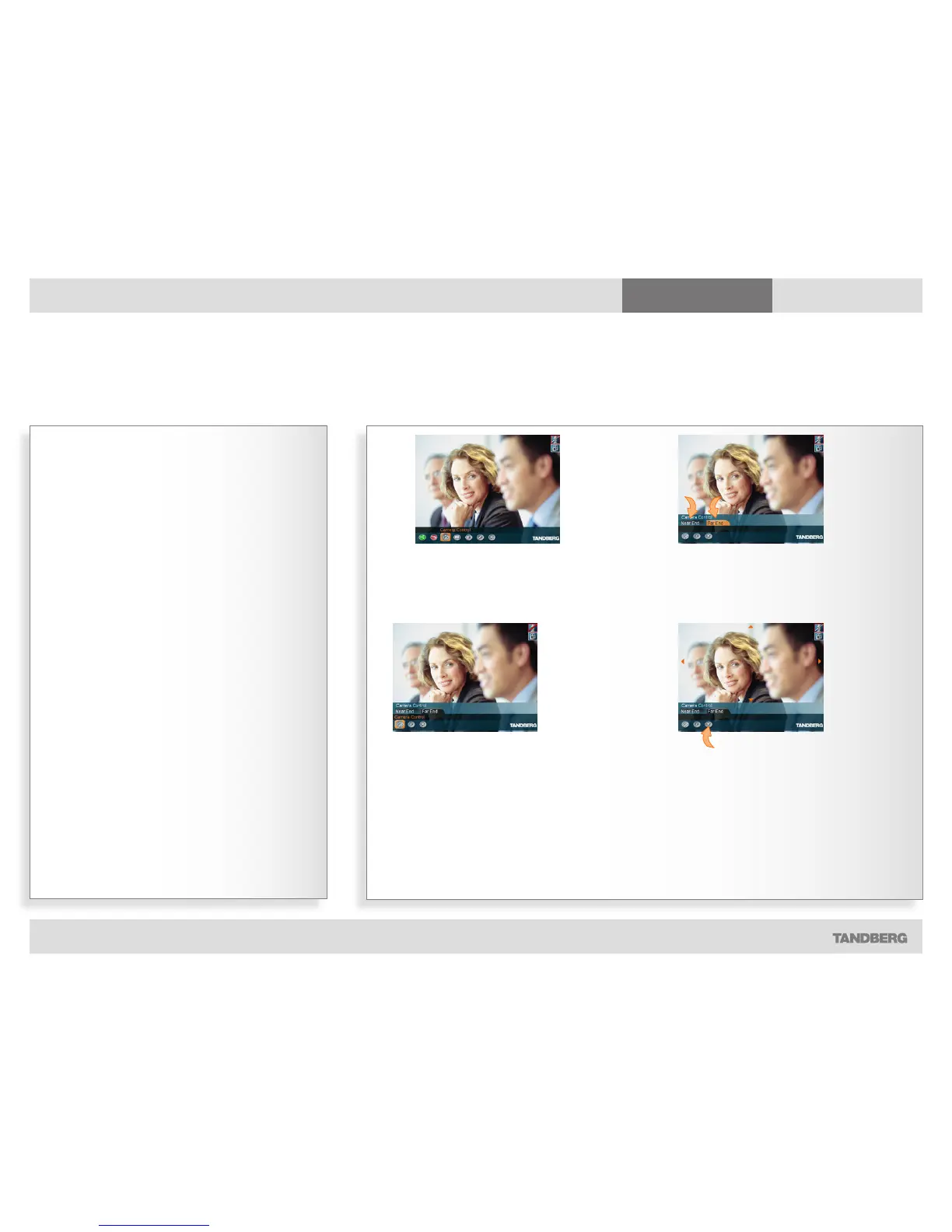
1. While in a call, press the OK key to produce the main
menu and then navigate to the Camera Control icon…
2. Then press the OK key and navigate to the Far End tab
to control the far end camera and to the Near End tab
to control your own camera…
3. Now, navigate down to the
Camera Control icon of the
selected tab to prepare to
control the camera (Far end is
used in this example)…
4. Press the OK
key to enable the
camera control. Four
arrowheads will now
appear indicating
which Arrow key to
use on the remote
control to move the
Far End camera to
the left, right, up,
and down.
Navigate
to here and
press the OK
key to exit
the Camera
Control mode
as such.
Use the Zoom
keys on the remote
control to zoom in
and out.


 To Next Page