What’s in this guide? Getting started Making calls Using the phone book In-call features Video conferencing
49
D1403405 USER GUIDE VIDEO ENDPOINTS MXP ENGLISH—SEPTEMBER 2009
Video conferencing
Requesting and releasing floor…
Assigning floor…
When you request floor, your video
will be broadcasted as the large picture
to all other parties in the conference.
Request floor is useful when you want
to speak or display something in front of
all participants.
Select Release Floor and press the OK
key when you are done to make the
floor available for other parties in the
conference.
An indicator appears in the upper right
corner when you have the floor and it
disappears when you release floor.
Assigning floor
If your system is the one connected to
all the other systems, you will be the
host of the meeting and you will be able
to assign the floor to others.
Automated jumping to full
screen
You may have your system administrator
set up the system to switch to full
screen each time someone requests the
floor.
This is done in the Control Panel—see
Floor to Full Screen in Settings >
Video. More information on this can be
found in the Administrator Guide which
can be downloaded from http://www.
tandberg.com.
Observe that you may not have access
to these settings, as they may have
been password protected by your
system administrator.
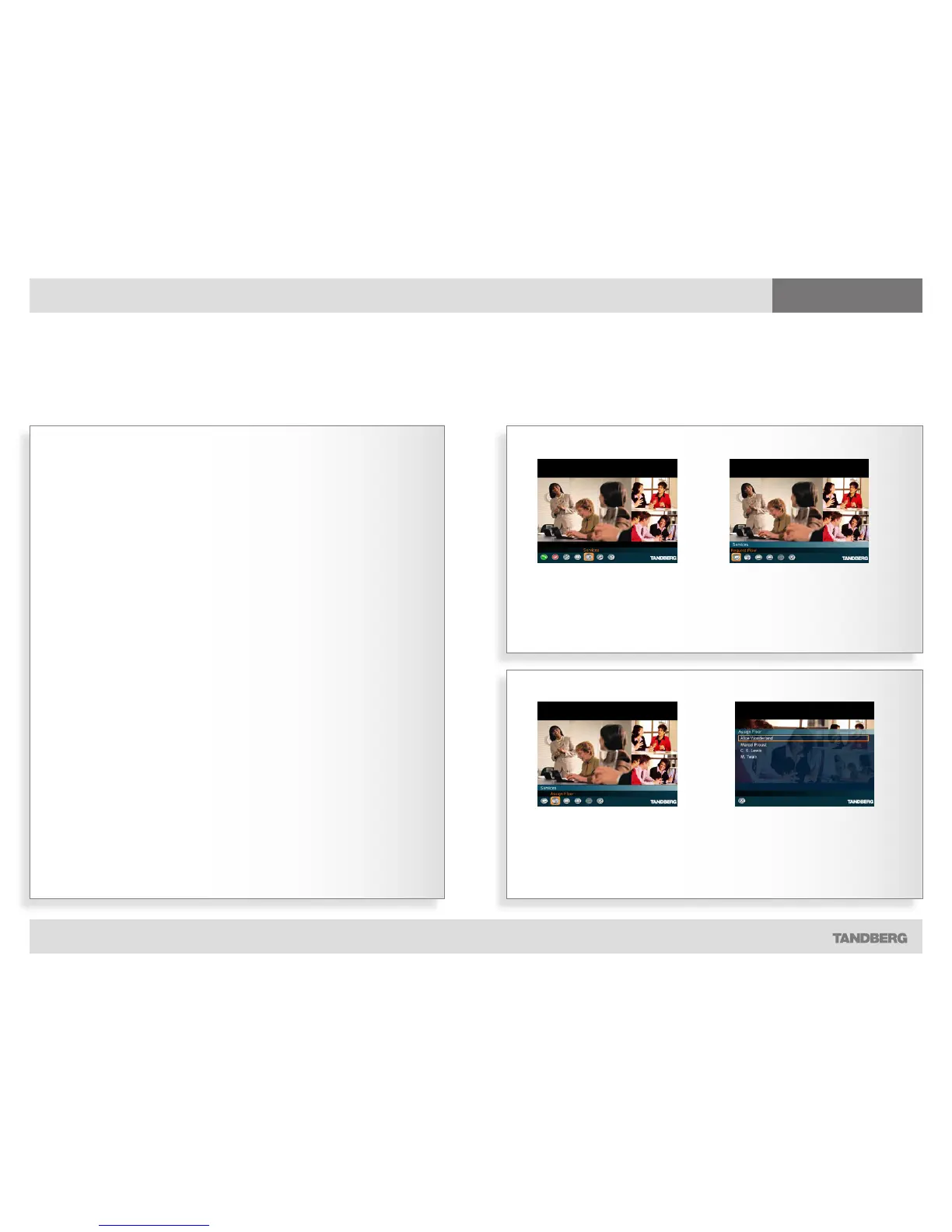
Request and release floor
Giving the screen to the party speaking
1. In the main menu, navigate
to Services and press the OK
key…
2. Navigate to the Request Floor icon and
press OK to request floor. Once you have
the floor, the icon changes to Release
Floor. Press OK to release floor again.
1. Navigate to the Services submenu
in the same way as when
requesting floor (above) and then
navigate to Assign Floor and press
OK.
2. Select whom to assign floor to and press
OK.


 To Next Page