What’s in this guide? Getting started Making calls Using the phone book In-call features Video conferencing
Video conferencing
44
D1403405 USER GUIDE VIDEO ENDPOINTS MXP ENGLISH—SEPTEMBER 2009
In-call features
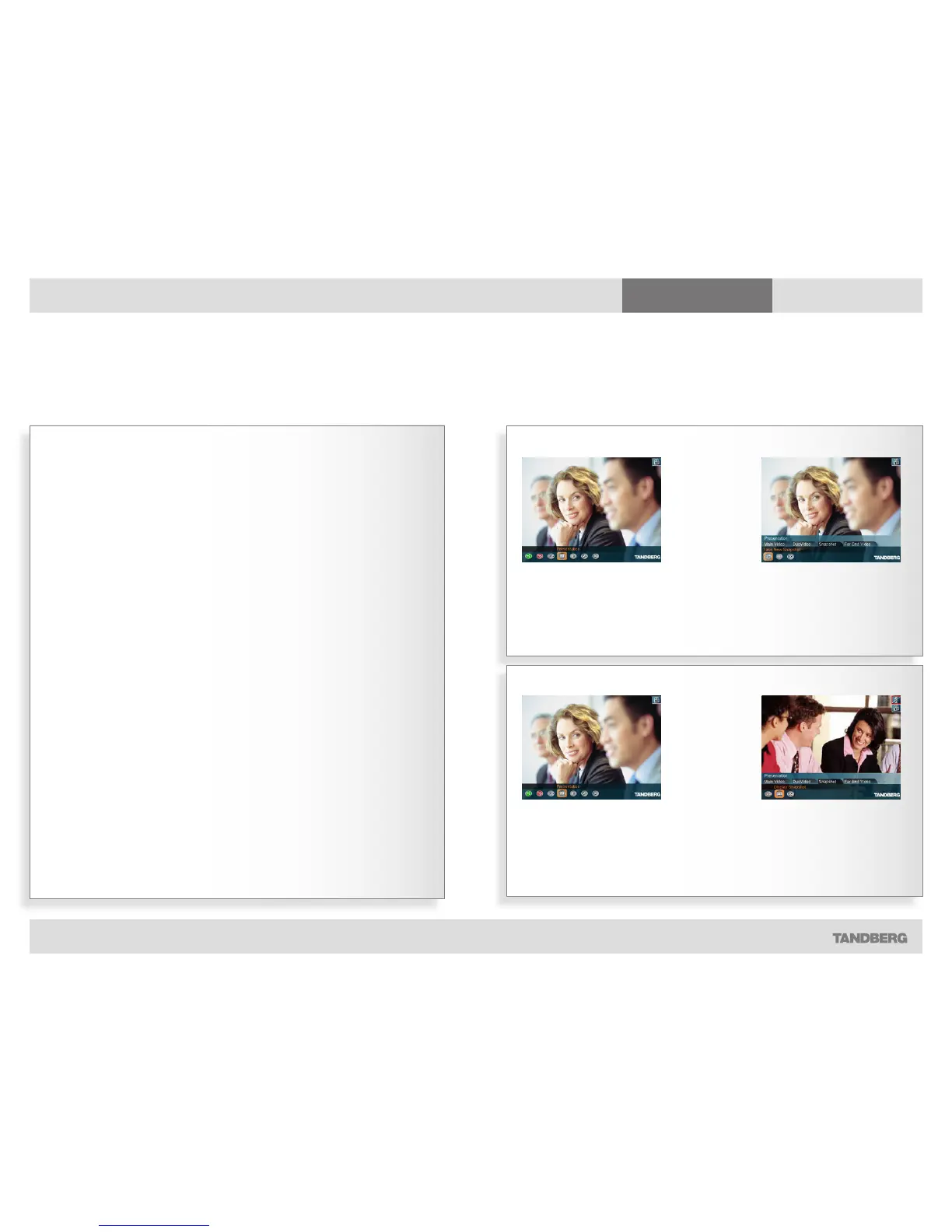
Taking a snapshot using the menu…
Displaying a snapshot…
T
he system can take a snapshot of
your live video. Snapshot is handy
when you are in a call with a system that
does not support dual video stream. Use
the snapshot feature to show a snapshot
of your presentation and continue the
meeting with main camera.
Your video system can send snapshots
in a point-to–point video meeting only,
sending snapshots in MultiSite meetings
is not supported.
The following should be observed:
• When displaying a snapshot, it will al-
ways be the latest snapshot taken that is
displayed, regardless of which end (near
or far) took it.
• Any snapshot taken is deleted once the
call is terminated.
• The snapshot feature uses H.261 Annex
D. Consequently it will fail to work when
using H.264 video compression.
Taking a snapshot using the remote
control
In a point-to-point call press the
Snapshot key (the
*
key).
If the Number Key Settings menu has
been set to Touch Tones, pressing the
Snapshot key will not be interpreted as
snapshot, but as a touch tone.
The Number Key Settings must have
been set to something else to make
the key work as a Snapshot key. This
is done in the Control Panel of your
system. Your system administrator may
have password protected this area.
Likewise, this will not work when you
are in an input field requiring numerical
or text entries. The
*
will then be
interpreted as just
*
.
Snapshots
When you are in a call with a system that does not support dual video stream
In a call, press the OK key to produce
the main menu and navigate to the
Presentation icon…
… then press the OK key to display the
Presentation menu. Navigate to the
Snapshot tab and then down to the Take
New Snapshot icon. Press the OK key to
take a snapshot and send it to the far end.
In a call press the OK key to
produce the menu line, if needed,
and navigate to the Presentation
icon…
… then do as above, but select Display
Snapshot instead. Press the OK key to
display the snapshot.


 To Next Page