6. LSServer, Scanner Shell and Download
6-82 Operating Manual for the LS Series Scanner No. 30001798 Rev. No. 1.5 2004-11
Stacker Setup…
Stacker Setup is only used when Tecan LS Scanner is connected to a special
autoloader, the
Twister. If the Tecan Connect is associated with the LS Scanner,
than a special XConnect software, which is delivered with the instrument, is
responsible for the calibration and configuration of the connected autoloader
Connect.
For further information about using
Connect, refer to the Connect manual.
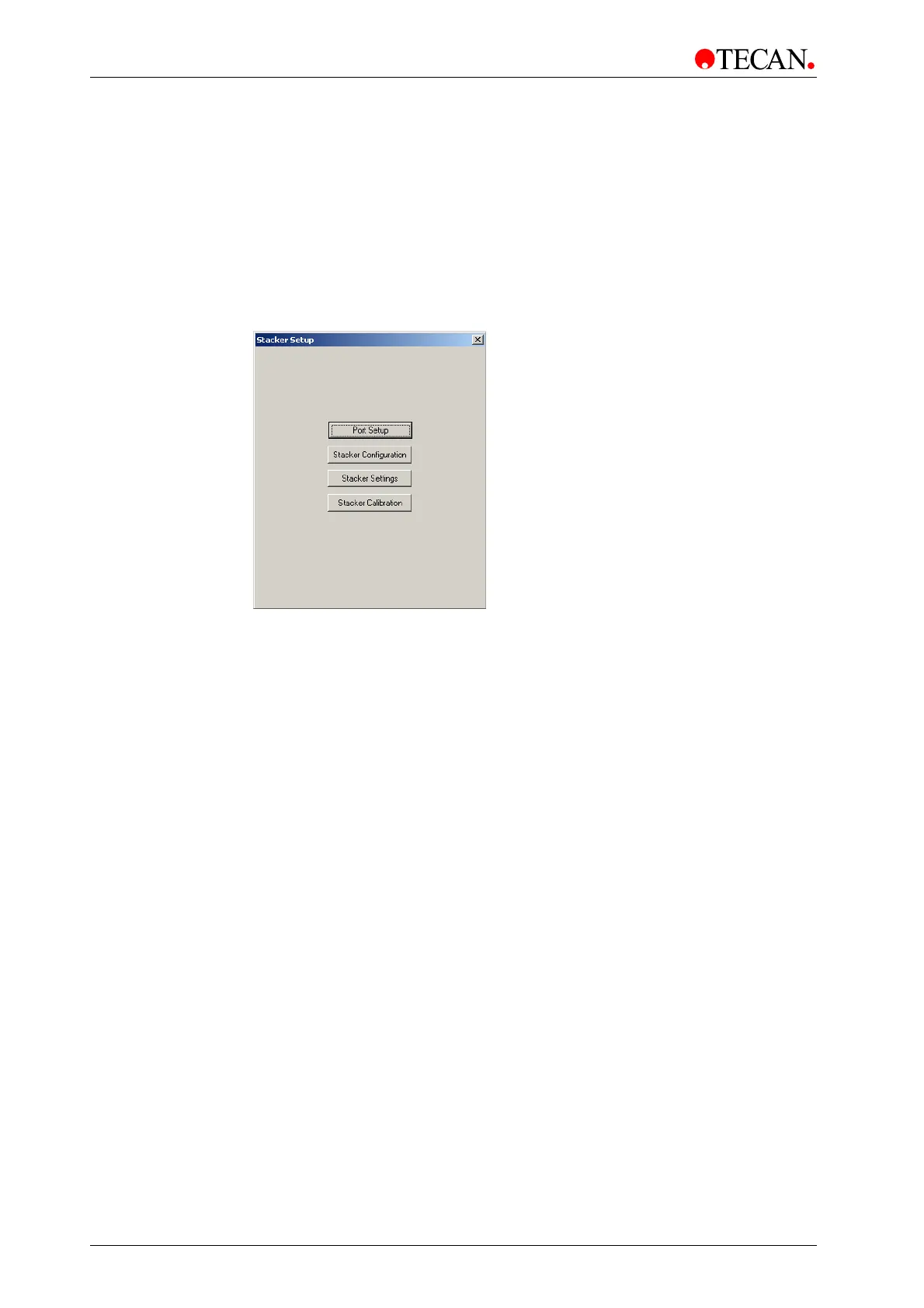
In the Service menu, select
Stacker Setup… and the Stacker Setup dialog box
is displayed:
The
Tecan LS SCANNER instrument can operate in manual and automatic
mode. For automation purposes, a stacker instrument such as the
Twister must
be connected.
For further information about using
Twister refer to the Twister manuals: The
Twister User’s Guide and The Twister Service Manual
.
The
Stacker Setup dialog box helps the user select, calibrate and configure the
installed stacker instrument.
For further information about Stacker Setup refer to the chapter 6.4.7 Stacker
Setup - Twister
description in this manual.
In the
Stacker Setup dialog box the user can choose between several options
setting up the connected stacker instrument:
Click the
Port Setup button to display the Port Setup dialog box: Stacker type
and communication port can be selected.
Click the
Stacker Configuration button to display the Stacker Configuration
dialog box, the corresponding to the connected stacker instrument.
Click the
Stacker Settings button to display the Stacker Settings dialog box, the
corresponding to the connected stacker instrument.
Click the
Stacker Calibration button to display the Stacker Calibration dialog
box which corresponds to the connected stacker instrument.
The
Stacker Setup dialog box contains the following elements:
Port Setup button Click the Port Setup button to display the Port Setup
dialog box.
Stacker Configuration
button
Click the Stacker Configuration button to display the
Stacker Configuration dialog box.
Stacker Settings
button
Click the Stacker Settings button to display the
Stacker Settings dialog box.
Stacker Calibration
button
Click the Stacker Calibration button to display the
Stacker Calibration dialog box.



 To Next Page