33
Tempest900 2-Channel Operating Manual
BaseStation Headset Connection and Controls
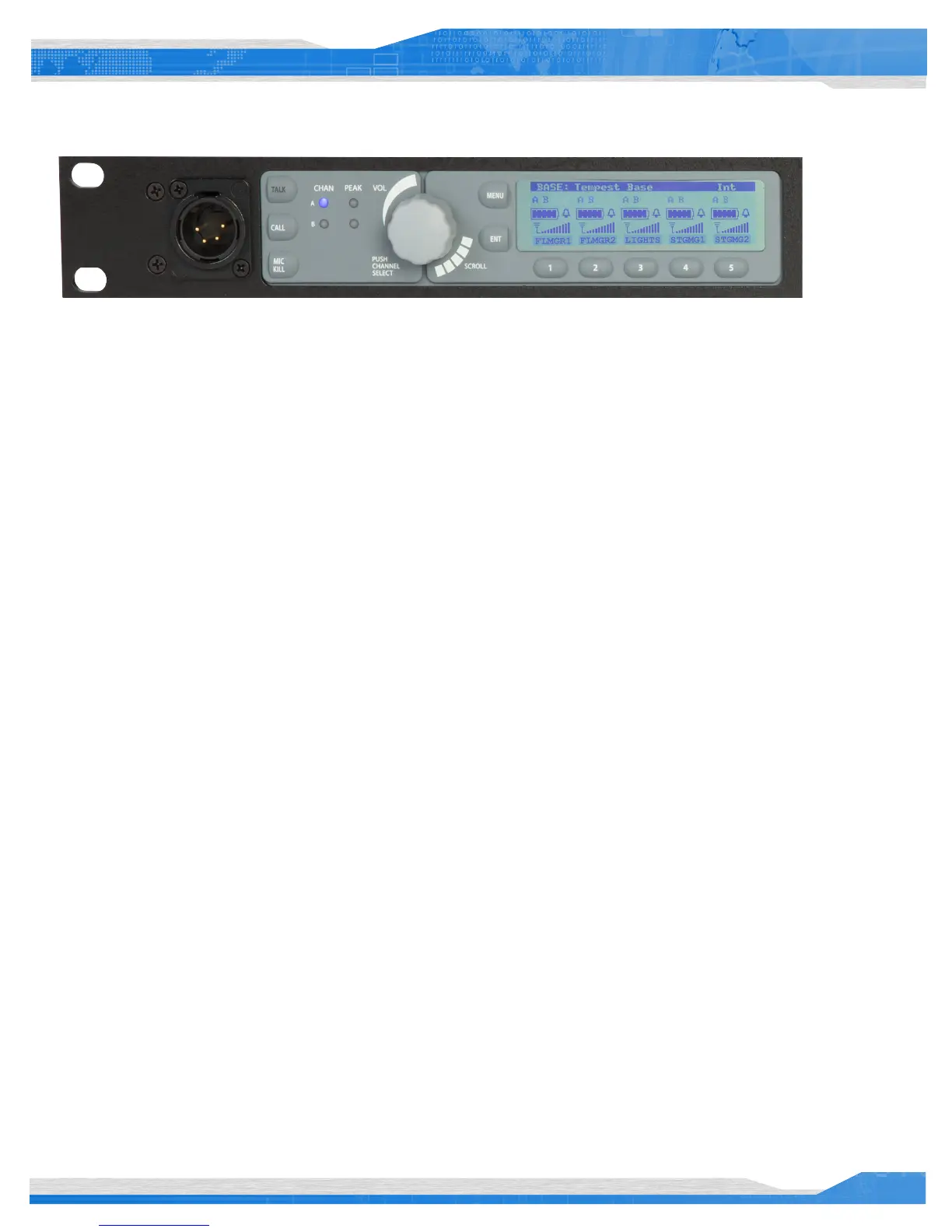
The BaseStation headset connection is a functional user communication point, and may also be used for setup and troubleshooting. The
Front Panel Headset can communicate on any one of the two intercom channels. Controls for this headset are located just to the right of the
connector, and in the menu on the BaseStation Settings screen.
The front panel headset connector is a 4-PIN XLR male. A compatible headset must be provided by the user.
The TALK button enables or disables the microphone for the local headset. A blue LED will backlight the word “TALK” on the TALK button when
the mic is enabled. Always keep the microphone disabled (TALK OFF) when not in use.
Tempest uses an intelligent latching method for TALK buttons. Pressing the TALK button momentarily (less than two seconds) will latch the
mic button. The blue “TALK” LED will remain lit and the microphone will remain enabled. Pressing and holding the TALK button will cause the
button to act in a momentary or push-to-talk fashion, so the blue “TALK” LED will remain lit and the microphone will remain enabled only as
long as the button is pressed.
In Operational Mode, turning the Volume control adjusts the volume of the audio of the local headset. Turning the Volume control clockwise
increases the audio level while turning the control counter clockwise decreases the level. The Volume control knob is also a push button.
Pressing the Volume control cycles the Channel selection and LEDs in order from A to B.
The two Peak LEDs indicate when the mic audio from the local headset is reaching a peak level and is about to enter into limiting. These LEDs
should normally be OFF.
Set the Mic Gain for the Local Headset
Set the Mic Gain properly to assure the best audio quality. To set the Mic Gain for the Local Headset:
1. Press MENU to enter Menu Mode.
2. From the Main Menu select “BaseStation Settings,” then “Set Mic Gain.”
3. While at the “Set Mic Gain” screen, talk into the local headset microphone in a louder than normal level and adjust the Volume control
until the Peak LED for the selected channel just starts to light at the loudest parts of the audio. Press ENT to accept the changes.
When the Mic Gain is set too high, it is possible to induce feedback or echo. When set too low, words can be clipped by the low level noise
gate, or may sound too quiet to other listeners. Headsets by different manufacturers or different models of headsets will require widely varying
Mic Gain settings. When setting microphone gain, it is best to err toward a setting that is too low, rather than too high. This will help reduce
unwanted echo in the system when that microphone is enabled.


 To Next Page