61
Tempest900 2-Channel Operating Manual
Special RF Considerations with Multiple BaseStations
Whenever multiple Tempest BaseStations are operated together in close proximity, special consideration must be taken to ensure proper system
operation and maximize operational range.
See the Antenna Location section of this manual for more information on antenna placement.
See the Antenna Conguration section of this manual for details about recommended cable type and other important information about
connecting your antennas to your Tempest BaseStation.
See the Accu-Sync section for more information on using synchronizing multiple Tempest BaseStations.
Up to 3-5 BaseStations may be used in simultaneous operation in close proximity to each other with proper synchronization and antenna
placement, under ideal conditions. Closely spaced antennas will cause adverse system performance and will reduce operational range.
Using Link Quality with Collocated Systems
Tempest provides a diagnostic tool to measure the link quality (LQ) between a BaseStation/Remote Transceiver and corresponding BeltStations.
LQ is a useful metric that can assist users in troubleshooting poor audio quality and system performance. It can also be very helpful when
collocating BaseStations and monitoring their performance. Users can view LQ at the BaseStation or the BeltStation.
From the BaseStation, users can view the LQ for all corresponding BeltStations that are operating in Normal Mode. The LQ for Shared
BeltStations is not viewable at the BaseStation. To view, press Menu button, and select: Tech Menu>ENT thru Warning!>Diagnostics>Reset
Radio. From this screen you will see the LQ for all Normal BeltStations currently logged into that BaseStation. Their corresponding slot number
will be displayed above the LQ value.
Note: The LQ value being displayed on-screen is provided in real-time and utilizes the same data stream as the audio you
hear; therefore, while viewing LQ in this menu, audio quality between the BaseStation and BeltStations will likely
be impacted. It is recommended that this tool only be used during set-up and pre-production troubleshooting, and
that you back out of this menu before assessing system audio quality.
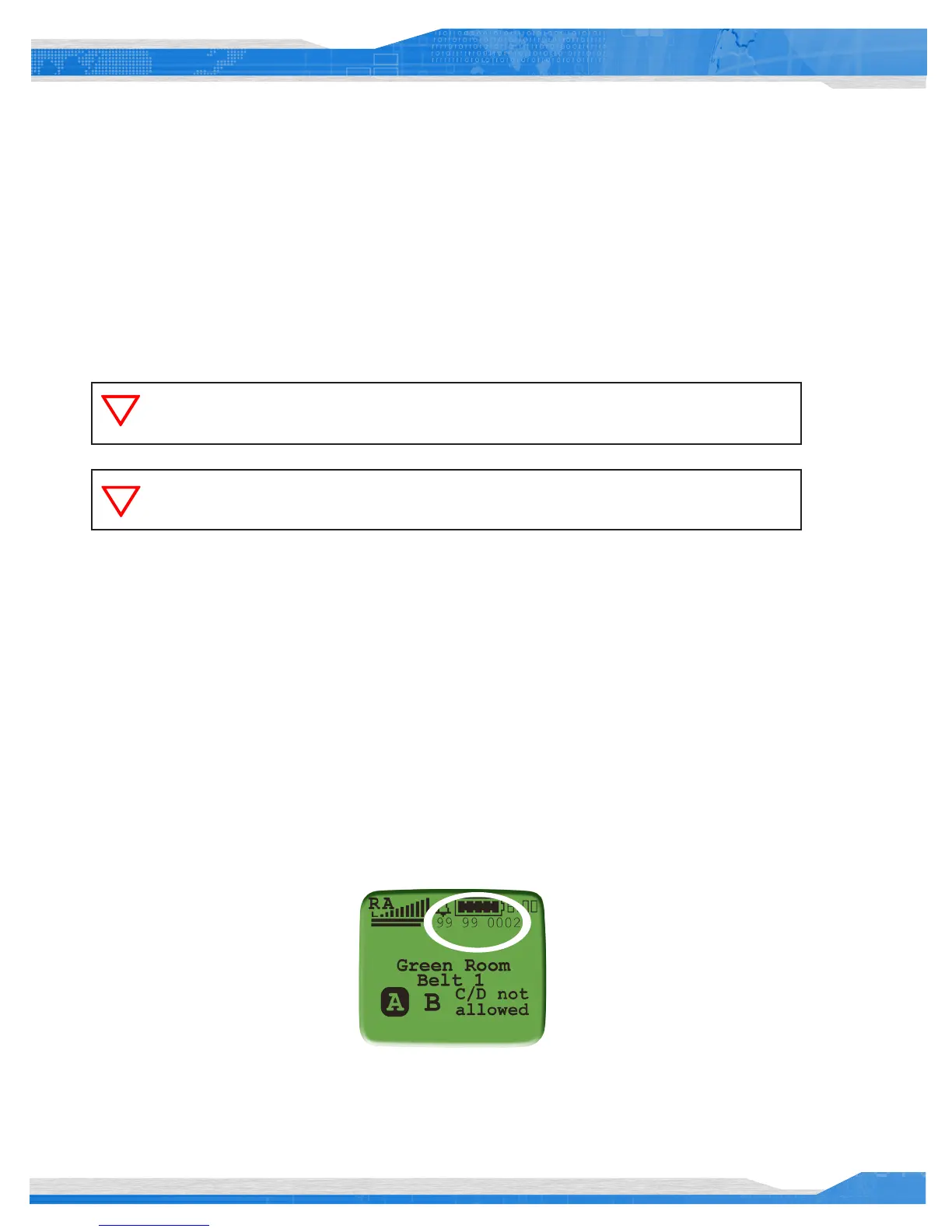
From the BeltStation, users can enable the LQ indicator by pressing the Menu button and selecting: Belt Settings>Tech Menu>ENT thru
Warning!>Diagnostics>Show Scan Debug. Once shown, the numerical LQ indicator will appear below the battery indicator on the BeltStation’s
main operational screen.
When collocating BaseStations, the LQ tool can be used to ensure each system is maintaining adequate link quality with corresponding
BeltStations and synchronization between systems is properly working. For more information on using Link Quality when collocating systems,
contact your Tempest Applications Engineer.
When two or more Tempest BaseStations are to be operated in the same location, utilizing the
Accu-Sync can signicantly increase system performance and operational range.
Never Sync between 2.4GHz and 900MHz Tempest models


 To Next Page