66
Tempest900 2-Channel Operating Manual
Update the Firmware (with CodeUpdater)
Tempest rmware updates are released periodically, and equipment
should be updated to maximize optimal system performance. Staying
up to date with the latest rmware ensures that your system is
equipped with the newest features and enhancements that Tempest
has to offer.
Tempest uses a proprietary program, CodeUpdater, to update rmware
in the BaseStation and the BeltStation. Tempest CodeUpdater can
automatically detect what rmware is currently installed on a unit and
indicate whether a later version is available.
Note: You must have internet access on your PC for
CodeUpdater to accurately detect the latest released
versions available.
Connecting Your BeltStation for Updating:
• Be sure the BeltStation is powered OFF.
• Plug in your USB programming cable to your computer rst.
• Push and hold the CALL button on the front of the BeltStation and plug in the USB cable to the side USB‐A connector on the
BeltStation. The BeltStation will power ON automatically. Do not release the CALL button until the BeltStation display message appears.
Connecting Your BaseStation for Updating:
• Be sure the BaseStation is powered OFF.
• Plug in your USB programming cable to your computer and into the front USB-B on the BaseStation.
• Push and hold the MIC KILL button on the BaseStation front panel and then power ON. Do not release the MIC KILL button until the
BaseStation display message appears.
Updating Firmware:
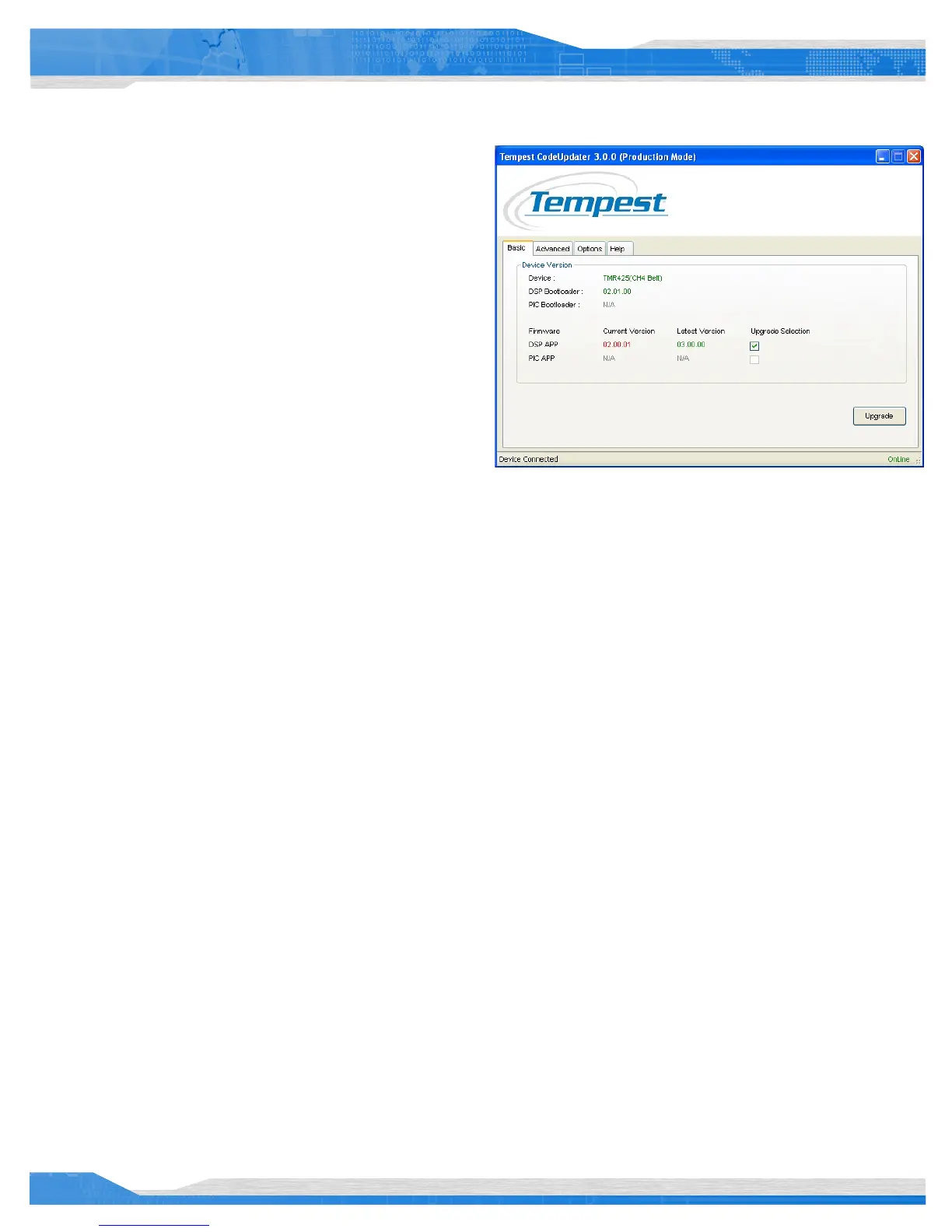
• Open Tempest CodeUpdater on your PC.
• Connect the device. CodeUpdater will list the model of the equipment connected next to device.
• You may be prompted to update Bootloader rmware. If so, it is highly recommended that you do update it. When updating the
Bootloader, it is very important that you not interrupt the update. Be sure USB cable is securely connected before starting the upgrade
process. Interrupting the update may require the device to be returned to the factory for re‐programming. It is highly recommended
that you not use a wireless connection when updating the bootloader.
Note: If you update the Bootloader you will have to re-connect your device to initialize the process again.
• The “Current Version” of rmware will display in CodeUpdater along with the “Latest Version” available (if applicable).
Note: The PIC rmware version is only applicable to the BaseStation rmware.
• If an update is available check the box under “Upgrade Selection” and click the <Upgrade> button.
• Repeat these steps as needed for each Tempest unit.


 To Next Page