86
9.2.2 Settings
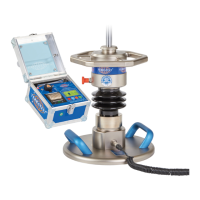
Before first use of ‘TERRATEST’ app, the software must be configured
with basic settings and is subdivided into elements ‘USER SETTINGS’
and ‘ABOUT TERRATEST’.
9.2.2.1 User Settings
Select the -symbol on initial screen.
Then select desired language via language button (English, German and
Polish are available).
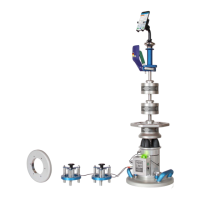
Now select button ‘User Profile’, and use the keyboard to enter required
data for the user of the App and for the company, as these data are neces-
sary for creation of test protocols and message transfer. Further input
fields appear after wiping over the window upward. Field ‘Impact Force’
decides, whether the system is used for Light or Medium Weight load
assemblies. For alternating use, select the current application by slider and
confirm safety prompt ‘ARE YOU SURE’ by ‘YES’. The company logo has
to be entered into the lower field. The image file must have been loaded
to smartphone/tablet beforehand.
After entry of all data press the navigation button above at the left side.
Data are stored, and the initial screen appears again.
Button ‘TERRATEST USB Name’ is required for functions of model
‘TERRATEST 4000…’ and is described on page 90 (STREAM function).
Press the navigation button above at the left side to return to initial
screen.
9.2.2.2 About TERRATEST
Select the -symbol on initial screen.
Pressing button ‘Imprint & Contact’ opens an additional window infor-
ming about TERRATEST contact data. Press ‘Close’ button to return to
initial screen.
Below ‘Imprint & Contact’ button, information is given concerning the
currently installed version of ‘TERRATEST’ App.
Pressing ‘Ask for offer for a measuring instrument’ generates an E-Mail
with user data, which can be modified before sending.
Press the navigation button above at the left side to return to initial
screen.
USER PROFILE
SETTINGS


 To Next Page