92
9.2.4.3 Connection and Import (Android Operating System)
First create a new or edit an existing construction site profile (refer to page 87).
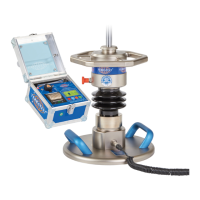
Switch OFF the measuring computer. Separate the STREAM dongle from USB port of
measuring computer, and press the lateral button. Keep the lateral button pressed until
a status LED on the upper face of the STREAM dongle is lit in white. As soon as the
button is released, the status LED starts flashing, showing that the WLAN network has
been prepared.
Start ‘TERRATEST’ app on smartphone/tablet. On initial screen, select
symbol ‘Connection & Import’. The App for a moment displays a messa-
ge and then changes to the smartphone settings. Select WLAN settings,
and establish connection to the WLAN of the STREAM dongle, to be
identified by ‘SanDisk Connect’, followed by a six digit hexadecimal
number. Return to ‘TERRATEST’ App by pressing ‘TERRATEST’ word at
the left side below time display. Press button ‘Connection & Import’
again. The App is connected to the STREAM dongle and then shows its
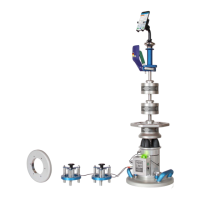
content. Select the desired folder and mark measuring data inten-
ded to be imported. Press ‘Import’ button. If the import has been
successfully carried out, a corresponding status message is dis-
played.
Press the navigation button above at the left side twice. The initial
screen appears again. Use button ‘Measuring data’ to view and
send the imported data. The WLAN connection to STREAM dongle
must be closed either by switching OFF the STREAM dongle itself, or by
plugging it into the USB port of the measuring computer, or by selection
of another WLAN network in the WLAN settings of the smartphone.
Import of selected measuring
data


 To Next Page