Chapter 6: Upgrade and Migration
Migrating from V5 appliances to V6x00 appliances
DSM Installation and Configuration Guide
Copyright 2009 - 2020 Thales Group. All rights reserved.
116
WARNING: Changing network ip address may disconnect your session and will require the
server software to be restarted.
Continue? (yes|no)[no]:yes
DHCP operations may take some time, please wait....
SUCCESS: Please restart server software to pick up the changes.
0005:network$
4. To configure a bond0 interface using DHCP, enable DHCP on that interface. The bond0 interface inherits the IP
address that was dynamically assigned to the eth0 interface when the DSM was initially deployed.
Migrating from V5 appliances to V6x00 appliances
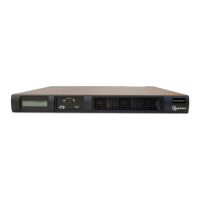
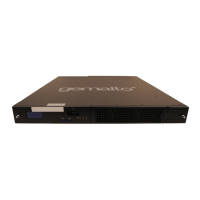
The V5800 with HSM appliances do not support DSM v6.0 or later. If you want to start using DSM v6.0 or later, on a
DSM with HSM appliance, you must purchase the V6100 appliance. This platform change is called a migration. A
V5800 appliance without HSM can be upgraded to DSM v6.0 or later, follow the procedure described here, "Upgrading
the DSM" on the previous page.
The high-level steps to migrate from a V5800 hardware appliances to V6x00 hardware appliances are described here:
1. Backup your DSM configuration to ensure you have a copy of the latest configuration before starting the
migration. You will need a wrapper key to create the backup, create one if you have not already done so. Make
sure you export the wrapper key or wrapper key shares used to create the backup. The wrapper key is required to
restore the backup. See "Backup current DSM configuration" on page114 for detailed procedures.
2. Turn off the old hardware appliance and take it off the network. You must turn off the old DSM hardware appliance
and remove it from the network, before you restore the DSM to the new hardware appliance, otherwise any
registered agents will try and communicate with both the old DSM and the new DSM and cause conflicts in your
system.
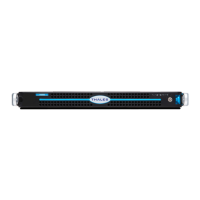
3. Configure the V6x00 appliance as described in the installation chapter for your product.
4. Assign the new V6x00 appliance with the same IP address and the FQDN of the initial V5 appliance from which
you are migrating.
5. Run the security genca CLI command on the new appliance.
6. Import the wrapper key shares to the new V6x00 appliance.
7. Restore the backed up DSM configuration to the new V6x00 appliance.
Restore backup
1. Log on to the Management Console as an administrator of type System Administrator or All.
2. Import the wrapper keys used to create the backup. Select System > Wrapper Keys from the menu bar.
3. Select Import from the Operation pull-down menu and click Add.
4. If you have created key shares from the wrapper key, get the key shares from the custodians and paste a key
share value into the Key Share text field and click Ok. Repeat this for each administrator selected as a key
custodian. A key share must be imported for at least as many custodians as were specified by the Minimum
Number of Custodians value when the wrapper key was exported.
5. Click Apply to finish importing the wrapper key.
6. Restore the backup file. Select System > Backup and Restore from the menu bar. Select the Restore tab.
7. Click Browse to locate and select the backup file to restore. Click Ok. The restored file uploads and the DSM
disconnects from the Management Console.


 To Next Page