Appendix C: IPMI
Best Practices after IPMI is Configured
DSM Installation and Configuration Guide
Copyright 2009 - 2020 Thales Group. All rights reserved.
157
Note
Intermediate CAs are not supported.
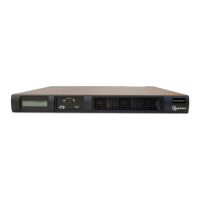
3. In the IPMI GUI, click Configuration > SSL Certification.
Figure C-3: SSL Upload
4. Click Choose File and import the signed leaf cert. and private key into IPMI.
5. After IPMI reboots, browse to the IPMI using the hostname that matches the certificate and look for the “green
lock” in the URL field. When you see it, it means that the new certificate and key are now installed.
Note
You may need to import the CA root certificate into your keystore.
Change the port through which you access IPMI
By default, you can only access the IPMI management console through HTTPS. The default port for HTTPS is 443.
Changing the default port from 443 will present an obstacle to potential hackers. If you change the https port, for
example to 59841, you will have to add it to the IPMI URL. For example, instead of accessing IPMI using
https://10.3.45.45 you will have to use https://10.3.45.45:59841
1. In the IPMI management console, click Configuration > Port.
2. Change the Web SSL port from 443 and click Save. You will lose connectivity to the IPMI console when you
change the port number. Enter the URL to log in again with the new port number as; https://<IP address or host
name>:<Port number>
Example: https://1.2.3.4:59841
3. Navigate to Remote Control > Console Redirection and click Launch Console.


 To Next Page