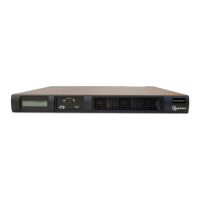
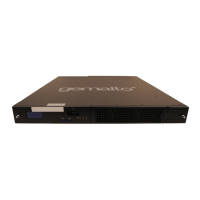
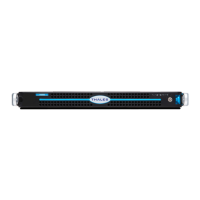
Chapter 3: DSMV6000 Hardware Appliance
Configuring a V6000 Appliance
DSM Installation and Configuration Guide
Copyright 2009 - 2020 Thales Group. All rights reserved.
50
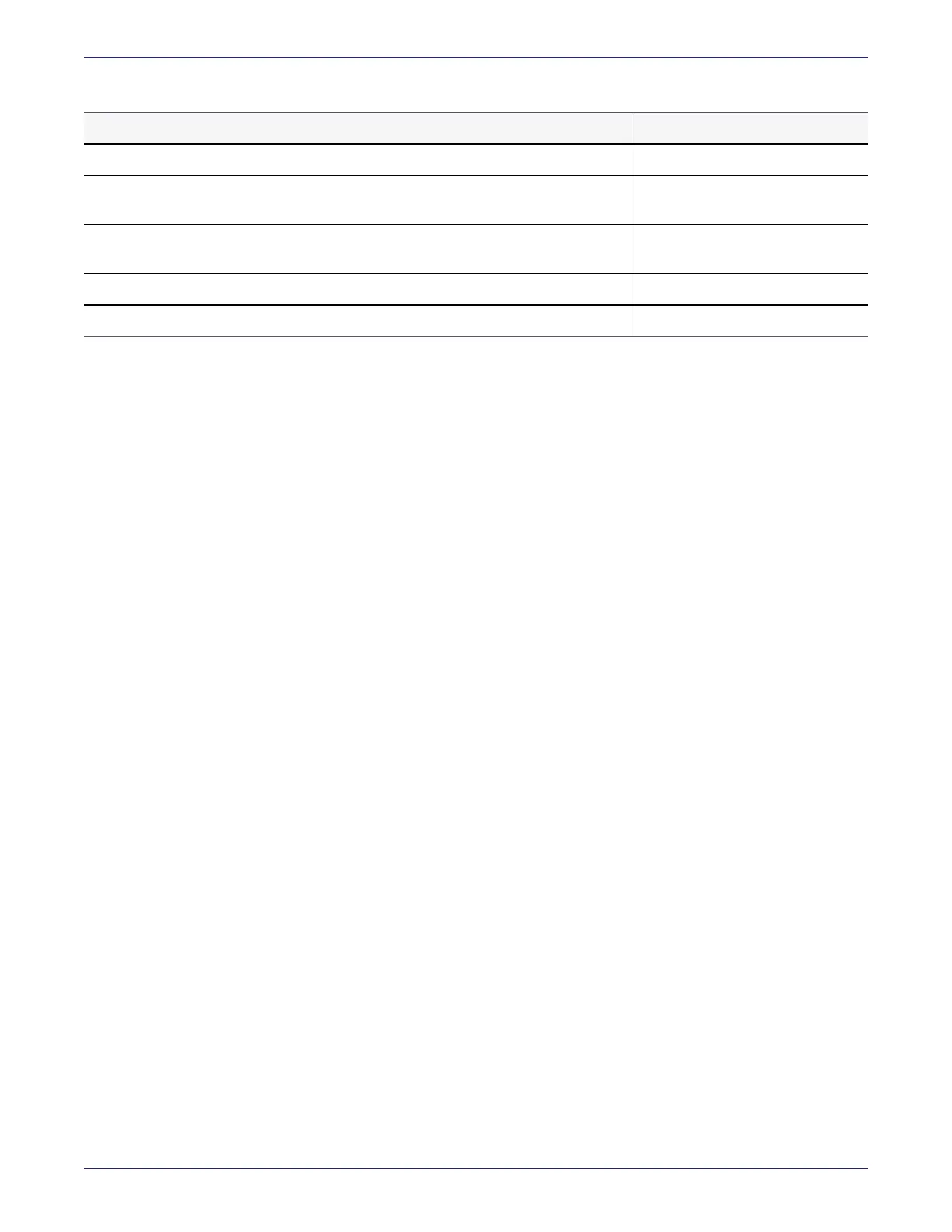
REQUIREMENT VALUE
Name of your organization
Name of your city or locality. Must be fully spelled out, no abbreviations, e.g., San
Jose, not SJC.
Name of your state or province. Must be fully spelled out, no abbreviations, e.g.,
California not CA
Two-letter country code
Email address
Table 3-1: Installation Checklist (continued)
Pre-configuration tasks
Specify host name resolution method
Setting the hostname resolution for the V6000 uses the same method as in the V6100. See "Specify host name
resolution method" on page26 for more information.
Configure DSM ports
If a DSM must communicate with a device behind a firewall, you must open various ports in the firewall. To see the
ports to configure, see "Ports to Configure" on page171
Configuration Tasks
When you configure the DSM Appliance, you must:
1. "Connect to the V6100 appliance" on page28
2. "Access the DSM Command Line Interface (CLI)" on the next page
3. "Configure network settings" on page77
4. "Configure a bonded NIC device" on page79
5. "Bonding driver modes" on page80
6. "Enable DHCP on bond0 interface" on page81
7. "Configure NTP, time zone, date, time" on page81
8. "Configure the hostname" on page82
9. "Verify Web Access" on page85
10. "Upload a license file" on page85
Connect to the V6000 appliance
To configure the DSM, you need to access the DSM Command Line Interface (CLI). To access the DSM CLI, you
need connect through the console serial port with a DB-9 cable. Configure your console connection using the following
parameters:
o
Terminal Type: VT100


 To Next Page