Appendix C: IPMI
Best Practices after IPMI is Configured
DSM Installation and Configuration Guide
Copyright 2009 - 2020 Thales Group. All rights reserved.
159
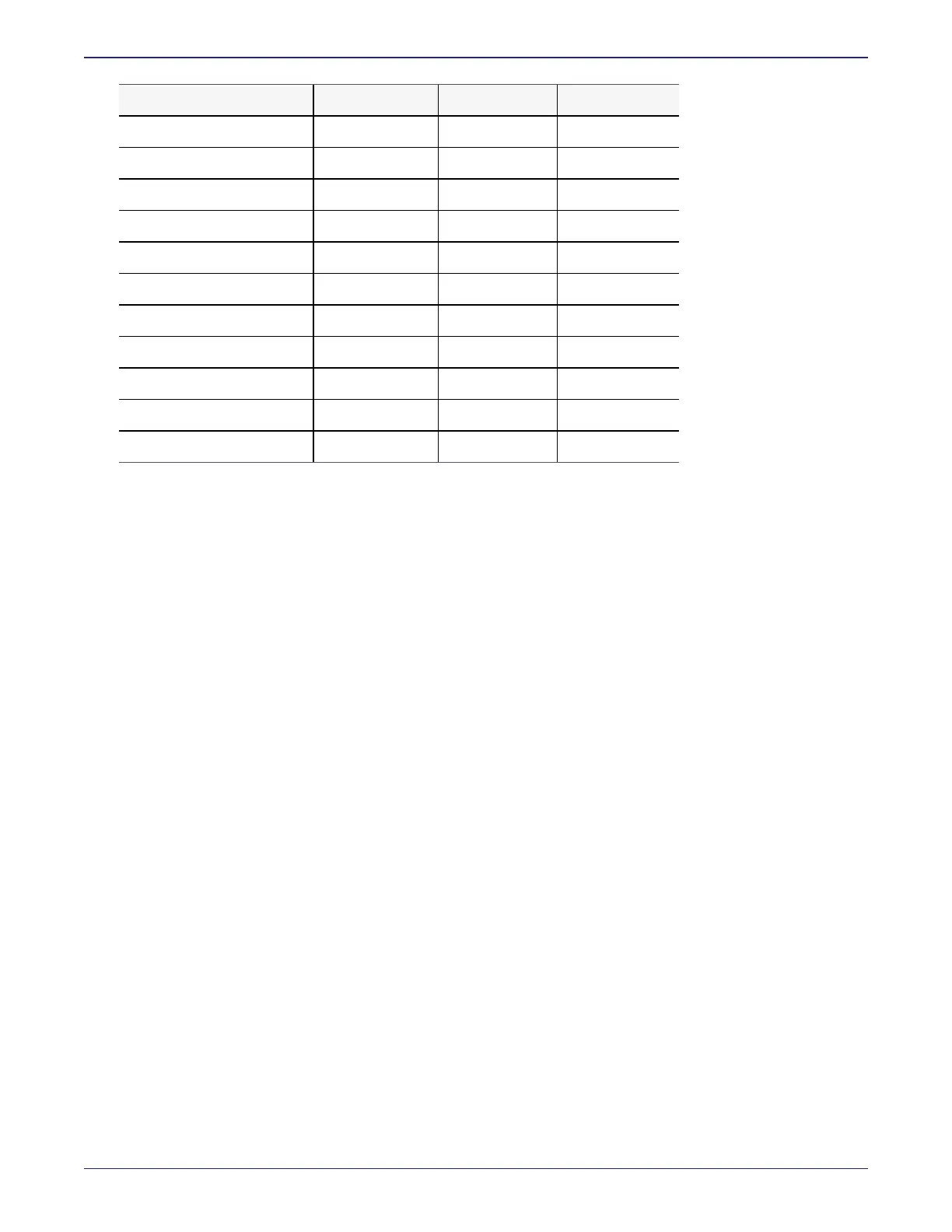
Function User Operator Administrator
Network No View Only Full Access
Remote Session No View Only Full Access
SMTP No View Only Full Access
SSL No View Only Full Access
Users No View Only Full Access
Event Action No View Only Full Access
Power Control View Only Full Access Full Access
KVM View Only Full Access Full Access
F/W Update View Only View Only Full Access
SDR Update3 View Only View Only Full Access
Logout Full Access Full Access Full Access
3. Run the user add command to create the user. user add has the following syntax:
>0017:ipmi$ user add <userID Username privilege_level>
In this example userID is 3, Username is user1, and privilege_level is operator:
0017:ipmi$ user add 3 user1 3
Enter new password:
Enter password again:
SUCCESS: ipmi user modified
The new password must be at least 8 characters long, must contain at least one upper case letter, one special
character, and one number, where ((4=administrator, 3=operator 2=user 1=callback)
Configuring Alerts
You can configure IPMI to send alert notifications about hardware events on the DSM appliance. To receive email
alerts you will need to configure your SMTP server in the IPMI GUI. You can also configure SNMP trap alerts, to be
sent to an SNMP manager.
Configure SMTP (optional - for e-mail alerts)
To receive e-mail alerts, first configure your SMTP server in the IPMI GUI as follows:
1. Log on to the IPMI GUI.
2. Click Configuration > SMTP.
3. Enter details for your SMTP mail server and click Save.
Configure an IPMI Alert (for SMTP and/or SNMP alerts)
1. In the IPMI GUI, navigate to Configuration > Alerts.
2. Select an alert from the numbered list that you want to configure and click Modify.
3. Set the severity level, the destination IP address to where you want to send the SNMP trap alert notification,
and/or an email address to which to send the notification a subject, and message if desired.


 To Next Page