Chapter 2: DSM V6100 Hardware Appliance
Configuring High Availability for V6100
DSM Installation and Configuration Guide
Copyright 2009 - 2020 Thales Group. All rights reserved.
45
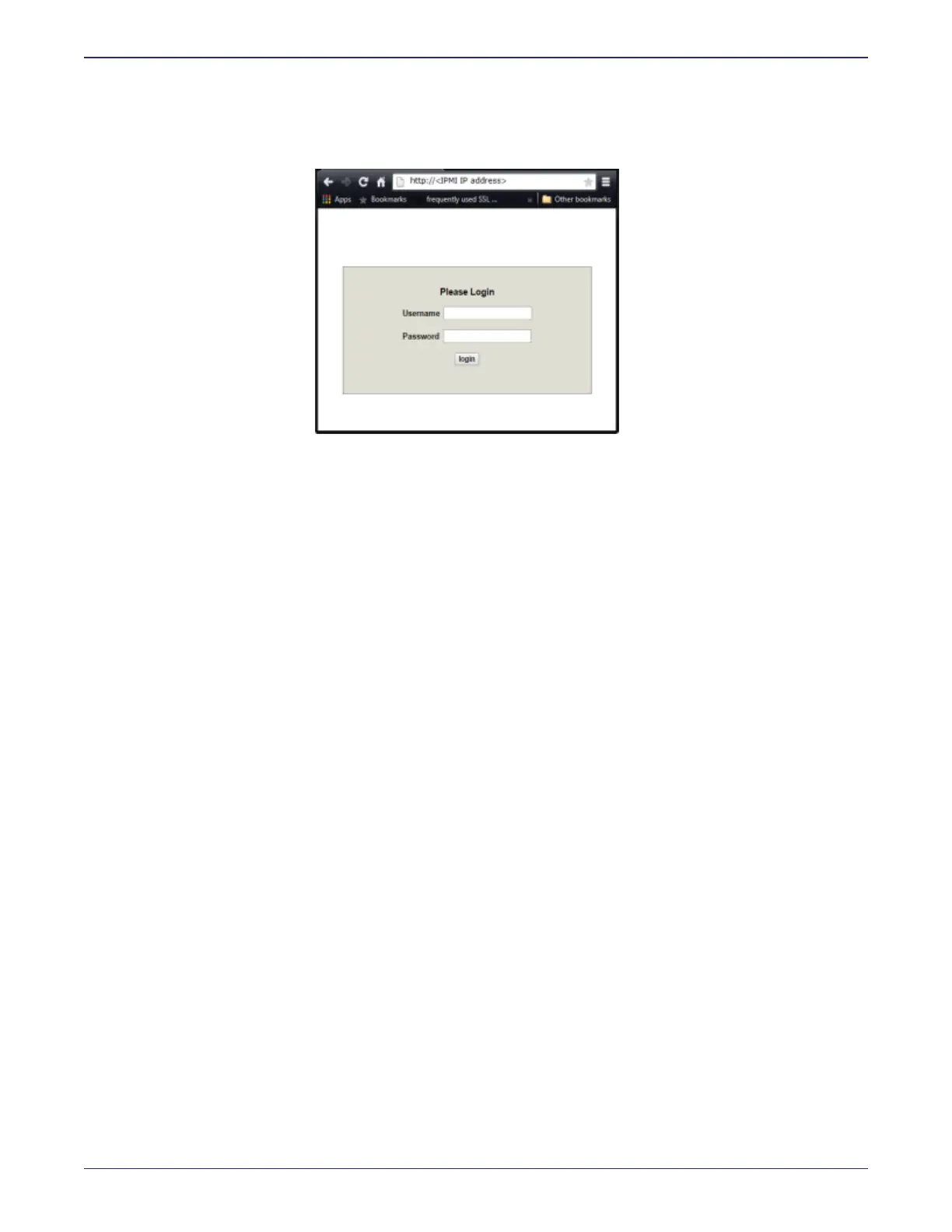
6. Open a browser session and point the browser to the URL that contains the IPMI IP address you just configured;
https://<IPMI IP address>. You will see the IPMI login screen, as shown in the following figure.
Figure 2-7: IPMI Login screen
The default login credentials are as follows; Username: ADMIN and password: ADMIN.
1. Navigate to Remote Control > Console Redirection and click Launch Console. Download and run the
resulting .jnlp file to open a Java console for your DSM. This Java console provides access to the DSM CLI.
2. Log on to the CLI using the default CLI administrator credentials; Username; cliadmin, password: cliadmin123.
You will be prompted to change the CLI administrator password. After that you will be prompted to change the
IPMI GUI login password as well.
The new password must be at least 8 characters long, must contain at least one upper case letter, one special
character, and one number.
3. Configure the network settings. See "Configuration tasks" on page27 and "Generate DSM Certificate Authority
and create ACS" on page82.
Configuring High Availability for V6100
See "Configuring HA for V6x00 and Virtual Appliances" on page135 for the procedure to configure high availability.


 To Next Page