Appendix A: Specifications, Racking, and Cabling for the V6000 and V6100
Installing and Connecting Cables
DSM Installation and Configuration Guide
Copyright 2009 - 2020 Thales Group. All rights reserved.
134
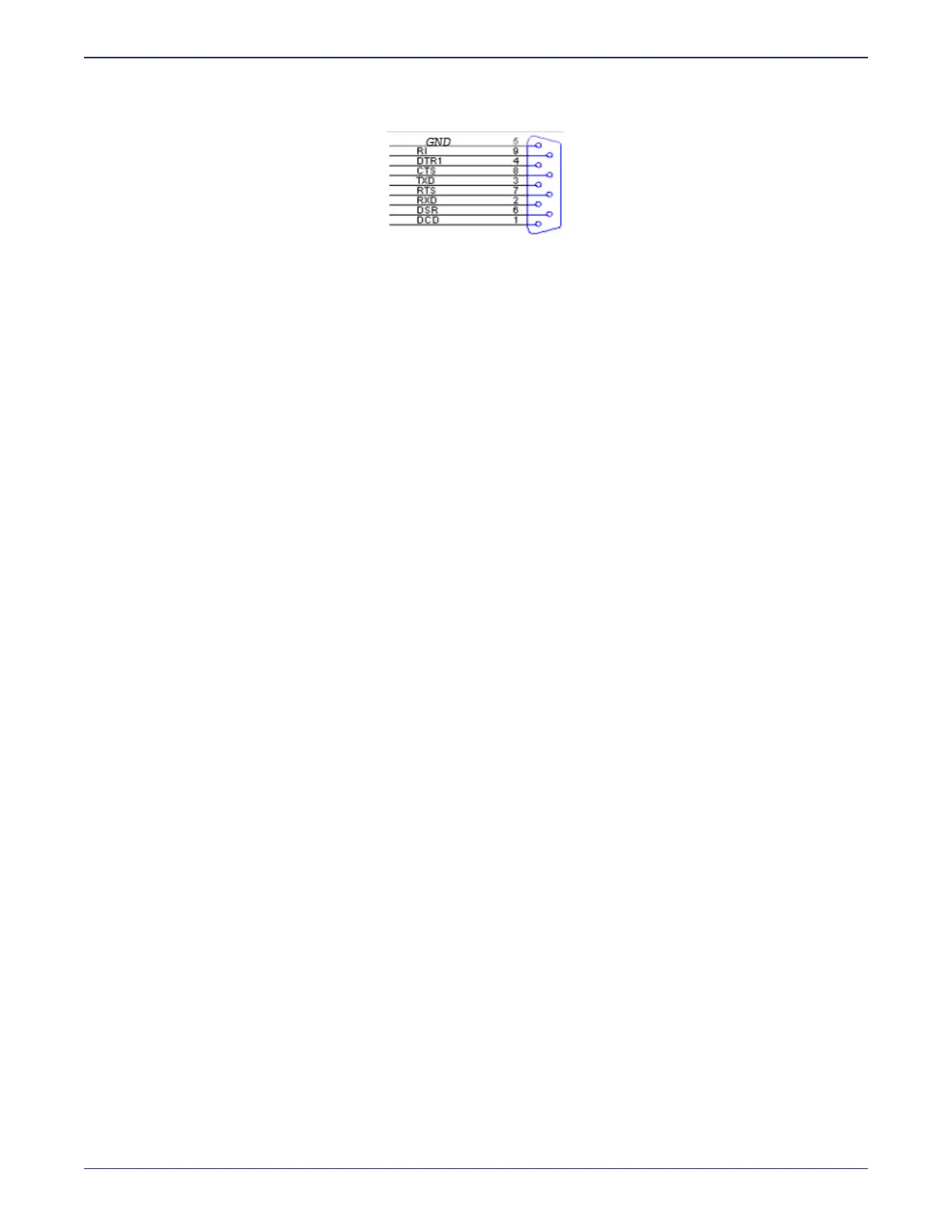
Figure A-10: Appliance serial console port pin-out
4. Open a console window, like Windows HyperTerminal, on your system.
5. The console window should display the DSM CLI login prompt. If it does not, press the <Enter> key.
Connecting to the network
Two RJ-45 10/100/1000 Mb Ethernet connections, eth0 and eth1, are provided on the rear panel of the V6000/V6100
DSM hardware appliance (see "Configuration tasks" on page27). The eth0 interface comes pre-configured from the
factory. The eth1 interface is not configured and is disabled by default.
You can access the DSM appliance immediately after bootup via a Secure Shell Protocol (SSH) connection. The
default IP address of the eth0 network interface is:
eth0: 192.168.10.1
If you want to connect to the DSM via Ethernet, manually set the IP address for the laptop to 192.168.10.2 (or higher)
with a default mask of 255.255.255.0. Otherwise, use the serial console interface to configure the DSM network. We
recommended that you use the serial console interface to perform initial network configuration because, if you are
logged onto the appliance through the Ethernet interface, the connection will drop when you change the Ethernet
interface IP address.


 To Next Page