© Third Dimension Confidential Document D13-1604-GGUSER-EN-3.4
V7.6
13
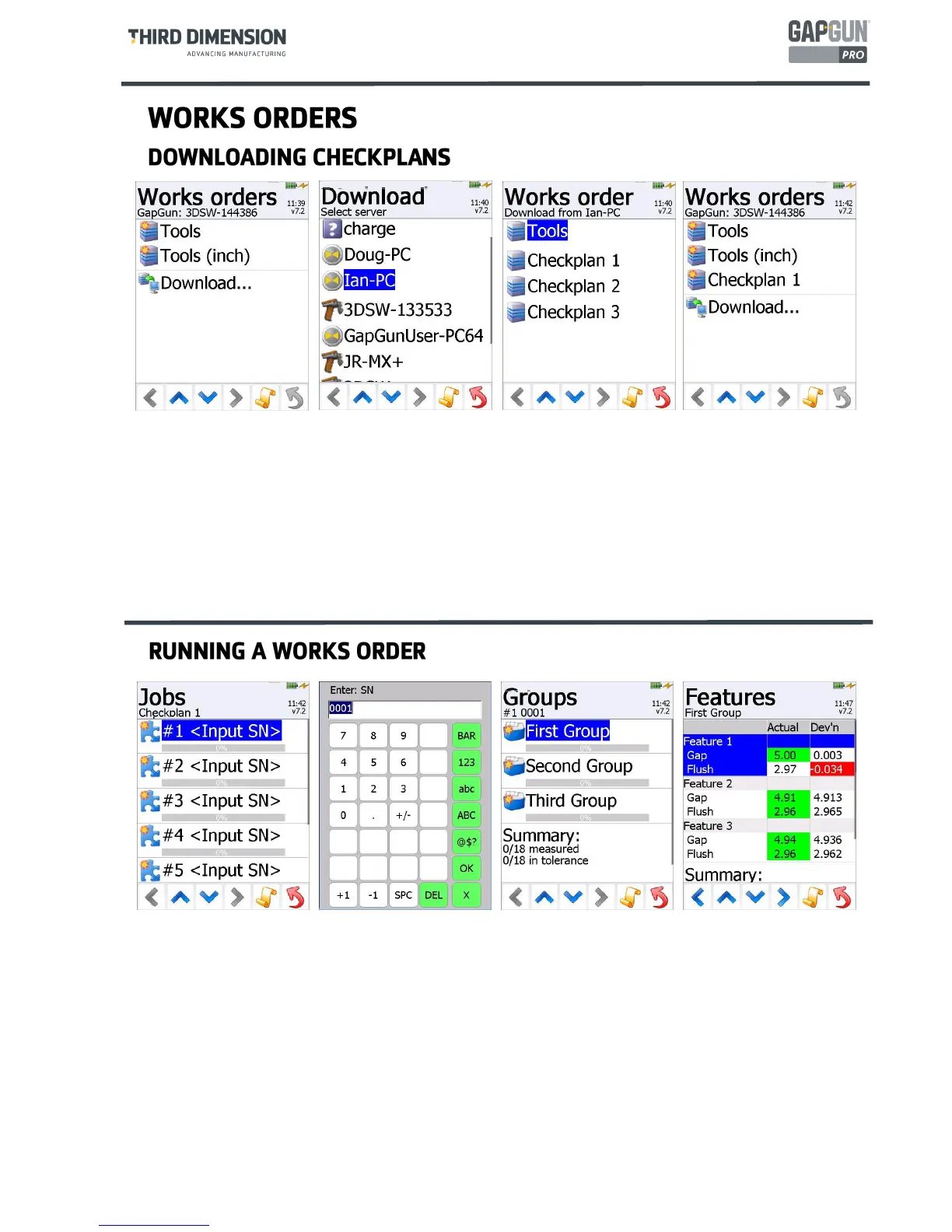
1. Tapping on the name of the Work Order displays five copies of the same checkplan, this number can be
changed in the Checkplan properties or globally in
System options...
under
WorksOrderDefaultNumJobs
.
2. The GapGun then prompts for a serial number which can be typed in, read by a barcode. The previous serial
number can be incremented or decremented using the +1 and –1 keys.
3. The
Groups
in the checkplan are then displayed showing how much of each Group has been measured.
4. Tapping on a Group displays the list of Features to be measured in that Group. Groups and Features can be
run in any order. However, the GapGun is configured to run through in the given order by pulling the trigger.
Note: Pressing and holding the up and down arrow keys automatically scrolls through the Groups and Features
lists.
The GapGun regularly searches for PCs running SPC3D when it is connected to a network. When it finds PCs
running SPC3D the
Download…
item appears.
1. Clicking
Download…
displays a list of the PCs running SPC3D.
2. To download a checkplan to the GapGun it must first be opened in SPC3D on the PC. Selecting a PC
displays a list of the checkplans that are open on that PC.
3. Selecting the checkplan downloads it to the GapGun where it becomes a Works Order.
4. The new Works Order is displayed on the
Works Orders
menu with the starred icon.


 To Next Page