14
© Third Dimension Confidential Document D13-1604-GGUSER-EN-3.4
V7.6
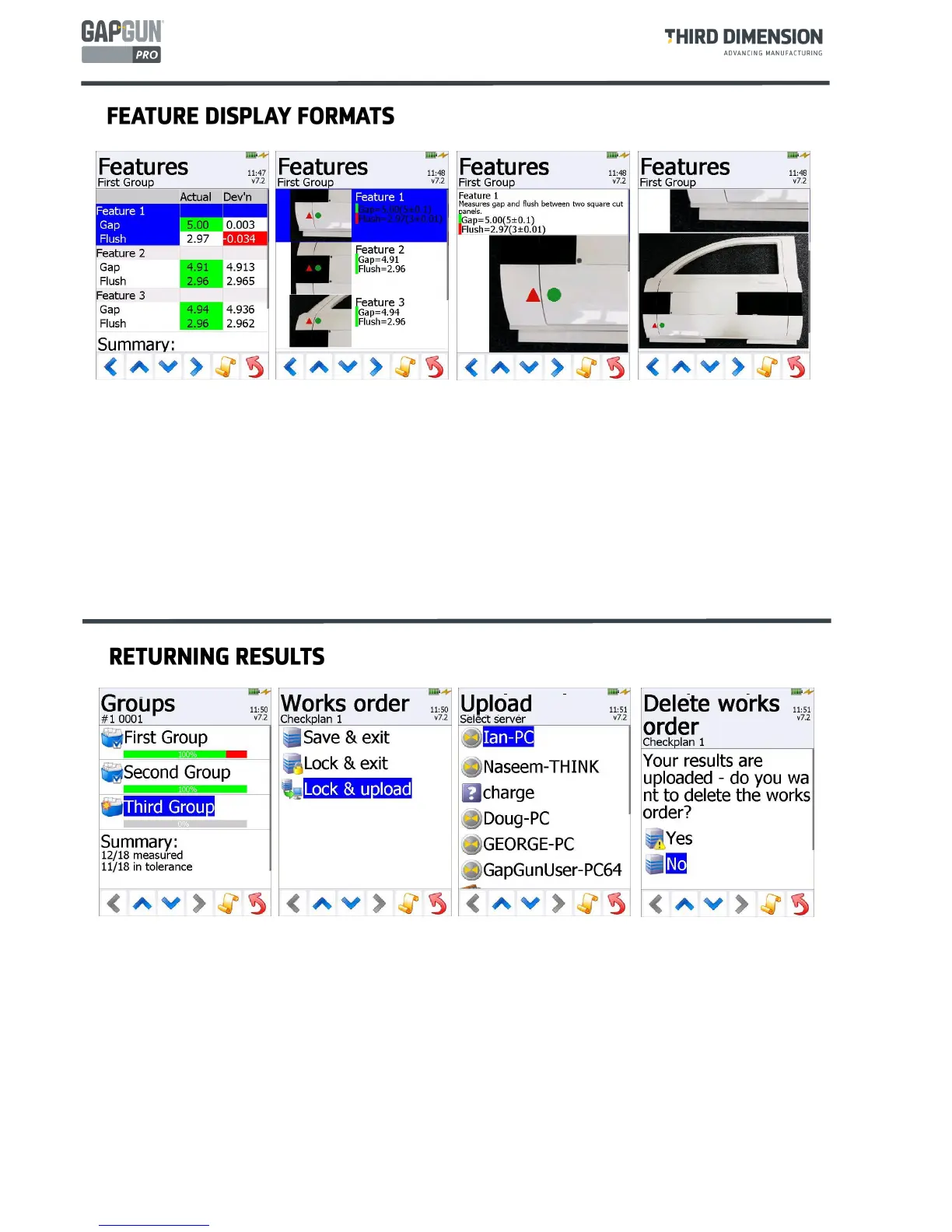
Once all Features in all Groups have been measured the GapGun returns to the Groups menu. The percentage
shows how many Features were measured and the green and red bands quickly show how many were in and out
of tolerance.
The Summary describes these results in more detail. Returning from the
Groups
menu prompts the Operator to:
Save & exit the Works order which saves the results so far but allows further Features to be measured.
Lock & exit which locks the Works order in preparation to be returned to SPC3D.
Lock & upload which locks the Works order and then prompts the Operator for a PC running SPC3D.
Once the upload is complete, the Works order can be deleted from the GapGun.
The features can be displayed in three formats, tapping the right and left arrows changes between the formats.
List format shows Features in a text-only list. By default, the Actual measurement and Deviation from nominal
is shown, displayed in green if they are in tolerance and red if out of tolerance. Other details can be displayed
using the context menu (see below).
Small Icon format shows Features with a small graphic to demonstrate how the measurement should be taken.
Large Icon format shows a large graphic to demonstrate how the measurement should be made.
The large Icon formats also show a text instruction to guide the operator. This text is set using the “Instructions” item
on the card view in the workspace window.


 To Next Page