18
© Third Dimension Confidential Document D13-1604-GGUSER-EN-3.4
V7.6
Many management and configuration options can only be performed by an Administrator.
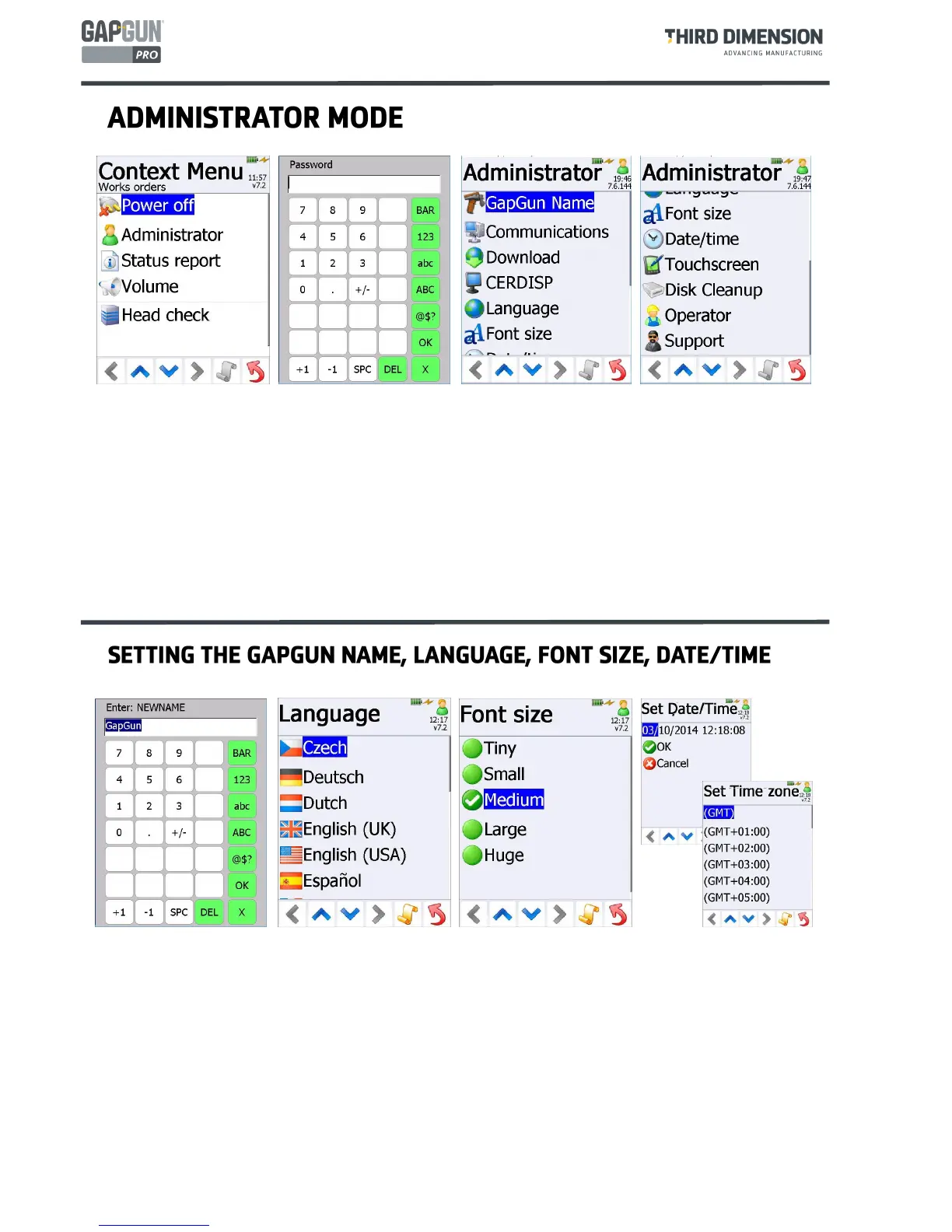
To access these functions the GapGun must first be put into Administrator Mode. Click on the context
menu icon and tap on the Administrator item.
The password must be entered into the input screen. By default the password is set to 4321
The Administrator Menu lists various management and configuration options to configure the GapGun as
required. Because the list is longer than one screen the up and down arrow keys can be used to scroll up
and down the screen.
Note: When the GapGun is in Administrator Mode a small green figure is shown in the top right corner.
GapGun Name Before V7.6 this is set to the serial number of the GapGun but can be changed as required. From
V7.6 onwards it is used as the network name of the GapGun. The handle operating system adheres to RFC-952
which means this name cannot start with a number so “3DSW-xxx” is illegal. It now defaults to “GapGun”.
Language The GapGun interface language can be set to any of the languages on this menu.
Note: Checkplans will be displayed in the language of the SPC3D used to create them.
Font Size The size of the text on the GapGun screen can be changed between Huge and Tiny.
Date/Time The Date and Time on the GapGun can be altered. However, the date and time are normally
synchronised with SPC3D whenever the GapGun connects to the PC. The time zone should be set to match that
set on the PC.


 To Next Page