© Third Dimension Confidential Document D13-1604-GGUSER-EN-3.4
V7.6
25
1.
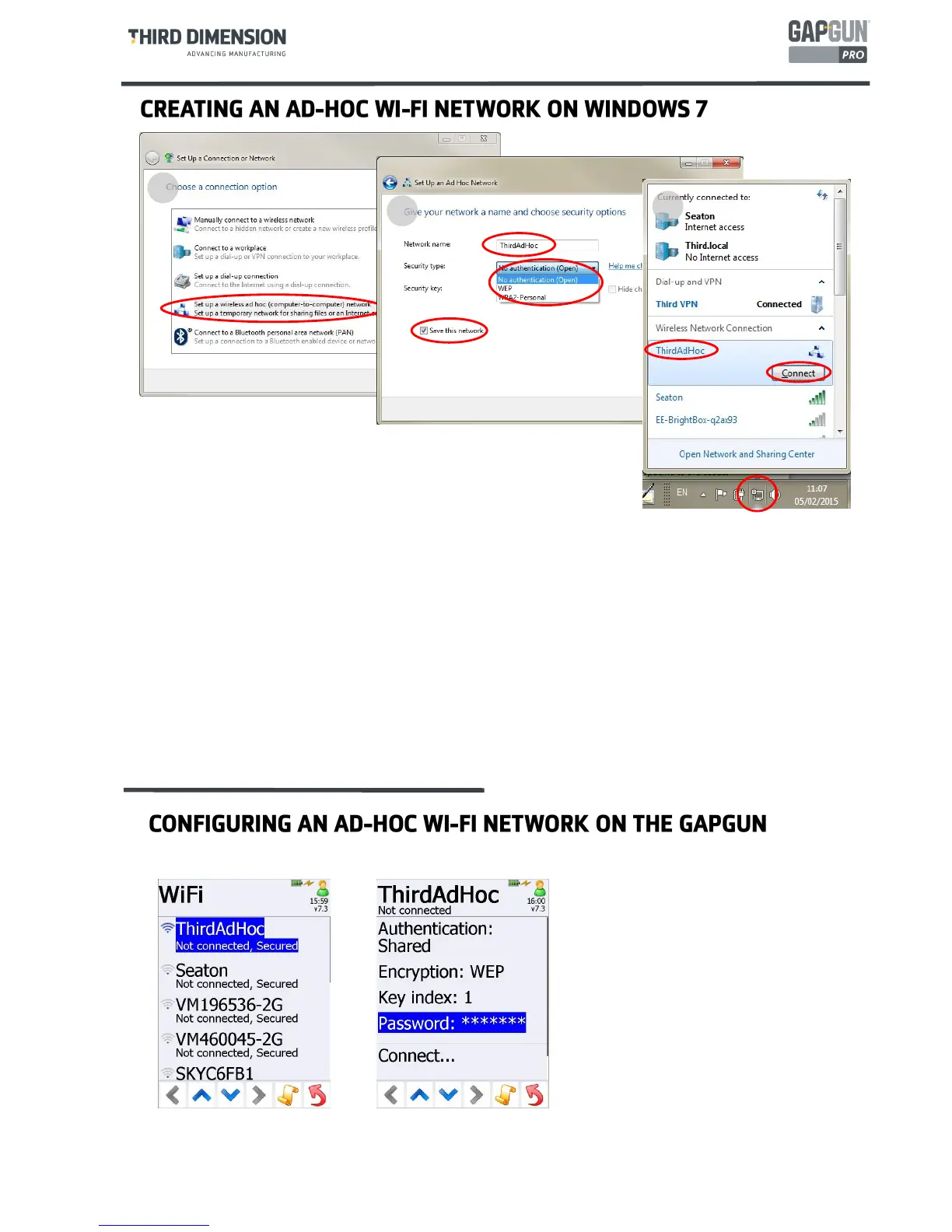
In Windows 7 from the
Control Panel
select
Network and Sharing Centre
then select
Set up a new
connection or network
2. Select
Set up a wireless ad hoc (computer to computer) network
, enter a suitable
Network name
, select
the
Security type
, provide a
Security key
then tick
Save this network.
3. From the Network icon on the Task Bar click on the new connection and select
Connect
to connect the
PC to the ad-hoc network.
NOTE 1: The GapGun is not capable of connecting to a Windows ad-hoc network using WPA2-Personal
security, only Open or WEP security methods are supported.
NOTE 2: Windows 7 will not automatically connect to an ad-hoc network for security reasons. Each time the PC
is booted the PC will need to be manually connected to the ad-hoc network as shown in step 3.
1
2
3
An ad-hoc connection is configured in
the same way as a personal connec-
tion.
Because only the PC is not a net-
worked device and only GapGun data
will be passing over the link, security
may be less important an Open or
WEP security type would normally be
sufficient.
Where a standalone PC and the GapGun are to be configured to use Wi-Fi com-
munication there are two options. The first uses a third-party Wi-Fi adapter
which can be plugged into the PC to act as an access point which can then be
configured as previously described. The second method involves setting up an
Ad-Hoc Wi-Fi network between the PC and the GapGun. To do this an Ad-Hoc
connection must be configured on the PC.


 To Next Page