32
© Third Dimension Confidential Document D13-1604-GGUSER-EN-3.4
V7.6
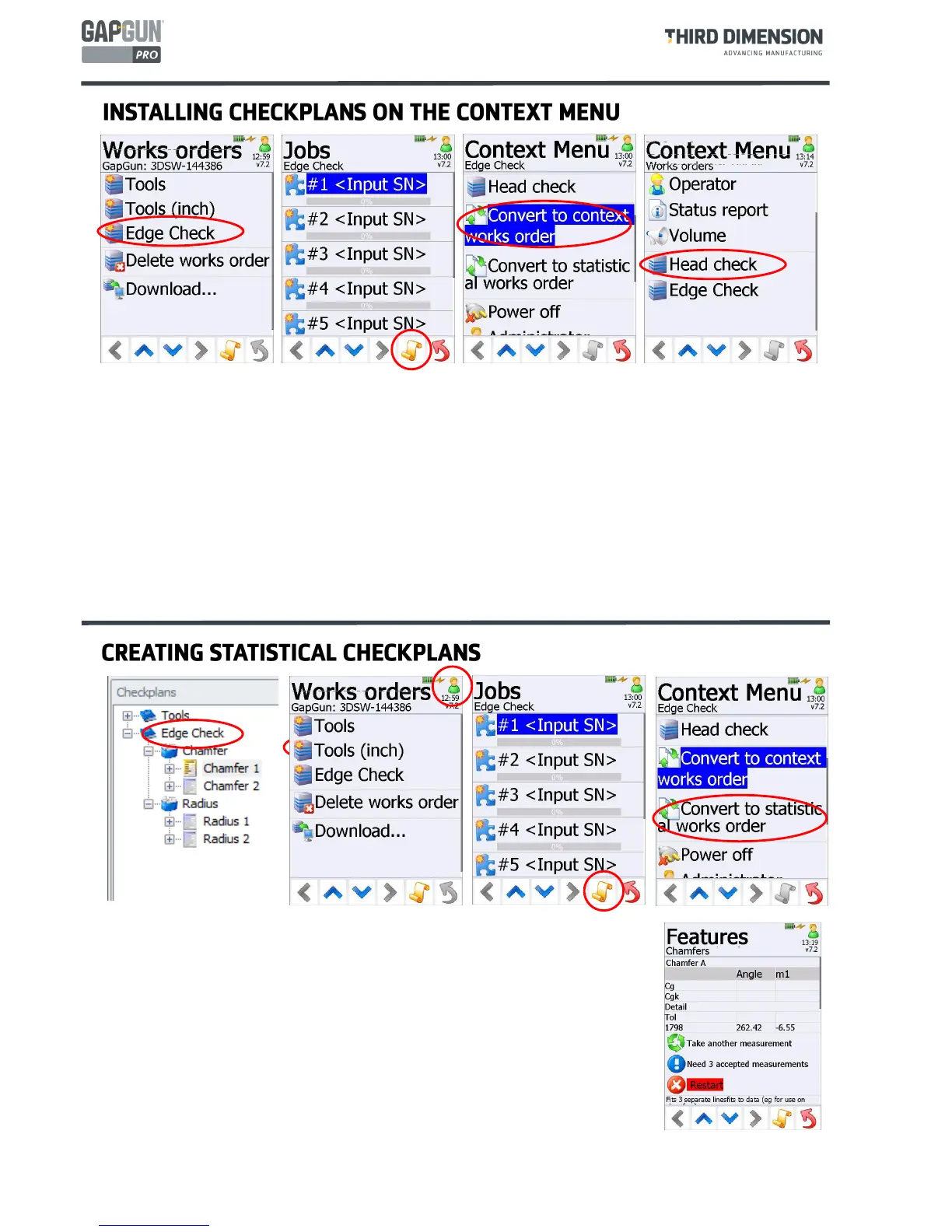
Checkplans can moved in to the Context menu where they can be run while another Work Order is being
measured. This is the mechanism used by the Head Check function. To install a statistical Works Order it must
first be modified as described in the “Creating a Statistical Checkplan” section. Then to install it:
1. Download the checkplan that is to be put onto the Context menu, go into
Administrator
mode.
2. Tap the name of the checkplan then, on the
Jobs
page, tap the
Context Menu
button.
3. Scroll down the
Context Menu
and tap on
Convert to context works order
then tap
Back
.
Note: This option will not appear if the checkplan has any results stored. Use
Delete Results
to remove them.
When running another Works Order the Context menu will now show the newly installed item.
To remove the new context item follow the same steps. However, in step 3 tap on
Convert to standard works
order
instead. To delete the checkplan from the Gapgun entirely, all stored results must be deleted. Refer to the
“Delete Works Order” section for more details.
1. In SPC3D create a checkplan to measure the Features, set the nominals and toleranc-
es as required.
2. Download the checkplan to the GapGun and go into
Administrator
mode.
3. Tap the checkplan name then, on the
Jobs
page, tap the
Context Menu
button.
4. Scroll the
Context Menu
and tap on
Convert to statistical works order
then
Back.
Note: The option will not appear if the checkplan has any measurements on the
GapGun. Use
Delete Results
to remove them.
When the Works order is now run it will show the statistical screen instead of the nor-
mal measurement screen. Measure the same point a minimum of three times before
moving on to the next Feature. The Cg and Cgk values will indicate the repeatability of
the measurement.
To change it back into a measurement works order follow the same steps. However, in
Step 4 tap on
Convert to measurement works order
instead.


 To Next Page