© Third Dimension Confidential Document D13-1604-GGUSER-EN-3.4
V7.6
35
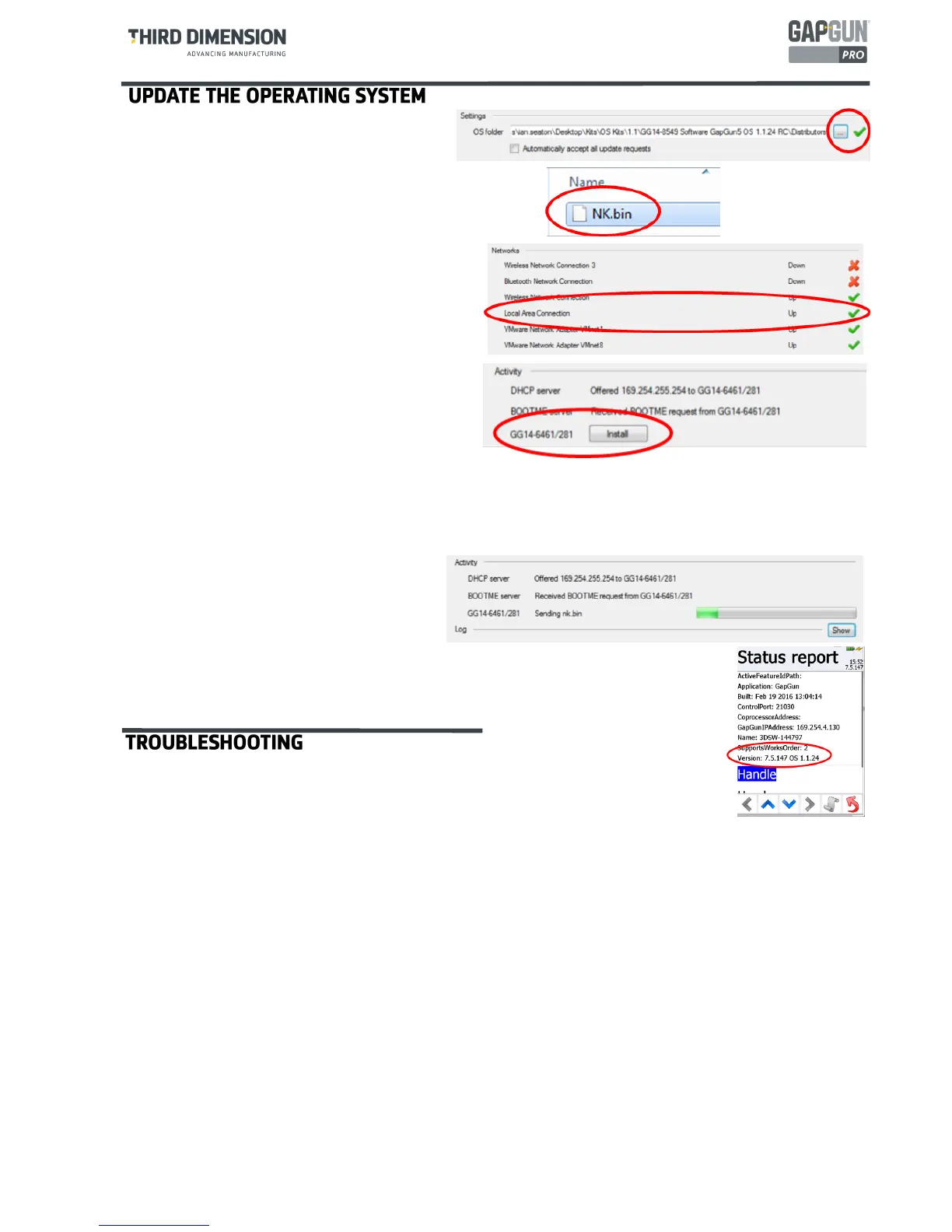
Select the folder containing the operating
system that you want to send to the
GapGun.
Identify the correct folder by selecting the
nk.bin file from the unpacked OS kit.
The
Local Area Connection
(or whatever
your wired connection is called) should be
marked as
Up
and have a green tick next to it.
This shows that the network between the
GapGun and the PC is running.
After a short time, the program should receive a
DHCP request from the GapGun and offer a suit-
able IP address. It should receive a BOOTME re-
quest and then the
Install
button should appear
next to the internal name of the GapGun. Click
the
Install
button to start the update process.
The program will download three files, after each file is received the GapGun will reboot unless the Docking
Station is unpowered when the GapGun must be manually restarted:
ebootnd.bin
xldrnand.bin
nk.bin
KEEP THE TRIGGER PRESSED
THROUGHOUT THE PROCESS
When the GapGun finally reboots into the Works Order screen, Press the Context but-
ton and select Status Report. The version string should show the updated OS version
number.
If the Local Area Connection entry does not show a green tick .
Check that the GapGun is properly mounted and turned on.
Check that the network cable is plugged in properly. You may want to replace it with a
known working cable.
Check that the network adapter is enabled on the PC.
Check that the firewall has been opened so that GapGunOsUpdate.exe has access to Private and Public connec-
tions.
If the Local Area Connection entry does not show a green tick .
Check that the GapGun is properly mounted and turned on.
Check that the network cable is plugged in properly. You may want to replace it with a known working cable.
Check that the network adapter is enabled on the PC.
Check that the firewall has been opened so that GapGunOsUpdate.exe has access to Private and Public connec-
tions.
If the GapGun keeps booting into the Works Order screen.
Remove the head sensor from the GapGun.
Hold the trigger down and then restart the GapGun by pressing the power switch.
If the process stalls between downloads.
Do a hard reboot by holding the power button on the GapGun for 10 seconds – hold the trigger down so that
the GapGun boots into the update mode.
Disconnect the PC from any networks and connect to the Docking Station directly before running the program.
It is not advised to run the Updater through an office network.
Click on the Show button to display logging information which may help in diagnosing the problem.


 To Next Page