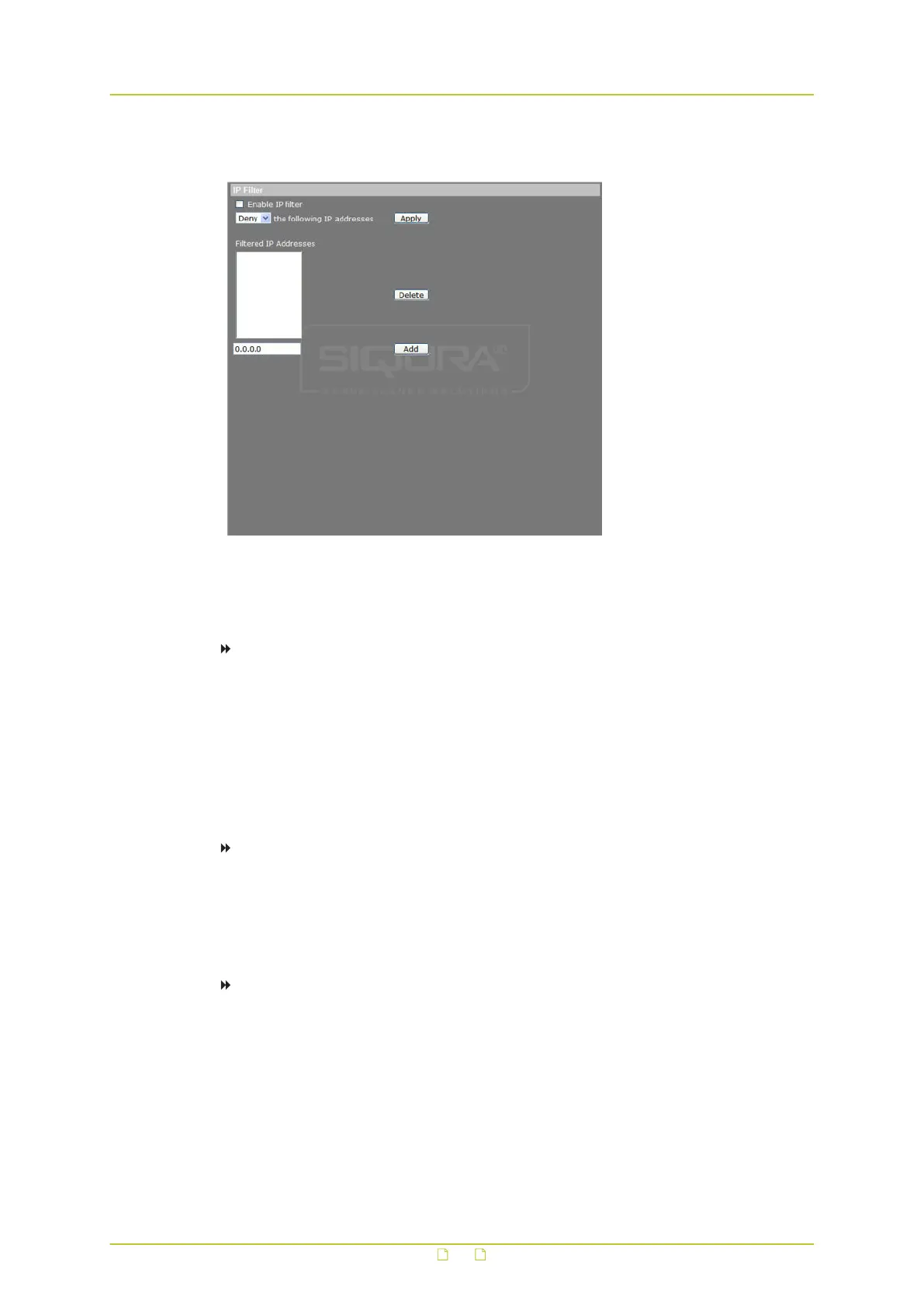
6.2.3 IP filter
System > Security > IP filter
Using the IP filter, you can deny/allow access to the IP camera from specific IP addresses. Up
to 256 IP addresses may be specified.
To enable the IP filter
1 On the System tab, click Security in the menu on the left.
2 In the Security submenu, click IP filter.
3 Select Enable IP filter.
4 To determine the IP filter behaviour, select Deny or Allow from the list.
5 Click Apply.
IP addresses listed under Filtered IP Addresses are now allowed/denied access to the
camera.
To add an IP address
1 Enter the IP address.
2 Click Add.
The address is added to the currently configured IP addresses.
Up to 256 IP addresses can be specified.
To delete an IP address
1 Select the IP address.
2 Click Delete.
The IP address is removed from the list.
System settings
33


 To Next Page