30
CLEAR AND COPY
clear
This section explains how to clear tracks, patterns, and parameters.
A ashing RED light on the [ VALUE ] buttons indicates that a track, pattern, or parameter has been cleared.
clear track
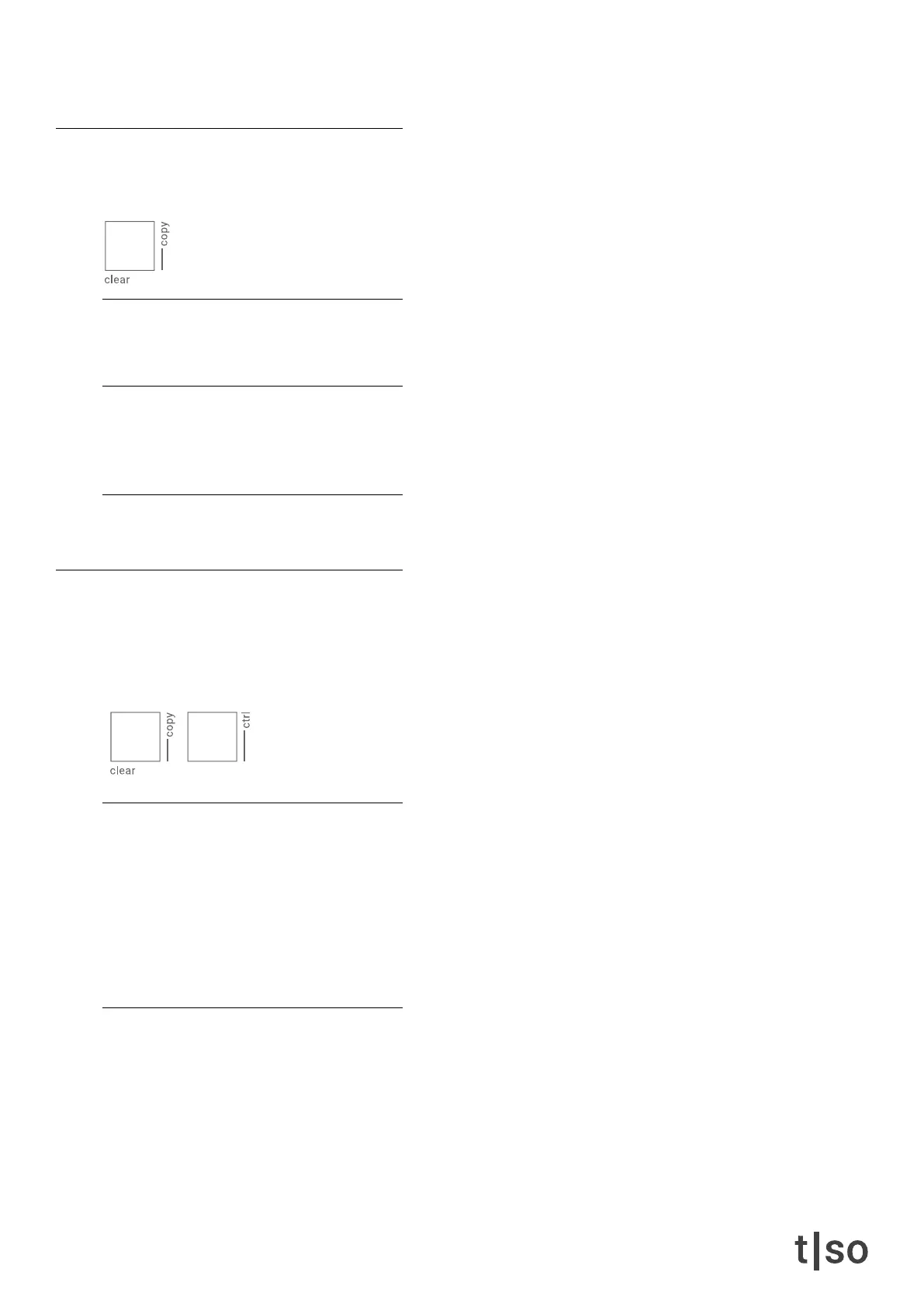
Press and hold [ CLEAR ] and press the desired [ VALUE ] buttons to reset the tracks to their default state.
clear pattern
Press and hold [ CLEAR ] + [ PATTERN ], and press the desired [ VALUE ] buttons to reset the patterns to
their default state.
clear parameter
Press and hold [ CLEAR ], and press the knob you want to reset to its default value.
copy
This section explains how to copy tracks, patterns, and banks.
[ CTRL ] + [ CLEAR ] acesses a combined copy and paste functionality - the rst selected track/pattern/parameter
is the copy target, and all proceeding selections will be the paste targets.
copy track
• Press and hold [ CTRL ] + [ COPY ] and select a track on the [ VALUE ] buttons.
• The copied track is GREEN, indicating that it is ready to be pasted.
• Select the destination track(s) on the [ VALUE ] buttons.
• Release [ CTRL ] + [ COPY ] to return to default mode.
copy pattern
• Press and hold [ CTRL ] + [ COPY ] + [ PATTERN ] and select a pattern on the [ VALUE ] buttons.
• The copied pattern is GREEN, indicating that it is ready to be pasted.
• Select the destination pattern(s) on the [ VALUE ] buttons.
• Release [ CTRL ] + [ COPY ] + [ PATTERN ] to return to default mode.


 To Next Page