Connection
Shows the Gimbal's name and its current connection address (either IP address or COM port).
Video Destination
Shows the what IP address and port the Gimbal is streaming video.
Versions
Shows the serial number, and the firmware number of each component of the gimbal. The
“Firmware” number is built from a combination of Clevis, Crown, and Payload versions.
2.10.3 Gimbal Settings
Setting File
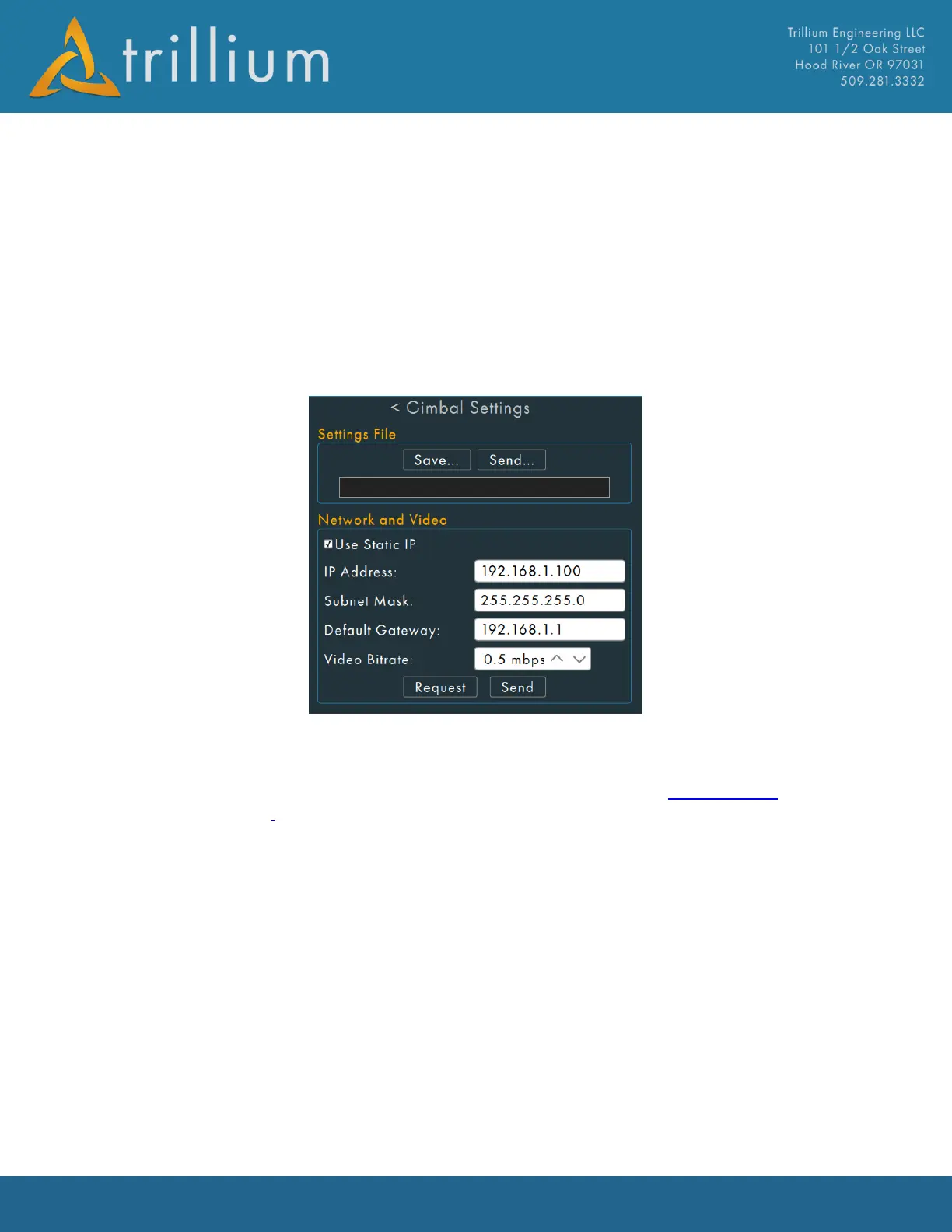
SkyLink can save and upload gimbal configuration files from the active gimbal using this dialog.
When Save button is selected the user will be prompted to name and save a “.orionconfig” on the
local PC. Default location for storage of gimbal configuration files is in the Configuration folder of
the Trillium Data Folder.
Network
The Network section allows for a static IP address to be set for the gimbal or revert back to using
DCHP to have the network assign the gimbal an address. Changing Network settings will require a
power-cycle of the gimbal before the new settings will take effect.
Warning: setting an invalid static IP can cause loss of network communications with the gimbal. If
this occurs, you will need to connect to the gimbal via its USB-SERIAL cable and change the setting
to something valid or disable static IP.
Video
The Video Bitrate box will set the bitrate of the gimbal's video stream. Change this to a lower value
if the gimbal is consuming too much bandwidth on the current link/network. A gimbal's default
value is 4 Mbps and has a range from 0.5 – 6 Mbps.


 To Next Page