• Auto - will actively rotate the video based on the gimbal's roll angle; this gives the illusion of
3-axis stabilization.
Joystick
Sensitivity sliders allows for modifying the sensitivity of the Logitech joystick’s Pan/Tilt and Zoom
controls. This does NOT affect the onscreen joystick currently.
• Invert Tilt – checkbox allows the user to invert the joystick tilt control
• Use Alternate Mapping – not used at this time
• Require App Focus – The user must select the SkyLink application window for the joystick to
send command to the gimbal.
Crosshair Overlay
Toggle whether to show a crosshair over the video or not. This function can also be turned on and
off with CTRL-+ as well.
Listen Only
When enabled, SkyLink will not send any commands to the gimbal and “- LISTEN ONLY -“ will be
displayed at the bottom of the video.
Menus Always Visible
In this mode, all SkyLink’s menus will remain visible and an arrow button for toggling the map
on/off will appear in between the video and map screens.
Safe Mode
Safe mode disables certain display settings that cause SkyLink to crash due to compatibility with
graphic drivers. Currently safe mode removes display of Geopoint's names on the map since
rendering can cause application crashes.
Default Gimbal Mode
Default Gimbal Mode allows the user to select between Scene, Rate, or Geo as the default mode the
gimbal will enter upon first user command.
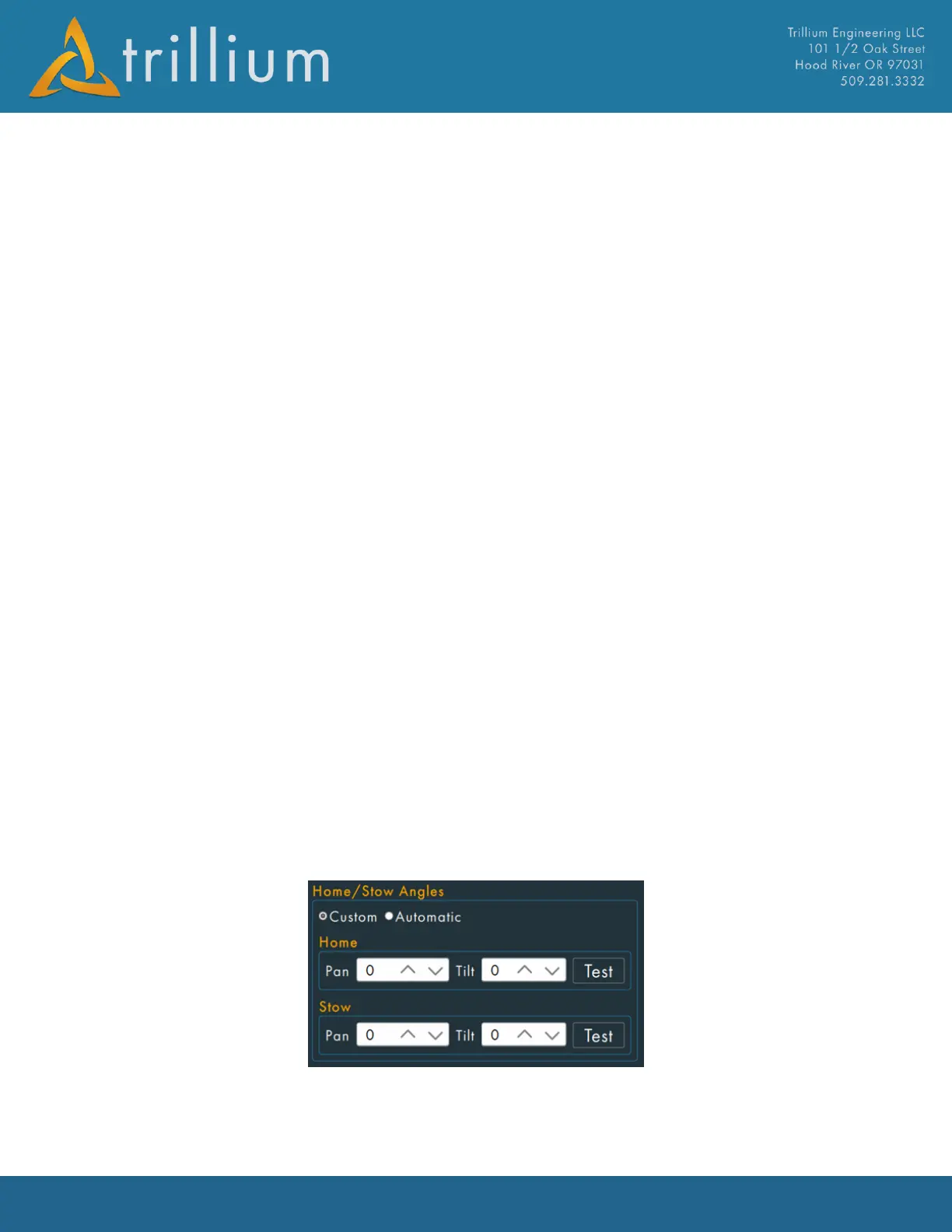
Home/Stow Angles
By checking the custom box, the user can input custom Home and Stow pan/tilt encoder angles. The
Test button will command the gimbal to the angles entered. By Checking the Automatic box, the


 To Next Page