21
UltiMaker S8 Installation and user manual
Note: Keep hands out of the build chamber after selecting Confirm as the print head will move back
to its home position.
7. Close the build chamber door again.
Tip: The printer will automatically detect the type of print core that was installed.
Note: If the current print core and material configuration is not allowed (e.g. print core AA+ with PVA
material), the printer will prompt you to also change the material. This only applies if the UltiMaker S8 is used
without a Material Station.
Change materials
The process for changing materials on the UltiMaker S8 depends on whether the printer is used with or without
the Material Station.
Tip: When removing a spool that is not yet empty, put the end of the filament through the small hole in
the spool to prevent unwinding. Store the material according to the recommended storage conditions as
described in section 5.2.
Without Material Station (spool holder)
The UltiMaker S8 has an assisted process for changing materials. You can also choose to only load
or unload a material.
Tip: Make sure compatible print cores are installed before you insert materials.
In the Configuration menu, select material 1 or 2 and press Change.
1. The printer will start unloading the material while heating up the print core.
2. Remove the material from the feeder and spool holder.
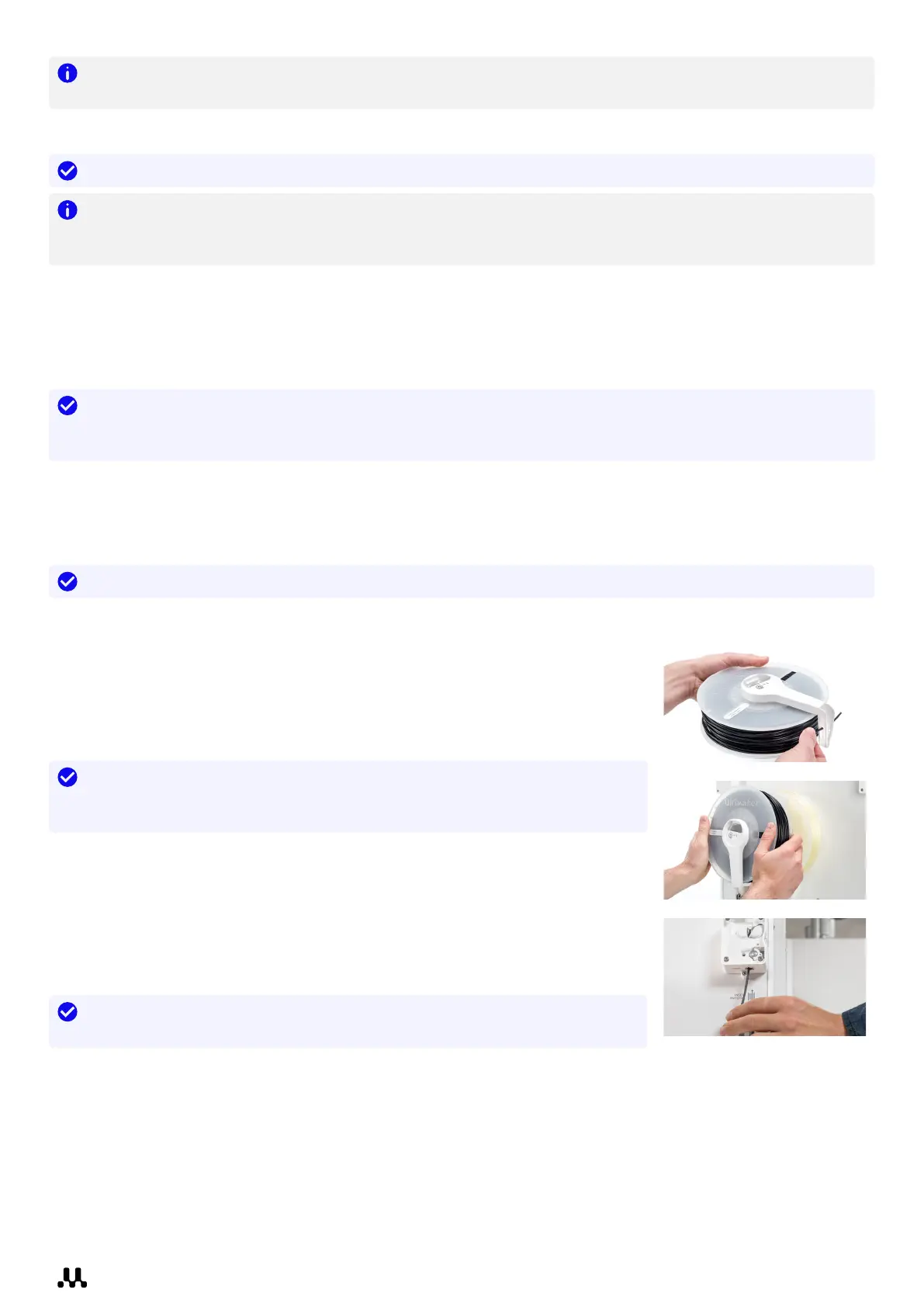
3. Place the new material spool on the spool holder (for extruder 2) or the
filament guide (for extruder 1) and press Confirm to continue.
4. Wait until the UltiMaker S8 detects the material.
Tip: When using a third-party material, you can select the material type
manually. Ensure you have installed the correct material profile first, or choose
a generic material profile.
5. Insert the end of the material into the feeder and gently push it until the feeder
grips it and the material is visible in the Bowden tube just above the feeder.
Press Confirm to continue.
6. The UltiMaker S8 will now forward the material to the print head. Wait until it
reaches the print core.
7. When the new material is extruding consistently, press Confirm to
complete the process.
Tip: When switching to a different material type or color, allow the printer to
extrude for a while until the old material is fully flushed out.














 To Next Page