COMPUTER NETWORK CONFIGURATION
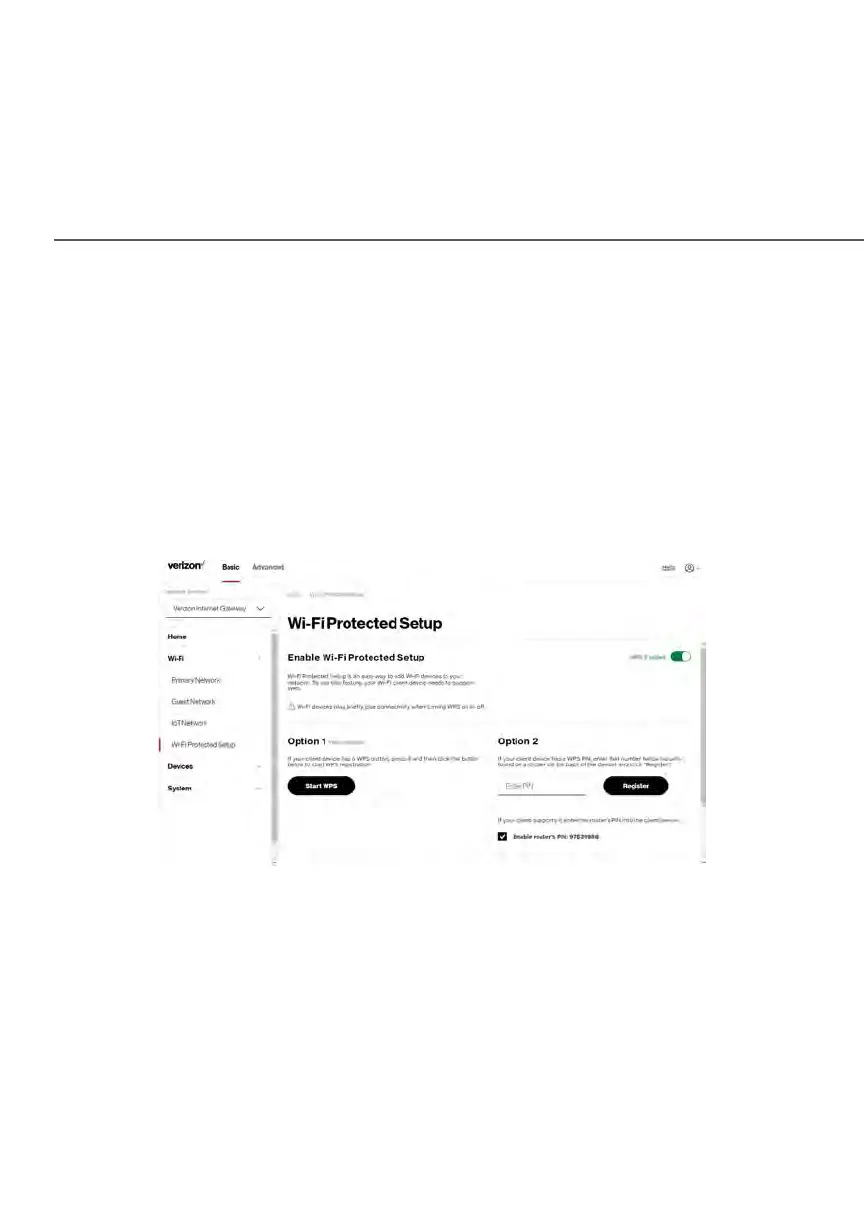
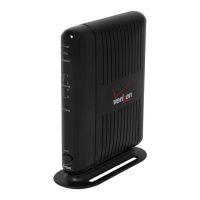
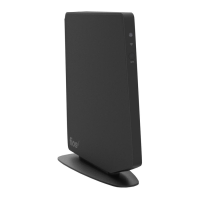
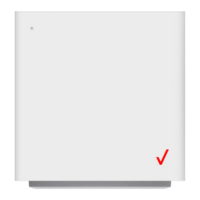
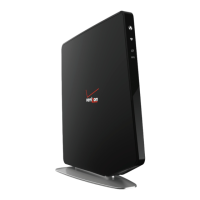
To initialize the WPS process, you can either press and hold the WPS button
located on the bottom of your Gateway for more than two seconds or use the UI
and press the on-screen button.
You can easily add Wi-Fi devices to your Wi-Fi network using the WPS option if
your Wi-Fi device supports the WPS feature.
To access WPS using the user interface:
1. From the Basic menu, select Wi-Fi settings, then click
Wi-Fi Protected Setup.
2. Enable the protected setup by moving the selector to on.
3. Use one of the following methods:
• If your Wi-Fi client device has a WPS button, press the WPS button
on your Gateway for more than two seconds, then click the Start
WPS button in Option 1 to start the WPS registration process.
• If your client device has a WPS PIN, locate the PIN printed on the
client’s label or in the client documentation. Enter the PIN number in
Option 2 on the user interface.




 To Next Page