04 / CONNECTED
DEVICES
53
http://setup.verizon.com/businessinternetgateway |
©2024 Verizon. All Rights Reserved
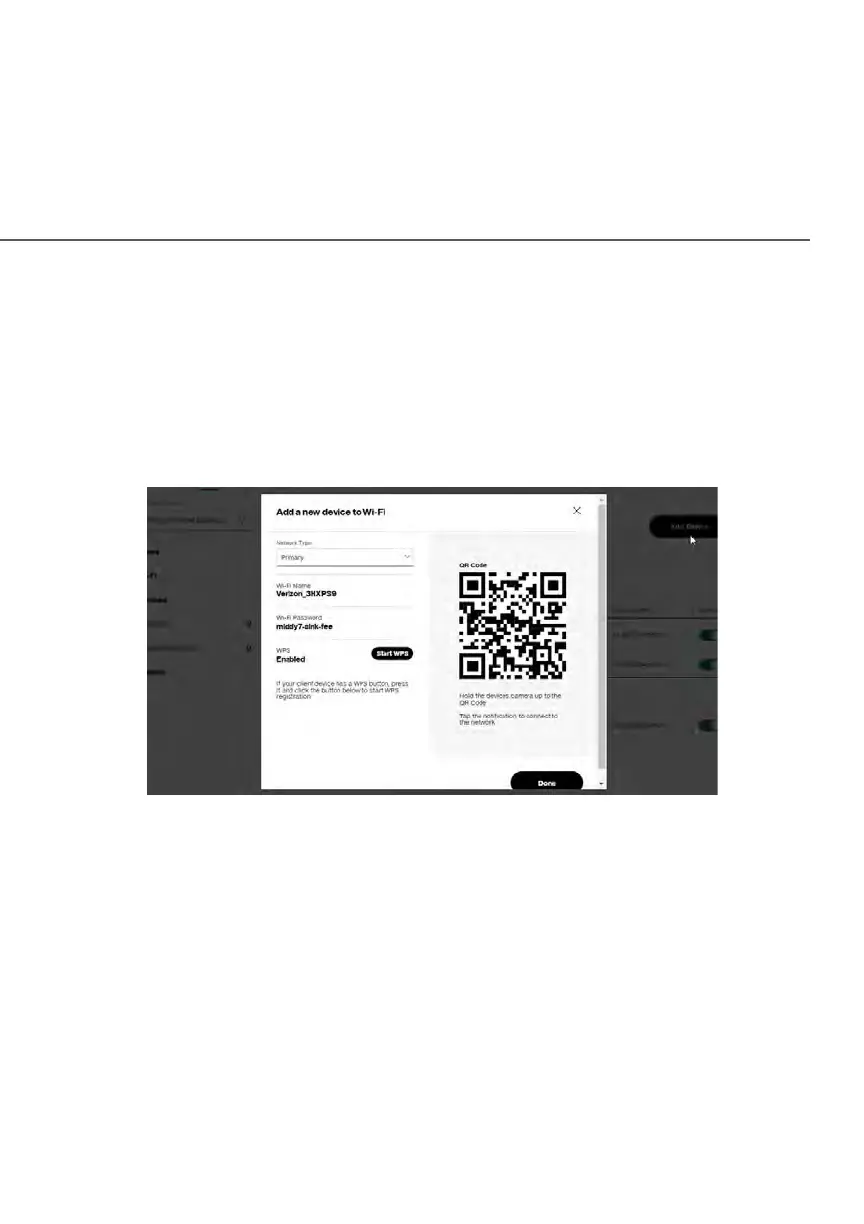
3. To easily add a new device to the network:
i. Click Add Device button on the screen.
ii. Select the preferred Network Type from the dropdown list (Primary,
Guest or IoT).
iii. Scan the provided QR code with the new device’s camera.
iv. Tap the push notification to connect the device to your network.
v. You can add the new device to your Wi-Fi network by clicking the
Start WPS button if your Wi-Fi device supports the WPS feature.
Refer to “3.1d/ Wi-Fi Protected Setup (WPS)” on page 40 for
detailed information.
vi. Click Done to save the changes.
4. Click and drag the horizontal scrolling bar to the right on the screen for
device configuration.
5. Click the Block/Allow option to quickly disable/enable a device from
having internet access.
For additional information about blocking websites, refer to “Setting
Content Controls” on page 56.




 To Next Page