8. RC-010 examples
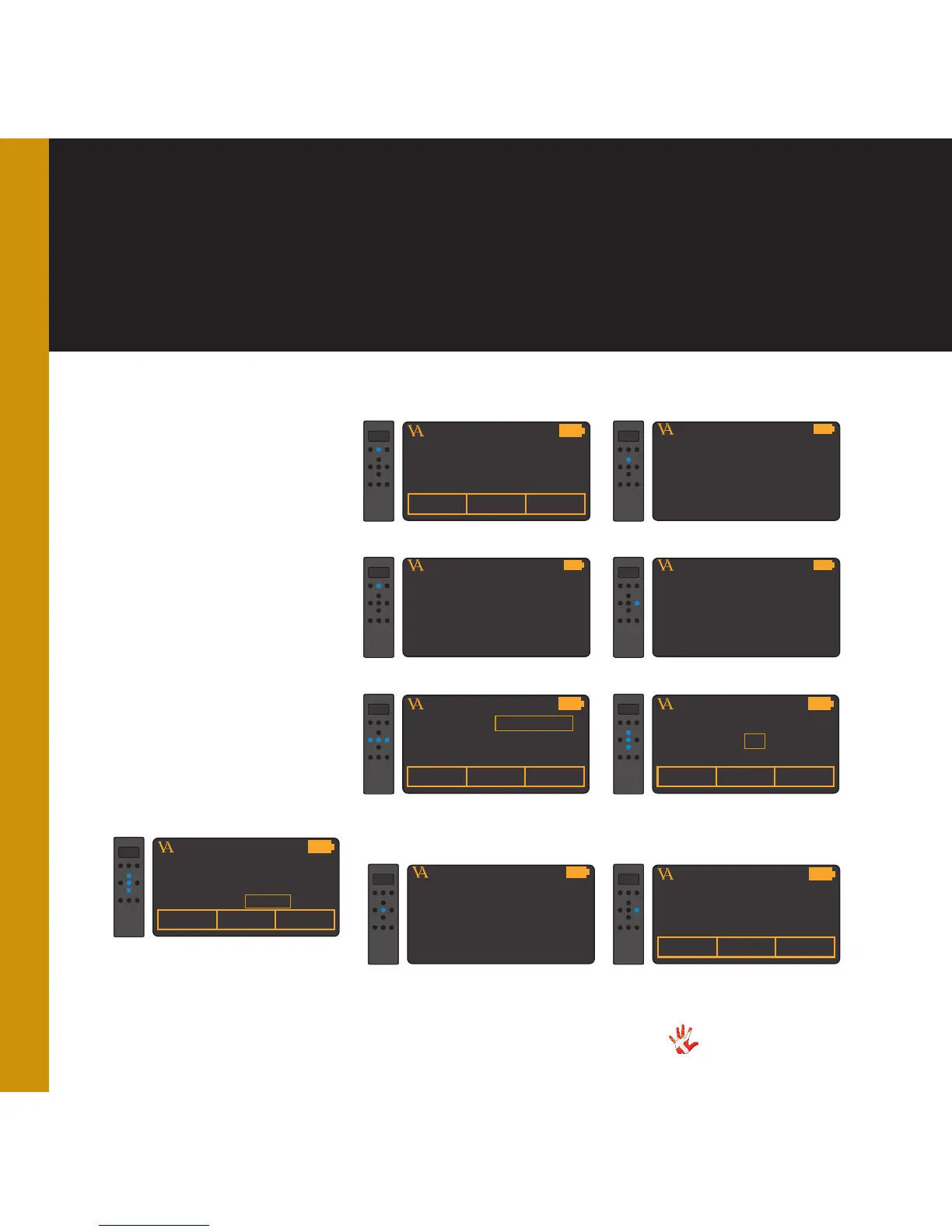
Example 4
Programming the
buttons of a new
product.
You added a new product
(CDPLAYER) to the list of
products in the RC-010. Now
you want to program the
buttons of the RC-010 so
that you can operate the new
product. In the following 9
steps we will show how you
can program the buttons of the
remote.
Important: you need the
RC5 codes of the new
product.
VITUS
PRODUCT
1. Press and hold button 2 for 3
seconds to enter menu mode.
CDPLAYER
VITUS
PRODUCT
NEXT
9.Now the display shows NEXT
when you press button 7.
CDPLAYER
VITUS
LEAVE MENU
2. Navigate to the program key
sub-menu
CDPLAYER
VITUS
PROGRAM KEY
3. Enter the program key sub-
menu.
CDPLAYER
VITUS
SELECT KEY
4. Select the button that you want
to program. We take button 7.
CDPLAYER
VITUS
LEAVE MENU
8. Leave the menu.
CDPLAYER
VITUS
PRODUCT
KEY 05 : RELEASE
CODE= 00
TEXT =
5. Select if the button has to perform
its action when you press the button
RELEASE or when you press and
hold PRESS. We select RELEASE.
CDPLAYER
VITUS
PRODUCT
KEY 05 : RELEASE
CODE= 08
TEXT =
6. Fill in the RC5 code that
belongs to the action that
button 7 performs when you
press it. We fill in 08.
CDPLAYER
VITUS
PRODUCT
KEY 05 : RELEASE
CODE= 08
TEXT = NEXT
7. Give a name to the action
that button 7 performs when
you press it. We give it the
name NEXT.
CDPLAYER



 To Next Page