D
D
D
L
L
L
P
P
P
P
P
P
r
r
r
o
o
o
j
j
j
e
e
e
c
c
c
t
t
t
o
o
o
r
r
r
–
–
–
U
U
U
s
s
s
e
e
e
r
r
r
’
’
’
s
s
s
M
M
M
a
a
a
n
n
n
u
u
u
a
a
a
l
l
l
Adjusting Position/Total Dots/Fine Sync
The Position/Total dots/Fine sync and Keystone Correction can be adjusted manually from the p
jector's control panel or from the remote control unit. Refer to the following guides to adjust the
Keystone Distortion manually.
ro-
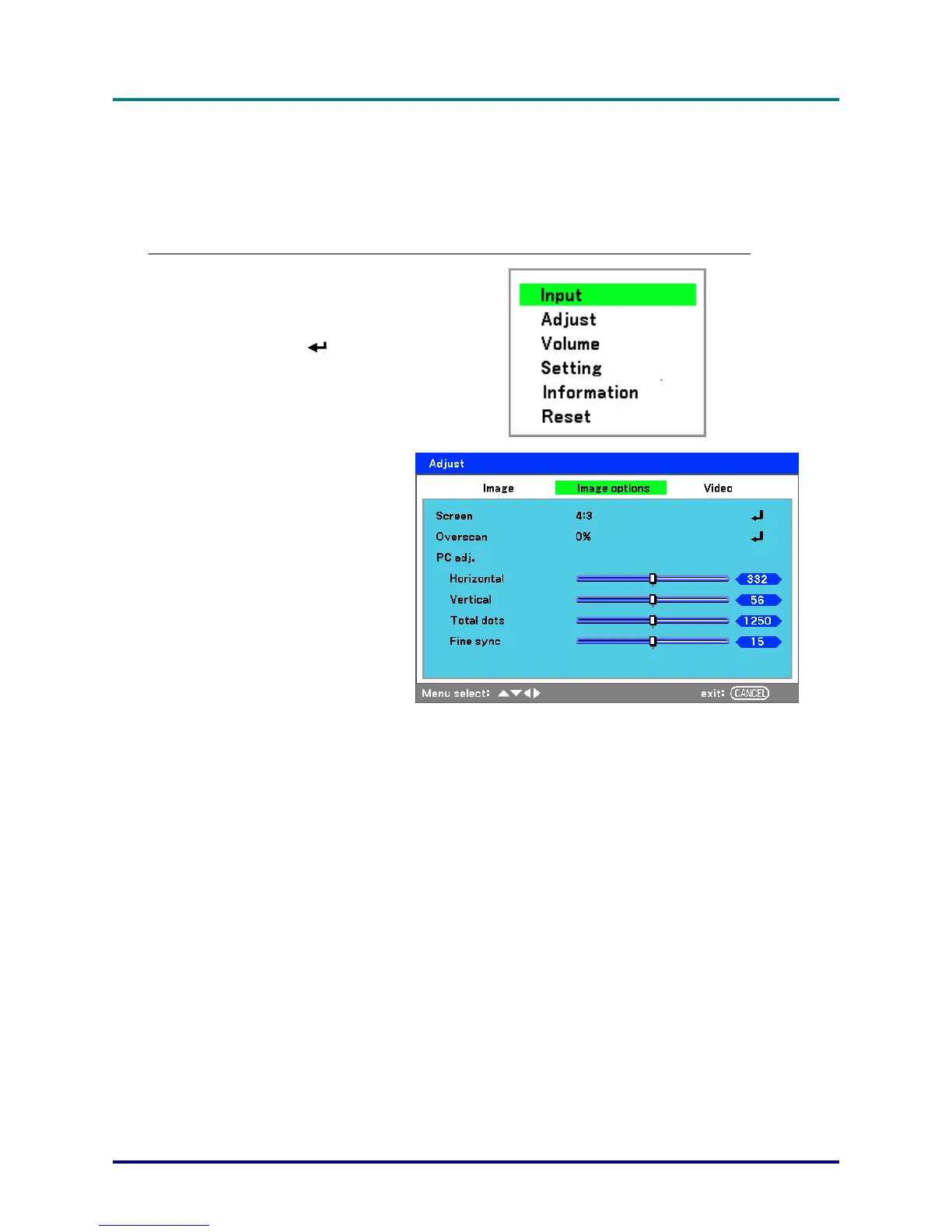
Adjusting Position/Total Dots/Fine Sync by using the OSD Control Panel
1.
Press the Menu button to
display the Main menu. Se-
lect the Adjust menu using
▲or▼ and press
to
display the Adjust menu.
2.
From the Adjust menu,
press ◄or► to select Im-
age Options and scroll
using ▲or▼ to
Horizontal, Vertical, Total
dots, or Fine sync.
3.
Adjust the Horizontal, Ver-
tical, Total dots, or Fine
sync sliding bars using the
select ▲▼◄► buttons.
4.
Press Cancel or Menu to
return to the projected im-
age.
– 37 –


 To Next Page