VIVOTEK - Built with Reliability
124 - User's Manual
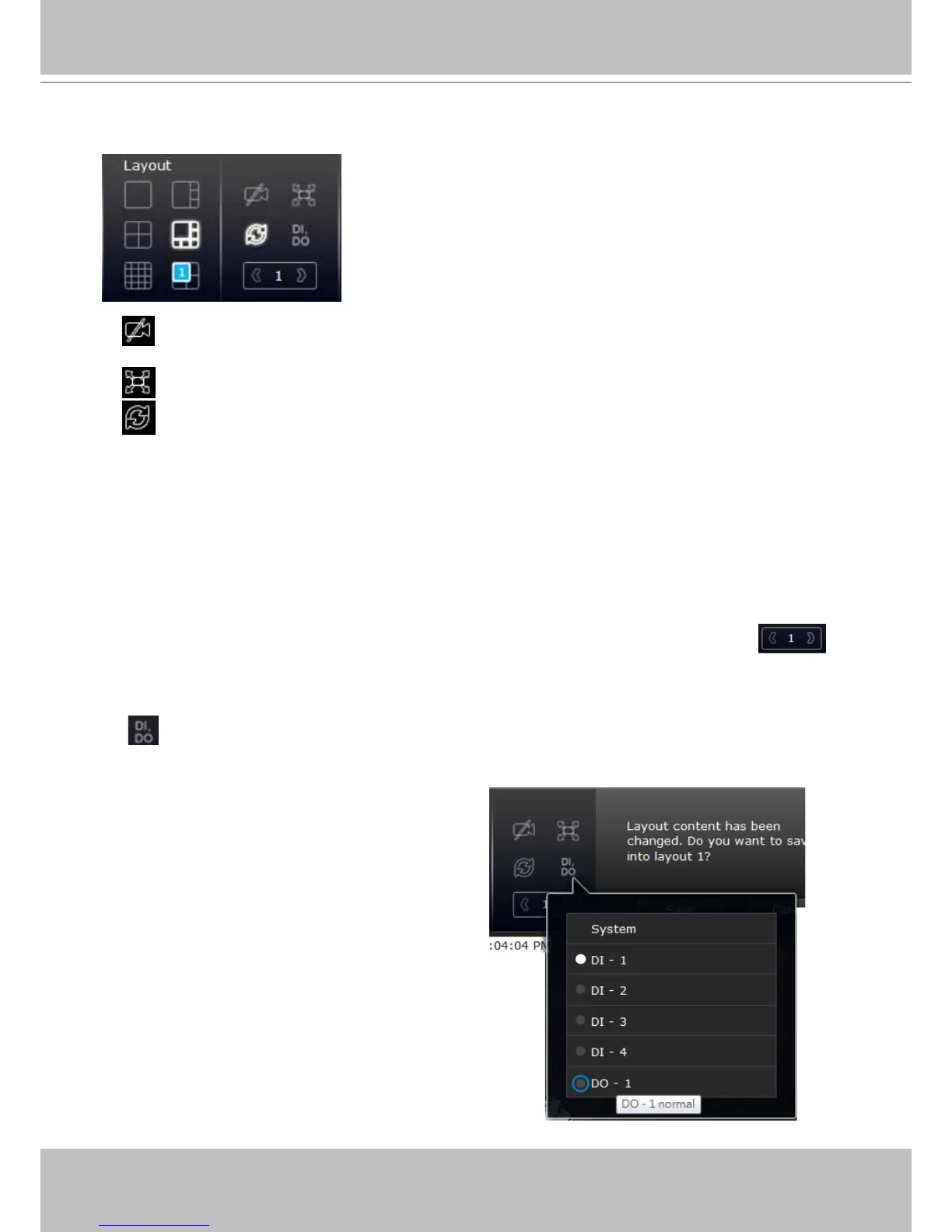
4-1-6. Layout view Control Buttons
1. When editing a user layout, you can use this button to clear all view cells of inserted
cameras.
2. This button extends the current layout to the full of the screen.
3.
The Rotate function lets system display successive pages in a user layout by the
intervals of 10 seconds. The layout page that does not contain camera views will be skipped.
A Rotate action will stop when you
1. move to another page in the user layout,
2. move to another user layout,
3. click to select a view cell,
4. remove a camera from view cell,
5. click to disable the rotation function.
When your current layout spans across multiple pages, use the arrow buttons
to
switch from one page to another. The index number of the current page will be shown between
the arrow buttons.
4. The DI/DO panel displays the current digital input conditions and the manual trigger DO
button. When a DO is triggered, it is indicated by a white circle. Click on the circular button in
front of DO to trigger a DO signal.
A DO signal can also be associated with
the Alarm setting for the NVR to take
related actions, such as the Alarm
recording.
Note that once triggered, the DO signal
will be continuous and the DO-triggered
events will prompt continuously. Click on
the DO button again until the white circle
disappears.


 To Next Page