Operator Manual / 4. Interface
41
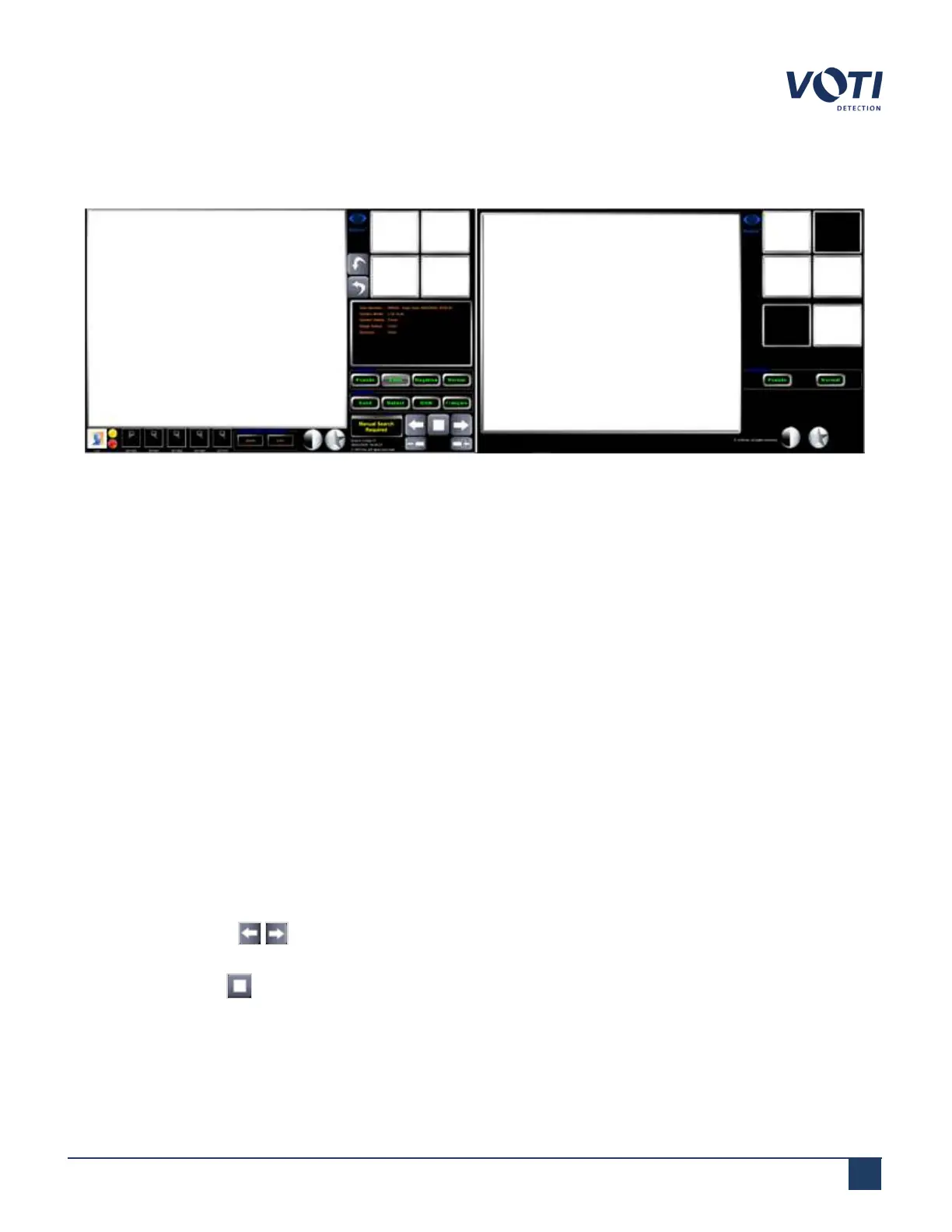
If you have a dual-source XR3D scanner, you can use an optional second monitor that shows a side view of the
scanned object. This allows an operator to view the scanned item in different views independent of the main monitor.
Figure 21 - Standard User Interface - Optional Second Screen
4.2 Main viewing screen
The main viewing screen displays a large image of the scanned item. An administrator or supervisor sets the default
image in the General Settings section of the administration module. It is in the Main Viewing Screen that the
operator controls how the image displays. For example, double-clicking in the Main Viewing Screen toggles Zoom and
Pan operations.
There are thumbnail versions of the current scan (for example, Organic/Inorganic/Black & White) that appear in the
Alternate Scan View area. Clicking a thumbnail of the scan view causes the thumbnail version to display in the Main
Viewing Screen. The image that was previously in the main viewing screen now displays as a thumbnail in the
Alternate Scan View Area.
4.3 Image controls
Image controls allow the operator to start or stop a scan and control how the image displays in the main viewing
screen.
l Directional arrows start the conveyor belt in either direction, which starts the 3D perspective scan of the
item.
l
Clicking the stop button stops the conveyor belt and stops X-ray generation.
© VOTI2020 / 900116-001


 To Next Page