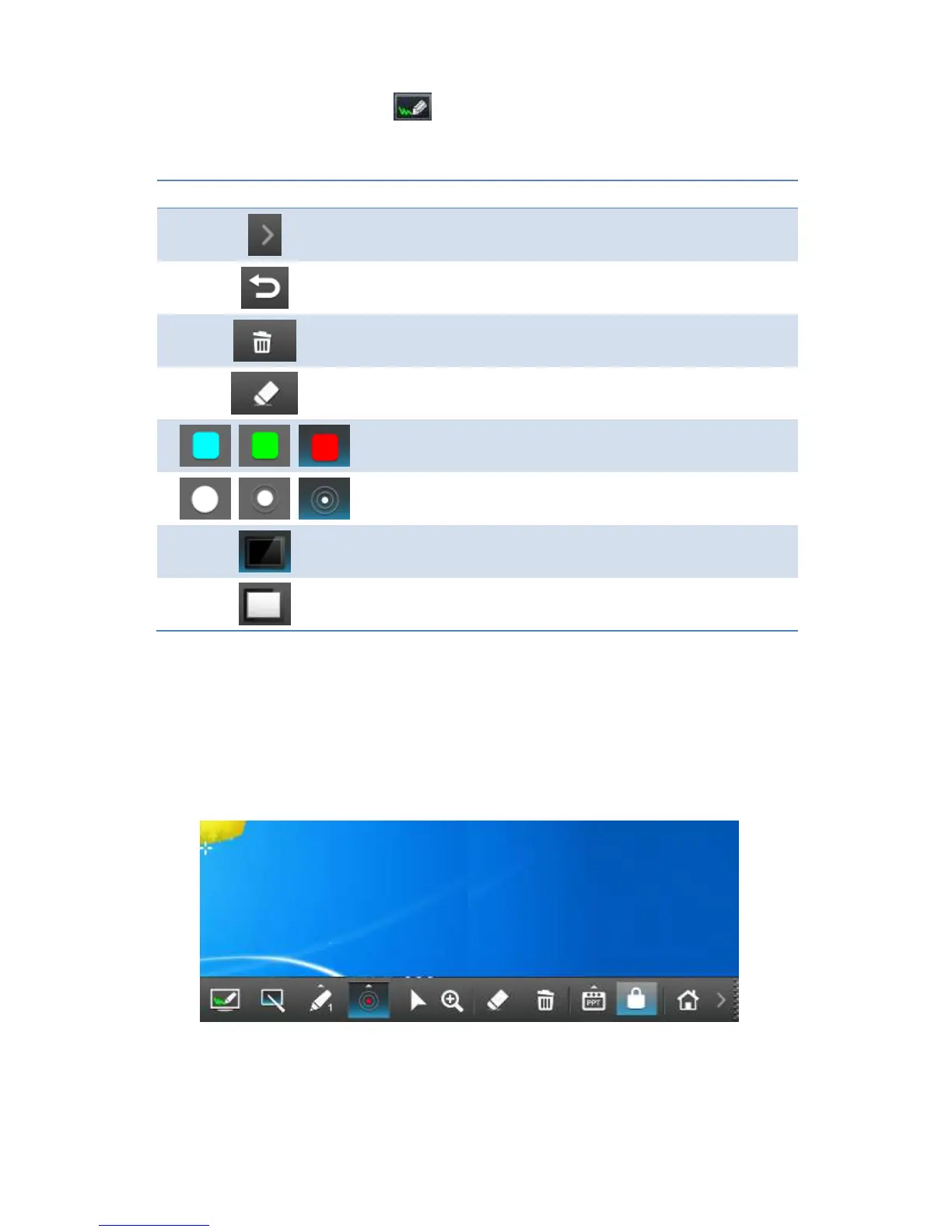
Click on the “direct draw” icon, the menu will pop up as below image.
Pen Menu Function
Open/Minimize all Pen menu bar.
Home, Go back to wePresent home standby screen.
Clear all of the drawing/writing on the screen.
Erase part of drawing/writing.
Select the pen color. (Red, Green, Blue)
Select the size of the pen. (Small, Medium, Big)
Click to use the blackboard. (All the drawing/writing will be
cleared when changes to different mode)
Click to use the whiteboard. (All the drawing/writing will be
cleared when changes to different mode)
7.7 Pen Menu Function Under Projecting Mode.
1) When users are projecting through Windows, Mac, Android and iOS application,
any Win7/8 standard HID compatible device (i.e AirPad/Mouse/IWB/Touch Screen)
can be used for Pen feature. Users can do free drawings/writings and annotation
on the projecting screen.



 To Next Page