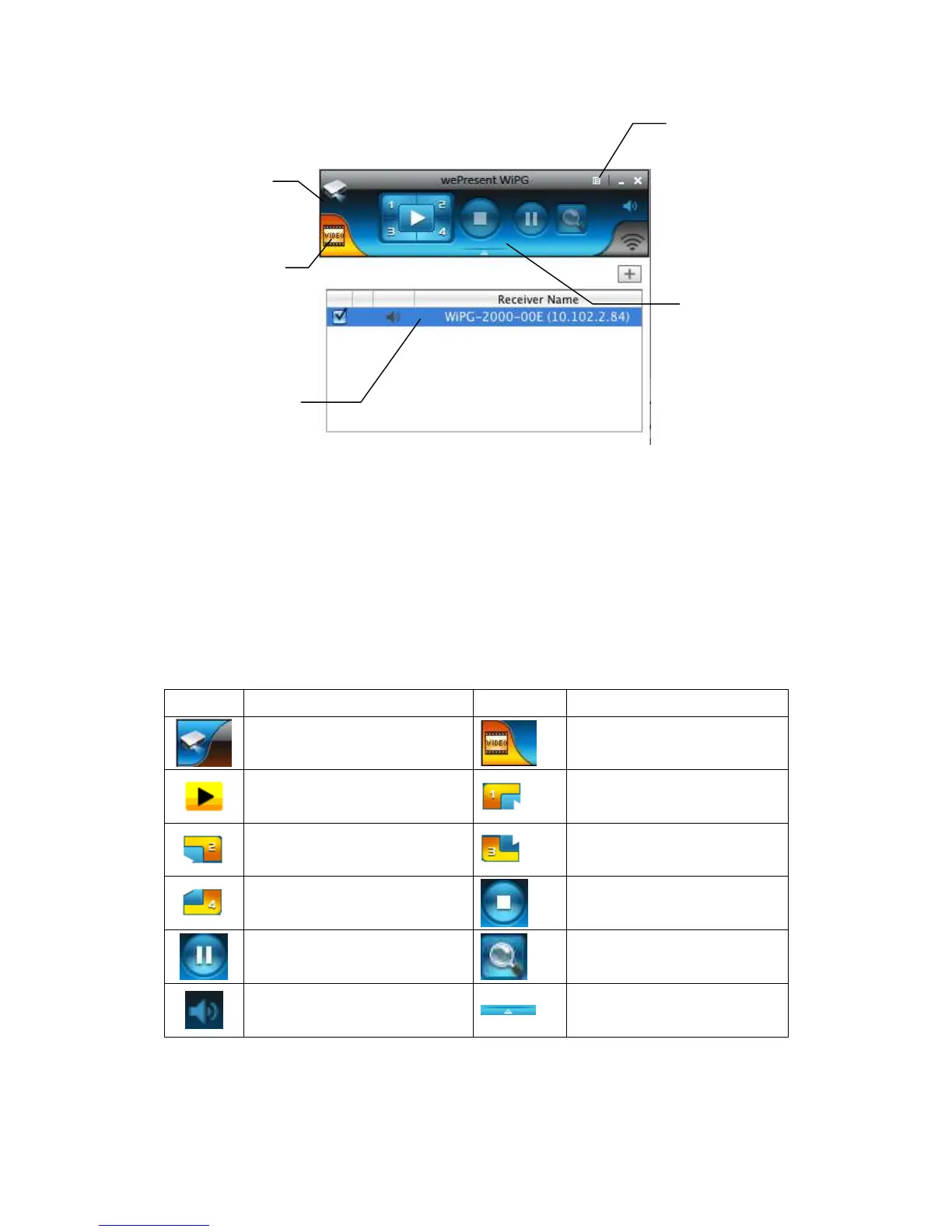
9.6 Main User Interface
9.7 Screen Projection
1) Click the “Play” button for full or “1,2,3,4” for split screen projection, you can
project the main screen on to the display immediately. Click the “Pause” button,
you can freeze you projection screen, and click the “Stop” button to stop projecting
your screen.
Presentation Function Tab
Full Screen projection (Support
audio projection)
Project to Split #1 (Support
audio projection)
Project to Split #2 (No audio
projection)
Project to Split #3(No audio
projection)
Project to Split #4(No audio
projection)
Mute/Unmute for screen
projection
Open/Hide Connected Receiver
List
Note: For audio feature, please install the SoundFlower on your computer first, you
can find the software from USB Token.
Control Area for
Screen Projection
Feature
Presentation
function
tab
Connected
Receiver list Area



 To Next Page