page 9 – 5
D-5000 / July 2000
V I R T U A L D I P S W I T C H
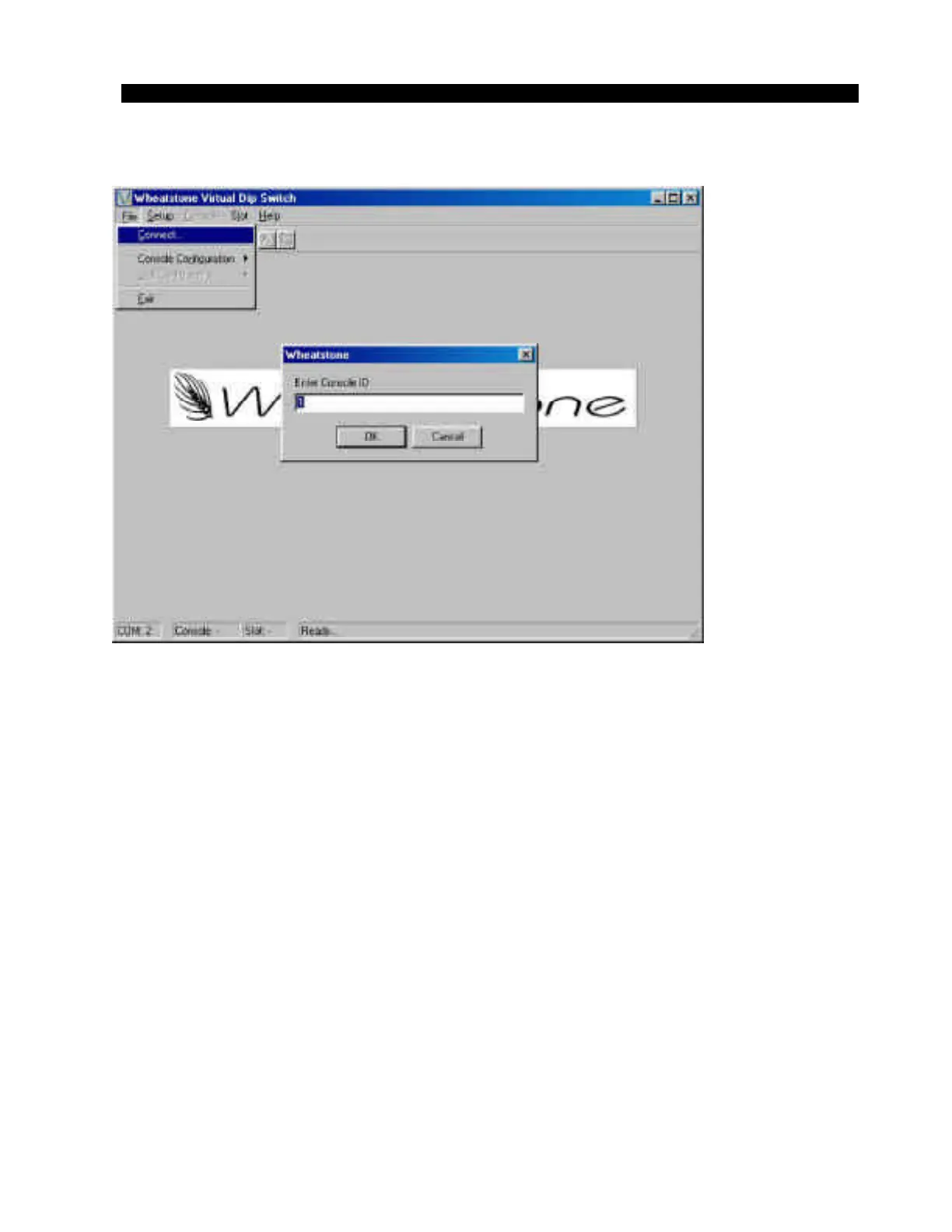
Figure 3
Using the Program
Once you have established communications with the console, the
various screens and menus can be used to control the console functions.
The program will inquire about the current settings in the console and will
display them to you on the status display screen (see Figures 4, 5). This
screen shows the status of all of the input module functions, one module
at a time. Functions can be changed by clicking on the function with your
mouse ; a selected function shows a check box, a de-selected function
shows a blank box. Towards the bottom right of the window is an area
where you can enter text to be displayed on the input module display. Note
that there are two boxes, one for “A” and one for “B”; different text can be
entered in these boxes such that switching from input “A” to input “B” on
the module automatically changes the display. You might for instance
label the input channel “A” display “NEWS” and the “B” display “GUEST
2” to correspond to how your console audio is wired. Any standard
keyboard character can be used; just remember that the displays are
limited to 8 characters, including blanks and punctuation.



 To Next Page