EasyManua.ls Logo

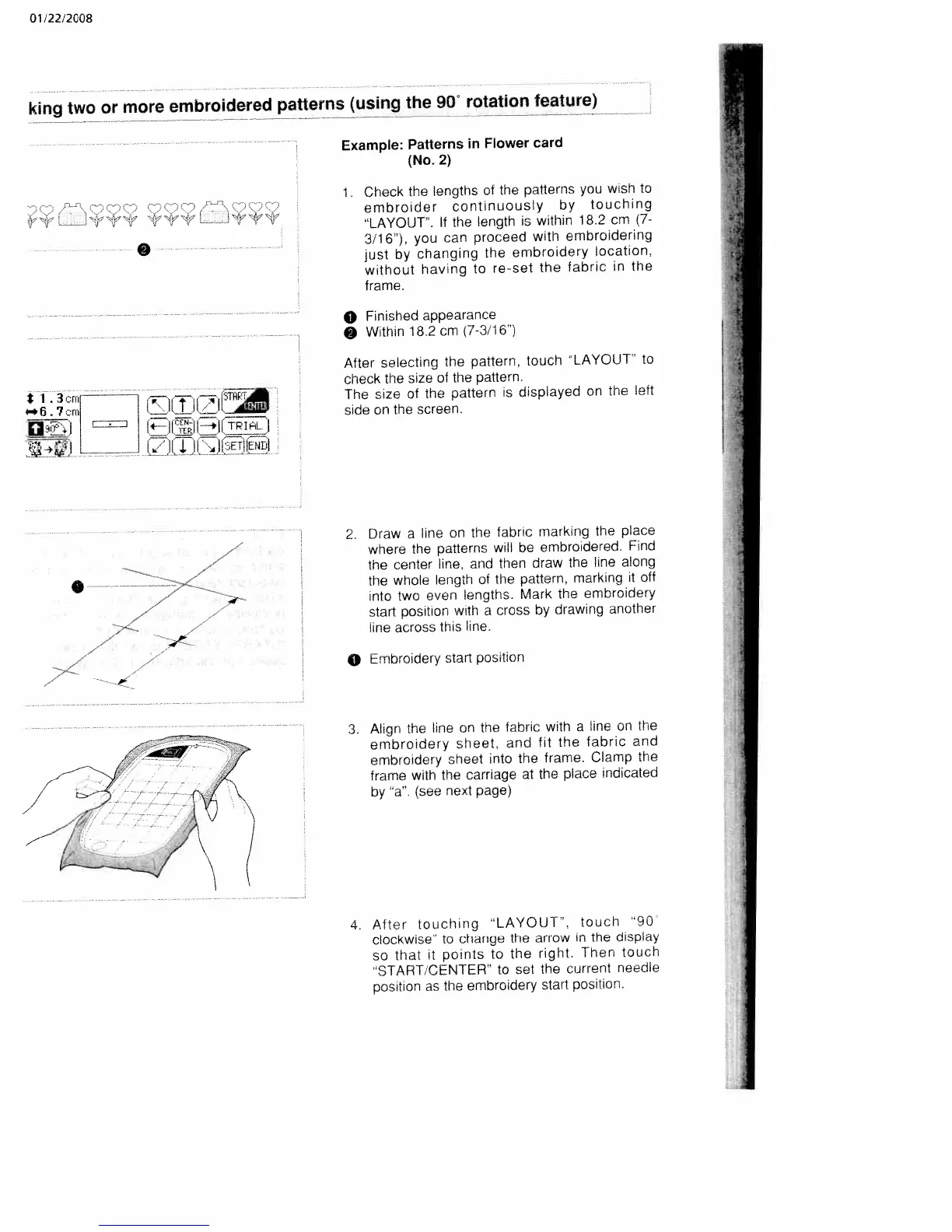
White W3300 - Check Pattern Lengths with LAYOUT; Mark Fabric and Align with Sheet; Set Start Position with 90° Rotation

Default Icon
73 pages
Print Icon
To Next Page IconTo Next Page
To Previous Page IconTo Previous Page
Loading...
01/22/2008
king
two
or
more
embroidered
patterns
(using
the
90”
rotation
feature)
Example:
Patterns
in
Flower
card
(No.
2)
1
Check
the
lengths
of
the
patterns
you
wish
to
embroider
continuously
by
touching
“LAYOUT’.
If
the
length
is
within
18.2
cm
(7-
O
3/16’).
you
can
proceed
with
embroidering
just
by
changing
the
embroidery
location,
without
having
to
re-set
the
fabric
in
the
frame.
o
Finished
appearance
Within
18.2
cm
17-3/16’)
After
selecting
the
pattern,
touch
LAYOUT”
to
check
the
size
of
the
pattern.
*
1
3cm
—---.
.—-STiiF
The
size
of
the
pattern
is
displayed
on
the
left
7
.m
Ijlilli
1
side
on
the
screen
cz::D
L_
.‘jJ,w
4
llEnENDl
2.
Draw
a
line
on
the
fabric
marking
the
place
where
the
patterns
will
be
embroidered.
Find
the
center
line,
and
then
draw
the
line
along
o
the
whole
length
of
the
pattern,
marking
it
off
into
two
even
lengths.
Mark
the
embroidery
start
position
with
a
cross
by
drawing
another
line
across
this
line.
0
Embroidery
start
position
3.
Align
the
line
on
the
fabric,
with
a
line
on
the
embroidery
sheet.
and
fit
the
fabric
and
embroidery
sheet
into
the
frame.
Clamp
the
frame
with
the
carriage
at
the
place
indicated
by
“a”.
(see
next
page)
4
After
touching
“LAYOUT’,
touch
“90
clockwise”
to
change
the
arrow
in
the
display
so
that
it
points
to
the
right.
Then
touch
‘START
CENTER”
to
set
the
current
needle
position
as
the
embroidery
start
position.

Table of Contents

Related product manuals