EasyManua.ls Logo

Wunder-Bar JoeTap NITCOM - Page 58

Default Icon
95 pages
Print Icon
To Next Page IconTo Next Page
To Previous Page IconTo Previous Page
Loading...
Page | 58
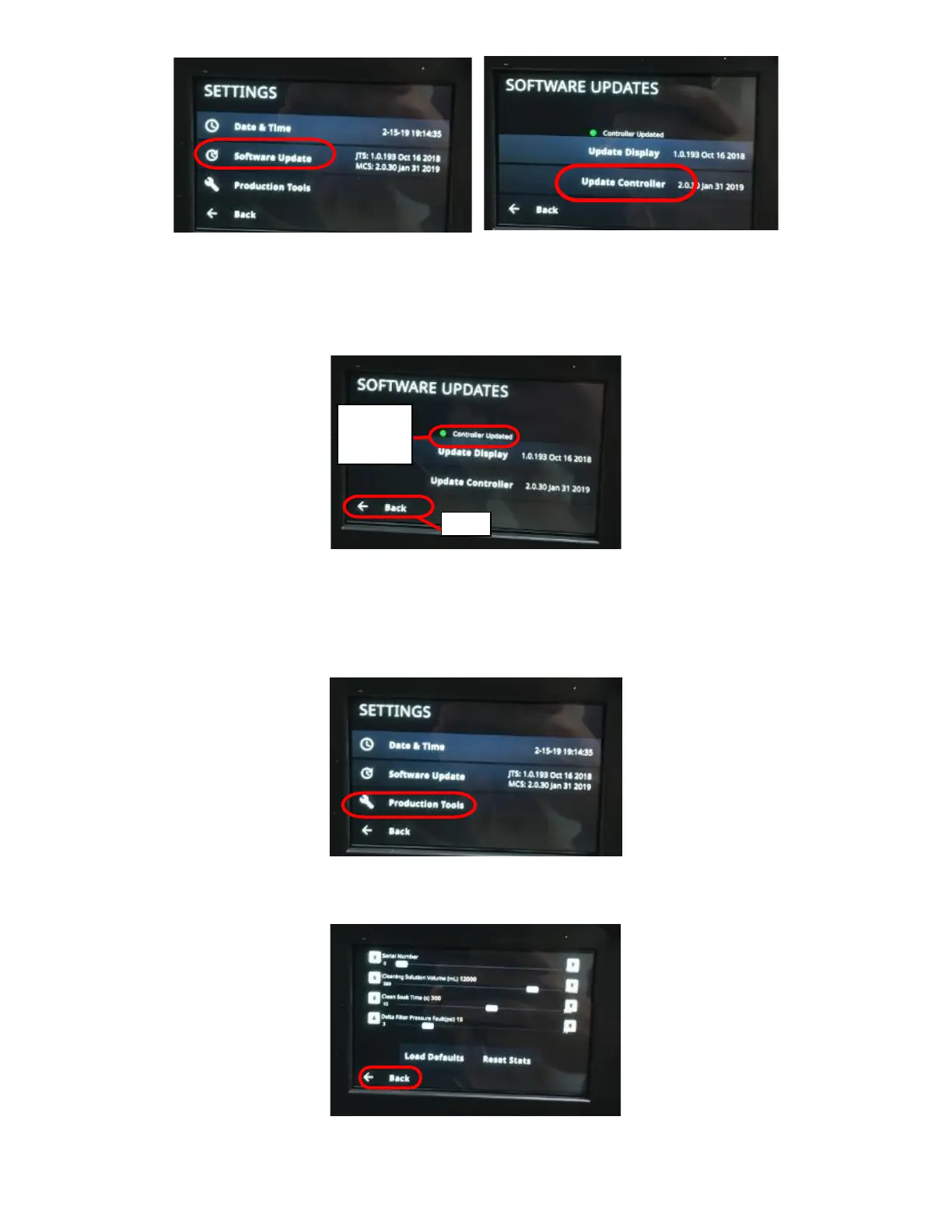
11. Controller update takes about one minute to complete.
12. Verify “Controller Updated” with Green LED next to it appears after completion. See Figure E9.
13. Select BACK until home screen is reached. See Figure E9.
14. Select Settings from the Home Screen.
15. Select PRODUCTION TOOLS. See Figure E10.
16. Enter passcode 2186.
17. Select LOAD DEFAULTS. See Figure E11.

Figure E8: Software Update Screen with Update
Controller Circled.
Figure E7: Settings Screen with Software Update
Circled.
Back
Figure E9: Settings Screen with Software Update
Circled.
Figure E10: Settings Screen with Production
Tools Circled.
Figure E11: Production Tools Screen with Load
Defaults and Reset Stats Circled.
Controller
Updated
LED

Table of Contents

Related product manuals