Page | 57
Appendix E: Software Update
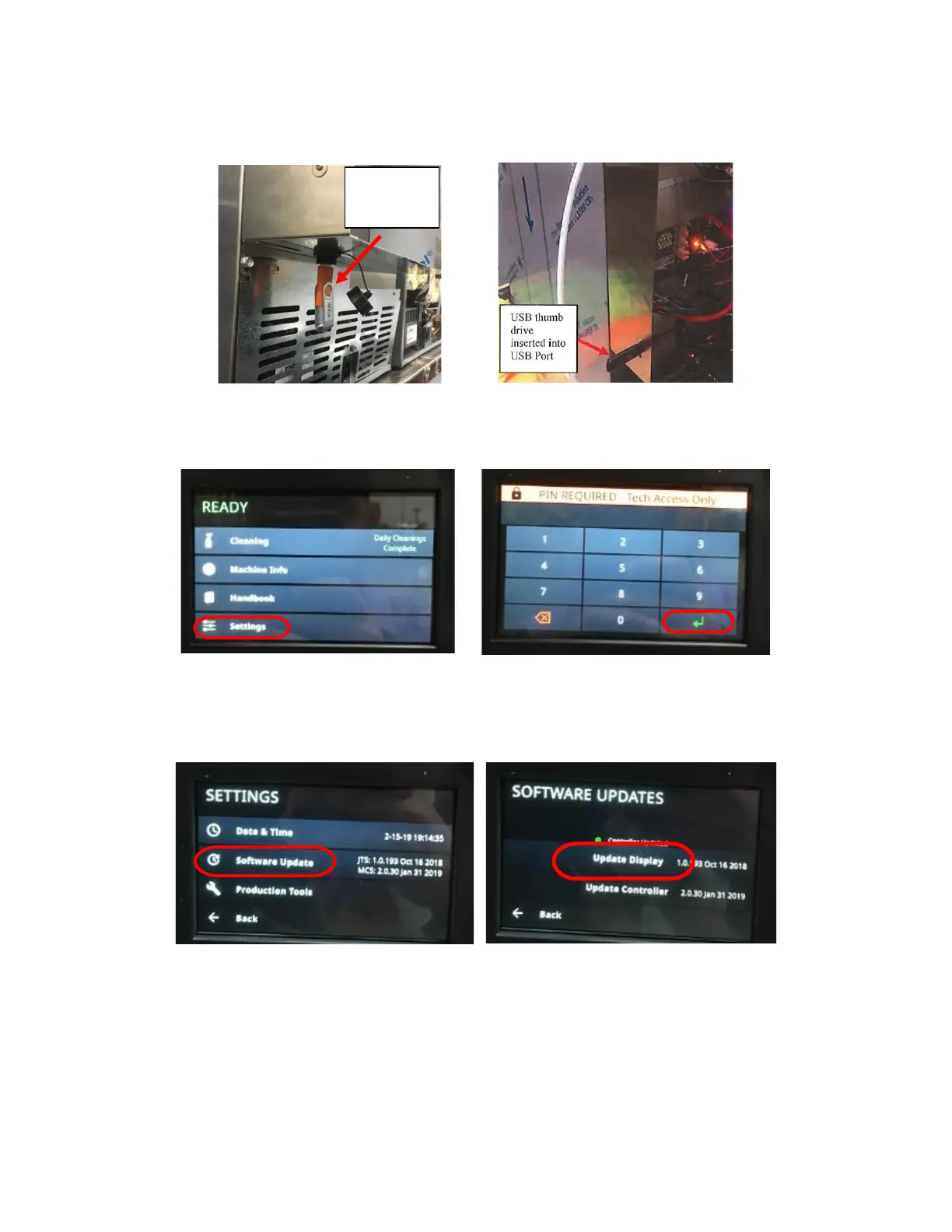
1. Insert USB thumb drive containing release software/firmware into USB Port located on the left side Rear Enclosure
as seen from the Rear of the Unit. The USB Port will be located directly under the vent holes on the Rear Enclosure
Cover Panel in newer models. See Figures E1 and E2.
2. Select SETTINGS. See Figure E3.
3. Enter passcode 2186 and select enter. See Figure E4.
4. Select SOFTWARE UPDATES. See Figure E5.
5. Select UPDATE DISPLAY. See Figure E6.
6. Allow the system to reboot. The screen will return to the Home Screen once the system has fully rebooted.
7. Select SETTINGS. See Figure E3.
8. Enter passcode 2186. See Figure E4.
9. Select SOFTWARE UPDATES. See Figure E7.
10. Select UPDATE CONTROLLER. See Figure E8.



 To Next Page