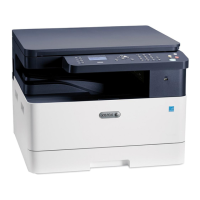
CClleeaarriinngg PPaappeerr JJaammss ffrroomm tthhee OOppttiioonnaall TTrraayy 22
To resolve the error that appears on the control panel, clear all jammed paper from the paper path.
Note: If the jammed paper does not move as you pull it, or if there is no jammed paper in the
optional Tray 2 area, refer to Clearing Paper Jams from Inside the Printer.
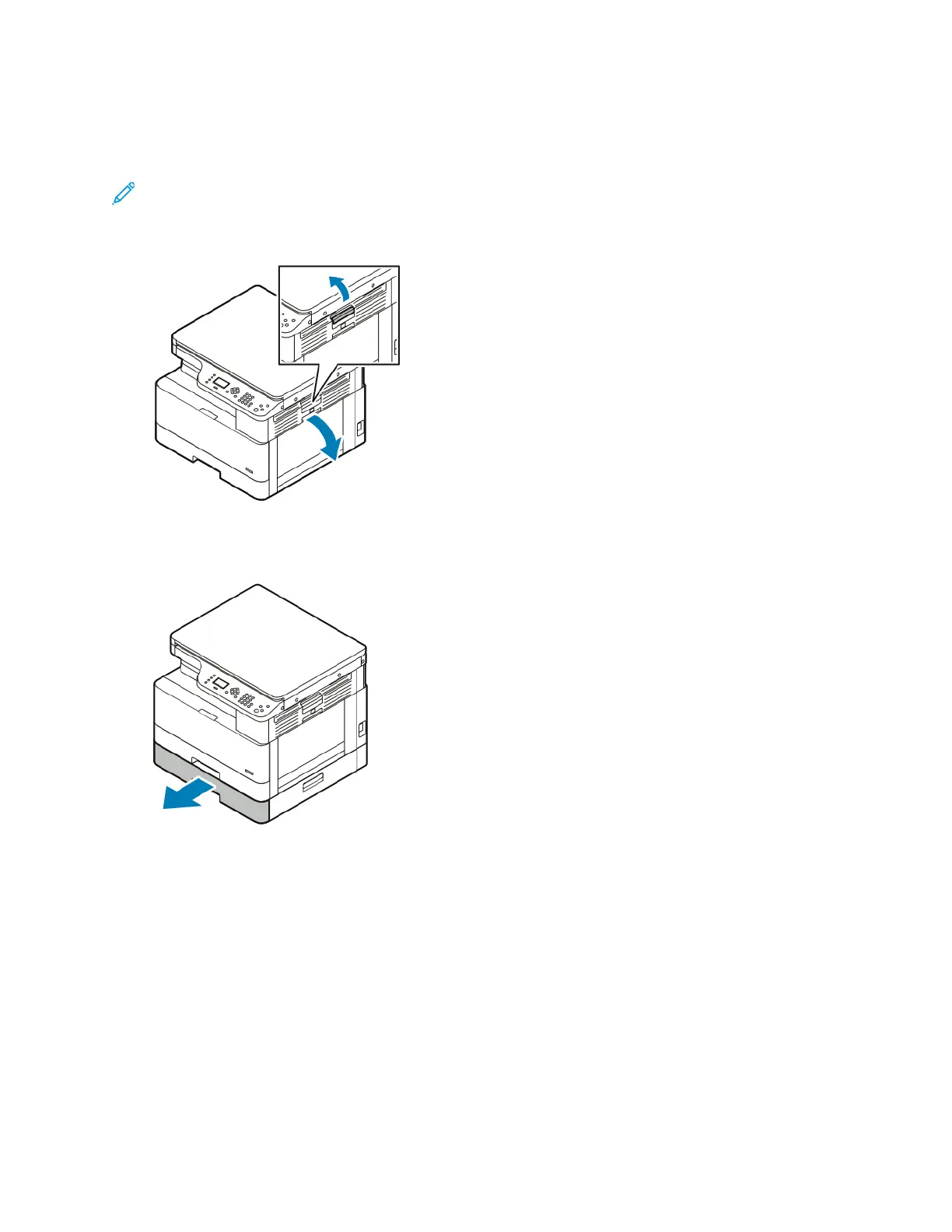
1. To open the side cover of the printer, press the release lever.
2. To remove jammed paper from the side of the printer, pull the jammed paper toward you.
3. To remove jammed paper from the optional Tray 2, pull out Tray 2 until it stops.
Xerox
®
B1022 Multifunction Printer
User Guide
133
Troubleshooting


 To Next Page
 Loading...