EasyManua.ls Logo

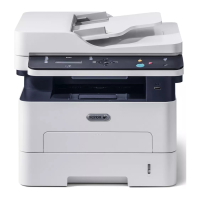
Xerox B205 - User Manual

Xerox B205
270 pages
Print Icon
To Next Page IconTo Next Page
Loading...
Version 1.0
august 2019
702P07600
Xerox
®
B205
Multifunction Printer
User Guide

Table of Contents

Other manuals for Xerox B205

Questions and Answers

  • D
    Danielle ReevesAug 14, 2025
    Why does my Xerox B205 All in One Printer reset or power off frequently?
    • Y
      ybakerAug 14, 2025
      If your Xerox All in One Printer resets or powers off frequently, consider these possible causes: * The power cord may not be properly connected to the outlet. Power off the printer, ensure the power cord is correctly plugged into the printer and the outlet, then power it back on. * A system error might have occurred. Power off the printer, then power it back on. If the error continues, contact a service representative. * The printer might be connected to an uninterruptible power supply. Power off the printer, and connect the power cord to a suitable outlet. * The printer could be connected to a power strip shared with other high-power devices. Plug the printer directly into the outlet or into a power strip that is not shared with other high-power devices.
  • O
    oreedAug 17, 2025
    Why my Xerox B205 fails to power on?
    • G
      Gordon JensenAug 17, 2025
      If your Xerox All in One Printer fails to power on, there are several possible causes: * Ensure the power switch is on. Press the Power On/Off button on the printer control panel. * Check that the power cord is correctly plugged into both the printer and the outlet. Power off the printer before checking, then power it back on. * Try a full reset: Power off the printer, unplug the power cord, wait 30 seconds, then plug it back in and power on the printer. * Verify the outlet is working by plugging another electrical appliance into it or try a different outlet. * Confirm that the outlet voltage and frequency match the printer's specifications, as listed in Electrical Specifications.
  • C
    courtneymurphyAug 21, 2025
    What to do if Xerox All in One Printer print job fails to print?
    • R
      Robert GravesAug 21, 2025
      If your Xerox All in One Printer print job fails to print, it could be due to several reasons: * The printer might have an error. Try turning the printer off and then on again to clear the error. If the problem continues, contact a service representative. * The printer might be out of paper. Load paper into the tray. * The toner cartridge could be empty. Replace the empty toner cartridge. * The power cord may not be correctly plugged into the outlet. Power off the printer, check the connection, and then power the printer back on.
  • N
    Nicole MartinezAug 28, 2025
    How to fix Xerox All in One Printer printing from the wrong tray?
    • P
      pewingAug 28, 2025
      If your Xerox All in One Printer prints documents from the wrong tray, it is possible that the application and print driver have conflicting tray selections. To resolve this: 1. In the print driver, make sure you have selected the correct tray. 2. Go to the application you are printing from, and access the page setup or printer settings. 3. Set the paper source to match the tray selected in the print driver, or set the paper source to Auto Select.
  • T
    Travis BoydSep 1, 2025
    Why has condensation formed inside my Xerox B205?
    • K
      kelly21Sep 1, 2025
      If condensation has formed inside your Xerox All in One Printer, it could be due to: * The printer sitting in a cold room. Allow it to acclimate for several hours before operating. Also, allow the printer to operate for several hours at room temperature. * High relative humidity in the room. Reduce the humidity or move the printer to a location where the temperature and relative humidity are within the operating specifications.
  • D
    Dale Acosta DDSSep 5, 2025
    What to do if my Xerox B205 All in One Printer makes unusual noises?
    • D
      Douglas Ibarra MDSep 5, 2025
      If your Xerox All in One Printer is making unusual noises, there may be an obstruction or debris inside the printer. To address this: 1. Power off the printer. 2. Remove any obstruction or debris. If you cannot remove the obstruction or debris, contact a service representative.
  • S
    shannonwilliamsSep 9, 2025
    What to do if paper tray fails to close on Xerox B205?
    • A
      Andrea BaxterSep 9, 2025
      If the paper tray on your Xerox All in One Printer fails to close, it might be due to debris or an object blocking it. Remove any debris or objects that are obstructing the paper tray.
  • M
    Mr. Jesse FloresNov 24, 2025
    Why is printing taking too long on my Xerox B205 All in One Printer?
    • R
      Robert BrennanNov 24, 2025
      If printing takes too long on your Xerox All in One Printer, here's what might be happening: * The printer might be set to a slower printing mode, such as printing on heavy weight paper. Check the paper type setting in the print driver and on the printer control panel to ensure it is set correctly. * The printer could be in power saver mode, which delays the start of printing. * The way the printer was installed on the network may be causing delays. Check if a print spooler or a computer sharing the printer is buffering print jobs. To test the printer speed, print information pages and if the page prints at the rated speed, check for a network or printer installation issue. * The job may be complex, so wait for the document to finish printing. * The print quality mode in the pri...

Summary

Safety

Electrical Safety

Guidelines for safe use of electrical components, emergency power off, and laser safety.

Operational Safety

Guidelines for safe operation and handling of the printer.

Getting Started

Power Options

How to power the printer on, off, and use power saver modes.

Installation and Setup

Installation and Setup Overview

Steps to connect and configure the printer for first-time use.

Initial Setup

Physical connection, network address, administration access, USB connection, and wizard.

General Setup

Configure basic settings via control panel or web interface.

Network Connectivity

Configure wired and wireless network connections.

Using the Services

Copy

Make copies using printer features like layout, ID copy, and options.

Email

Scan documents and send them via email with various options.

Scan

Scan documents to PC, network, email, or USB using different methods.

Printing

Printing Using Windows

Procedures and options for printing from Windows, including tabs like Paper, Graphics, Advanced.

Printing Using Macintosh

Procedures and options for printing from Macintosh, including Media & Quality, Layout.

Printing Using Linux

Procedures and options for printing from Linux, including application and CUPS printing.

Paper and Media

Loading Paper

Instructions for loading paper into trays, manual feed slot, and envelope mode.

Maintenance

General Precautions

Important safety warnings before performing maintenance.

Cleaning the Printer

Procedures for cleaning printer exterior, interior, ADF, and control panel.

Troubleshooting

General Troubleshooting

Restarting the printer, power issues, and tray selection problems.

Paper Jams

Minimizing, locating, and clearing paper jams from various printer areas.

Printing Problems

Troubleshooting common printing issues for Windows, Linux, Mac, and PostScript.

Print-Quality Problems

Identifying and resolving issues affecting print quality like streaks, spots, and smearing.

Copy and Scan Problems

Troubleshooting issues with copy and scan functions, including skew and blank copies.

Xerox B205 Specifications

General IconGeneral
Print technologyLaser
Maximum resolution1200 x 1200 DPI
Booklet printing functionYes
Time to first page (black, normal)8.5 s
Print speed (black, normal quality, A4/US Letter)30 ppm
Digital sender-
Printing colorsBlack
Country of originChina
Maximum duty cycle30000 pages per month
Number of print cartridges1
Page description languagesPCL 5, PCL 6, PostScript 3, XPS
Maximum copy resolution600 x 600 DPI
Time to first copy (black, normal)14 s
Scan toE-mail, FTP, SMB, USB
Scanner typeFlatbed & ADF scanner
Maximum scan area216 x 356 mm
Image formats supportedJPG, TIFF
Maximum scan resolution4800 x 4800 DPI
Document formats supportedPDF
Optical scanning resolution (black)1200 x 1200 ppi
DisplayLCD
Product colorBlack, White
Market positioningBusiness
Display number of lines2 lines
Wi-Fi standards802.11b, 802.11g, Wi-Fi 4 (802.11n)
Cabling technology10/100Base-T(X)
Ethernet LAN data rates10, 100 Mbit/s
Mobile printing technologiesApple AirPrint, Google Cloud Print, Mopria Print Service
USB connectorUSB Type-A / USB Type-B
USB 2.0 ports quantity2
CompatibilityXerox B205
Internal memory256 MB
Paper input typePaper tray
Total input capacity250 sheets
Total output capacity120 sheets
Multi-Purpose tray input capacity1 sheets
Auto document feeder (ADF) input capacity40 sheets
Paper tray media weight60 - 163 g/m²
Multi-purpose tray media typesBond paper, Envelopes, Heavyweight paper, Labels, Plain paper, Preprinted forms, Thicker paper, Transparencies
Maximum ISO A-series paper sizeA4
Multi-Purpose Tray media weight60 - 220 g/m²
Auto Document Feeder (ADF) media weight60 - 120 g/m²
Power consumption (standby)46 W
Power consumption (PowerSave)2 W
Power consumption (average operating)417 W
Mac operating systems supportedMac OS X 10.10 Yosemite, Mac OS X 10.11 El Capitan, Mac OS X 10.12 Sierra, Mac OS X 10.13 High Sierra, Mac OS X 10.14 Mojave, Mac OS X 10.9 Mavericks
Server operating systems supportedWindows Server 2008, Windows Server 2008 R2, Windows Server 2012, Windows Server 2012 R2, Windows Server 2016, Windows Server 2019
Windows operating systems supportedWindows 10, Windows 7, Windows 8
Cables includedUSB
Included cartridge capacity (black)1500 pages
Recommended monthly print volume2500 pages
Package weight13000 g
Operating temperature (T-T)10 - 32 °C
Operating relative humidity (H-H)20 - 80 %
Harmonized System (HS) code84433100
Weight and Dimensions IconWeight and Dimensions
Depth430 mm
Width490 mm
Height480 mm

Related product manuals